
Build a board
Start a Studio board from a starter flow or from nothing, put cards on it from Add or your Library, wire them together, and let Auto layout keep it in order.

A board is the plan of what Studio makes: cards for each thing to make, wired in the order one builds on the next. You can start from a starter flow, which lays out a working set of cards, or from an empty board. Building costs nothing; only running a card does.
Before you start
- You are an owner, an admin or a member of the workspace.
- Something to build on, such as an angle in your Library. Without one, a card can make it first.
- About five minutes.
Start a new board
Open Studio
In the sidebar, under Generation, choose Studio. It opens on the newest board of your store. A store without a board opens on an empty one, which reads Start anywhere.
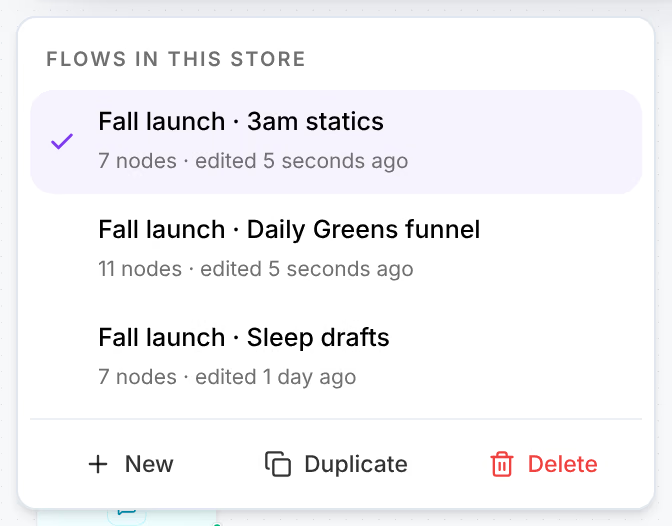
Press the arrow beside the board's name, then New
The arrow is All flows, in the pill at the top left. Its menu lists Flows in this store; New opens an empty board, named Untitled flow.
Name it
Double-click the name, type a new one, and press Enter.
Start from a starter flow
An empty board offers three starter flows. All five are under Add, bottom left, in Flows. Press one: its cards land on the board, wired together, and the first card that still needs something opens beside it. The line under each starter says what to bring, such as Bring: A marketing angle.
Add a card
Rest the pointer on Add
Add, at the bottom left, unrolls into Inputs, Strategy and Creative.
Choose a kind
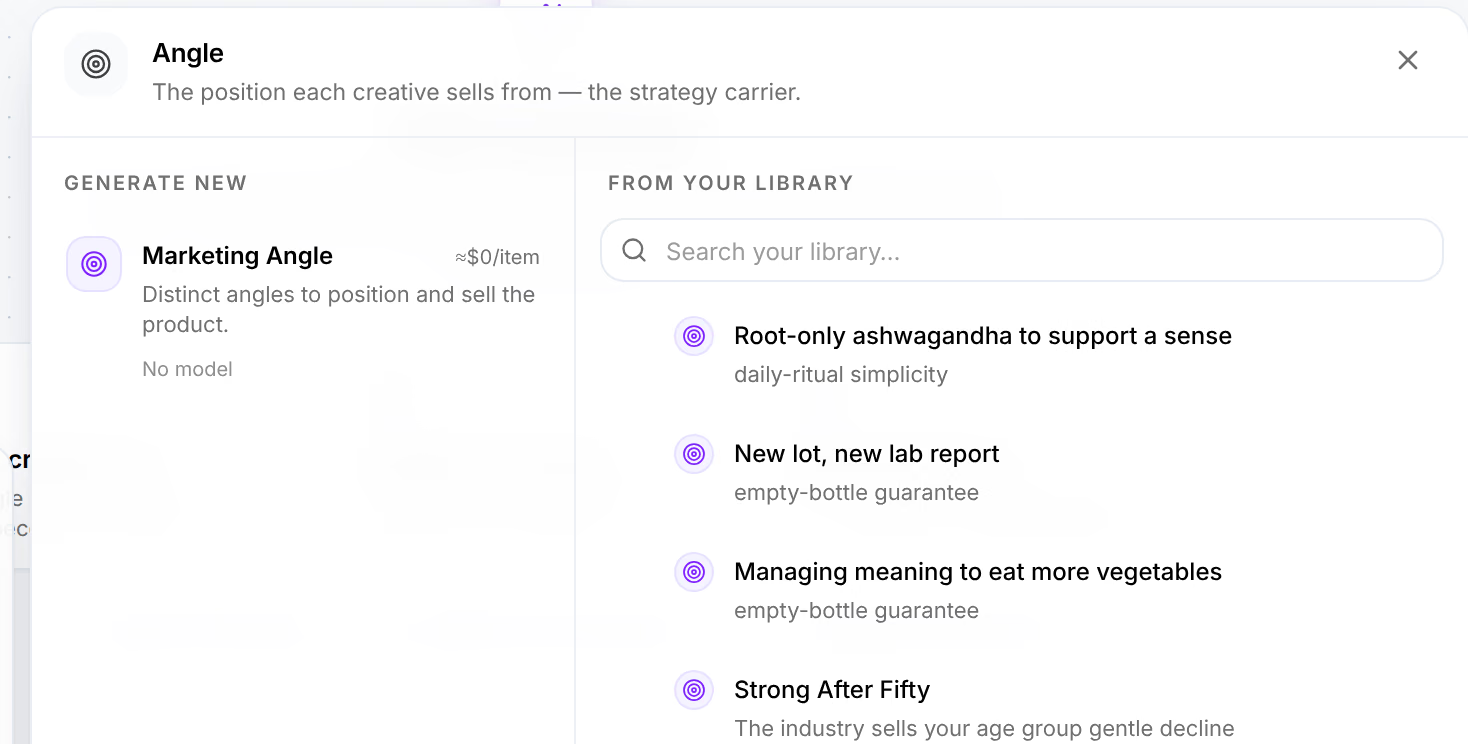
Press one, such as Angle. Its tray opens: Generate new lists the cards that make one, From your library the ones you already have.
Place it
Press a card in the tray, or drag it onto the board.

You can also double-click an empty part of the board, or press /, and search everything there is to add.
An item from your Library brings what it was made from. An angle lands with its avatar, the research behind it and its product, each joined to the next by a dotted line. They are what the cards you wire it into are built on.
Wire two cards
Drag from the dot on the right edge of a card and drop it on the card it should feed. While you drag, the inputs that can take it light up; drop it on one, such as Overlay on an Images card, and the wire takes that input's name.
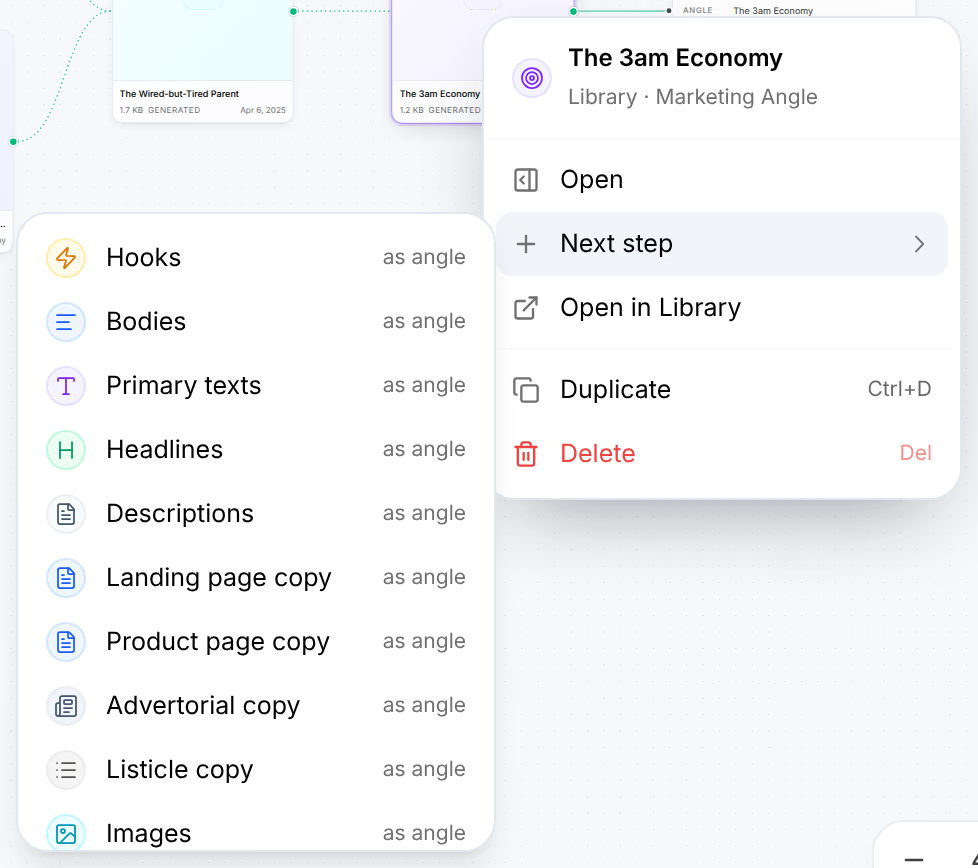
To add the next card already wired, right-click a card, choose Next step, and pick what it should feed. The list holds only the cards that can take it, each with the input it fills.
An open card has a third way: Add, beside each of its inputs. See Wires and context.
Let Auto layout arrange it
Auto layout is on for every board: each card you add finds its place, and a card you drag springs back when you let go. The first time, a note says why: Auto layout keeps every card in its place, with Turn off.
To place cards by hand, turn it off with Auto layout, the switch beside the map at the bottom right, or press ShiftT. On a phone, tap the board's name at the top: the switch is in its sheet. The board keeps the setting.

Check that it worked
The line beside the run bar reads Saved just now: the board is on Omnymous, and anyone in your workspace can open it from All flows. The run bar counts the cards that still need something before they can run, such as 2 need inputs.

If something goes wrong
| What you see | What to do |
|---|---|
| A message such as Hooks don’t take image as an input. | That card has no input for it. Use Next step on the card you start from: it lists only the cards that can take it. |
| … can’t be wired in, with what the card already sells | The wire would give the card a second product, offer, angle or cast. Keep the one it has, or remove the wire that brings it first. |
| That would make a loop. | The card already feeds the one you are wiring into it. |
| Library items already exist — they only feed other nodes. | Library cards and briefs have no inputs. Wire them into a card that makes something. |
| Offline beside the run bar | The board is kept on this device and saved when the connection is back. |
| Not saved beside the run bar | Omnymous refused the board, and it is kept on this device. A store holds at most 500 boards, and a board at most 500 cards: delete boards you no longer need, or split this one. |
Related
- Cards and modelsWhat a card on a Studio board shows, and its editor: how many it makes, the model each of its stages runs on, its inputs, its settings and its direction.
- Wires and contextA wire gives a card one of its inputs. The card makes its count for each item on its main input, and carries everything those items stand on.
- Run a board and control its costRun one card, a card and what follows, a selection or the whole board; read what it should cost and set the most it may spend; then stop, finish or retry it.