
Save what you find
Swipe the angles, hooks, avatars and offers you find in Briefs and Explore, import them into your Library tied to one of your products, and hand them to Studio.

Swipe keeps the pieces you find in your market: an angle, a hook, an avatar, an offer, a primary text or a headline. A swiped piece stays as it was when you saved it, whatever the brief does after, until you import it into your Library. Imported, it is yours: tied to one of your products, marked with where it came from, and ready for Studio.
Before you start
- You are an owner, an admin or a member of the workspace.
- A brief with plays in it, or an ad in Explore whose brand is mapped. See Briefs.
- A few minutes.
Save a piece
Open the piece
In Briefs, press a row of the Niche Brief: the play opens on the right. In Explore, press an ad of a mapped brand: its panel lists the pieces it carries under Strategy.
Press Swipe
In Briefs, Swipe is at the foot of the panel. In Explore, it is beside each piece, and it reads Swiped once the piece is saved.
Find it in Swipe
In the sidebar, under Reconnaissance, choose Swipe. Your pieces are cards, each with its kind and the brief or ad it came from. All shows every one; Unfiled the ones in no folder. The kinds at the top right, from Angle to Headline, show one kind at a time, and the search finds a piece by its words.
To keep them in order, press the folder button beside the kinds and name a folder. On a card, the arrow button moves it to a folder and the bin deletes it. Press a card to read the whole piece.
Import it into your Library
Press Import on its card
Import into your Library opens on the right, with the piece you are importing at the top.
Choose your product
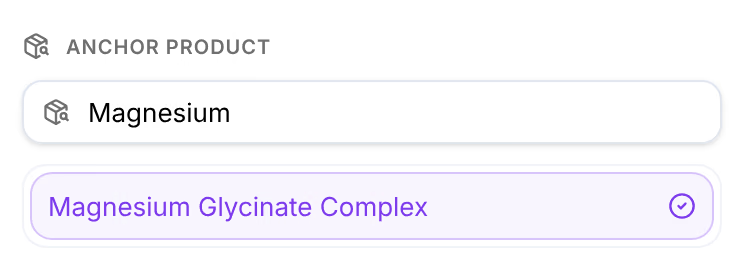
Under Anchor product, type to find the product the piece is for, and choose it. Angles and offers always belong to a product; whatever you import is tied to the one you choose.
Press Preview import
The panel lists what the import will create, as in Will create 2 items. A piece that needs another one brings it along when it can, and says so under Auto-completed the chain: an angle is written for an avatar, a hook for an angle. When it cannot, the panel says what is missing instead.
Press Import
The button counts the items, as in Import 2 items. The panel then reads Imported — the items are yours now, with provenance attached.
Hand it to Studio
Once the import is done, Generate from these opens Studio on the next step of the chain, with the imported pieces as its inputs: angles from an avatar, hooks from an angle, images from a hook, page copy from an offer. Open the Library takes you to your Variables instead.
Check that it worked
The pieces are in your Library under Variables, on their kind's tab, tied to the product you chose, with their provenance. The swipe stays in Swipe, linked to what it became, until you delete it.
If something goes wrong
| What you see | What to do |
|---|---|
| "… needs a customer avatar — select one to import together, or attach an existing Library item" | The angle has no avatar with it. Import it from an ad of its brand in Explore with Import all, which brings the ad's avatar too. |
| No products found under Anchor product | Check the spelling, or bring the product in from Shopify first. See Connect your store. |
| The preview didn’t come back — nothing was imported. | The request failed on the way. Press Preview import again. |
| No Swipe under Strategy in Explore | The brand is not mapped yet. Track it, and its pieces appear within minutes of its ads being read. |
Related
- BriefsBriefs measures what your competitors run against what you already have, gaps first, and keeps the roster of brands you track and the ones you could.
- ExploreExplore is every ad Omnymous has read from the Meta Ad Library, with filters to narrow it to your market and an inspector that takes one ad apart.
- Answer a competitor's angleTake a gap from your Niche Brief, bring the angle into your Library on one of your products, write your own version in Studio, and launch it.