
Check that the pixel is reporting
Confirm the Omnymous pixel is sending your store's visits, see how many orders it ties to a visit, and trace one order back to the ads that brought it.

The Omnymous pixel is the script that tells Omnymous what happens on your store: page and product views, carts, checkouts and orders, each with the visit it belongs to. It runs on your Shopify store and on the pages you publish from Omnymous. Connecting your store adds it; this page checks that it is reporting.
Before you start
- Your store connected, with the pixel set to Always on. See Connect your store.
- A few hours of traffic since then. The figures below count the last day and the last 14 days.
Read the measurement health
Open the Attribution view
In the sidebar, under Analytics, choose Campaigns, then Attribution at the top right. Measurement health comes first.
Check the pixel's figures
Pixel Events (24h) and Sessions (24h) count what the pixel sent in the last 24 hours. On a store with visitors, both are above zero.
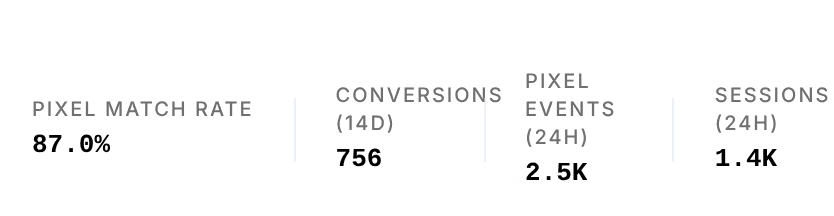
Check the match rate
Pixel match rate is the share of the last 14 days’ orders, counted under Conversions (14d), that the pixel tied to a visit. Below 70% the figure turns amber: too many orders reach Omnymous without the visit that led to them.
Trace one order
At the foot of the same view, Order Journey takes a Shopify order number. Type one, or pick a recent order, and press Inspect. Every visit the pixel recorded before the order is listed, with the credit each one earned under the attribution model chosen at the top.

Check that it worked
Pixel Events (24h) and Sessions (24h) are above zero, and an order you inspect shows its visits, with Pixel matched under Match.
If something goes wrong
| What you see | What to do |
|---|---|
| Pixel Events (24h) reads 0 on a store with visitors | Shopify may have paused the pixel. In your Shopify admin, open Settings, then Customer events, then Omnymous: it should read Always on. Select it and click Save. |
| Pixel match rate is amber | Orders are arriving without the visit that led to them, often because visitors decline tracking or because Shopify paused the pixel for a while. Check the setting above, then your store’s Pixel consent. |
| An order reads Unattributed | No visit could be tied to it. Its revenue still counts in your store’s totals. |
Related
- Pixel consentThe store setting that decides what the Omnymous pixel does before a visitor's own consent answer is known, and where it applies.
- Connect your storeLink your Shopify store during setup, then set its Omnymous pixel to Always on so Shopify never pauses it.