
Launch your first campaign
Pick creatives and the page they lead to, let the Launcher plan the Meta campaign, set its account and budget, and launch it.

The Launcher turns creatives and the page they lead to into a Meta campaign. It pairs each creative with the pages that tell the same story, splits the campaign by the pieces they were made from, and records every ad’s pieces so its results can be credited to them.
Before you start
- Meta connected to your store. See Connect your ad accounts.
- Creatives and at least one page in your Library. See Generate your first content.
- A headline and a primary text for each ad. The Launcher asks for them if a creative has none.
Choose what to launch
Open the Launcher
In the sidebar, under Generation, choose Launcher. It opens on its first step, Creatives.
Tick your creatives, then press Next
Tick the box on each creative to launch. On a phone, open a creative’s More actions and choose Select; then tick the others.
Tick the page they lead to, then press Next
The next step, Pages, lists your landing pages, advertorials and listicles. Tick the ones your ads should send buyers to.
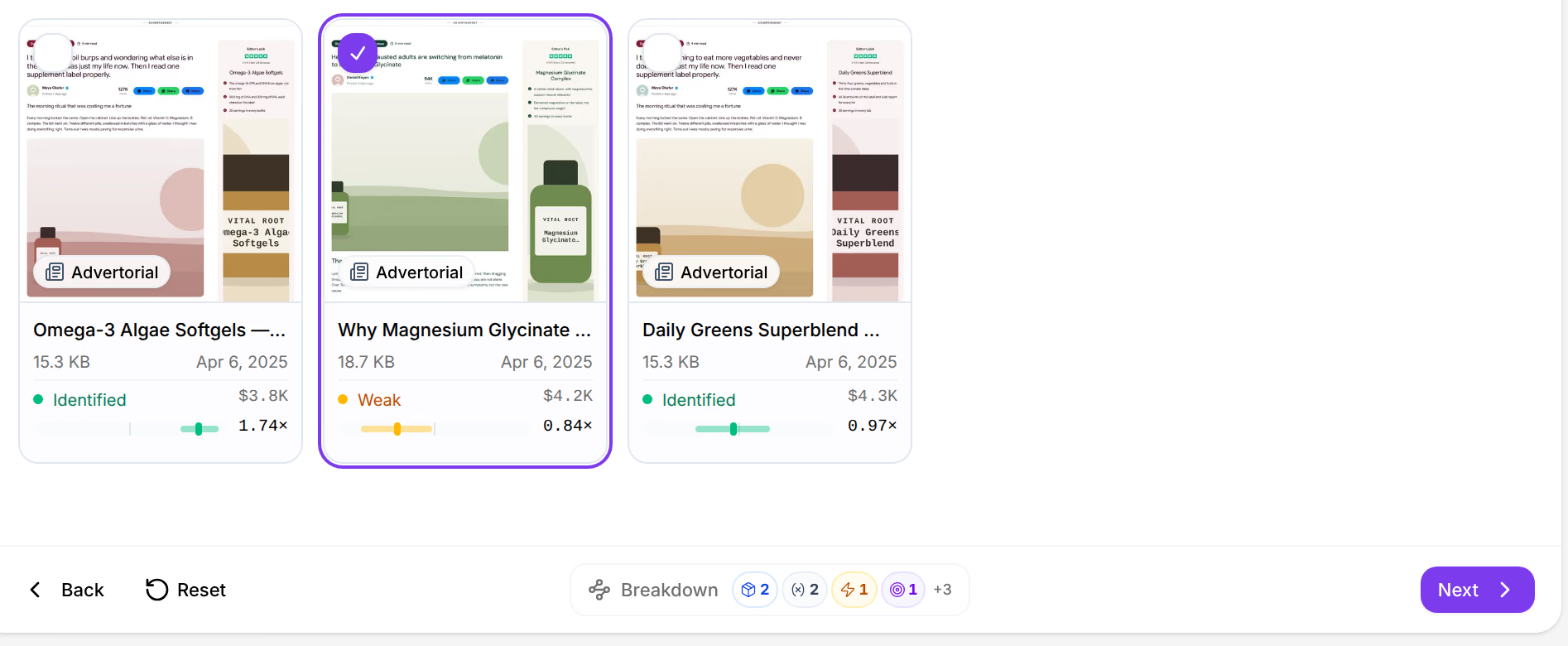

Check the plan
The third step, Structure, is the campaign Omnymous will create: Campaigns, Ad sets and Ads, each split by the pieces your creatives were made from, such as their angle and hook. Each ad is a creative paired with a page that tells the same story.

A creative without a headline and a primary text is marked Needs ad copy, and the toolbar counts them, as in 2 creatives without ad copy. Press Write to give each ad its copy.
Set the account and the budget
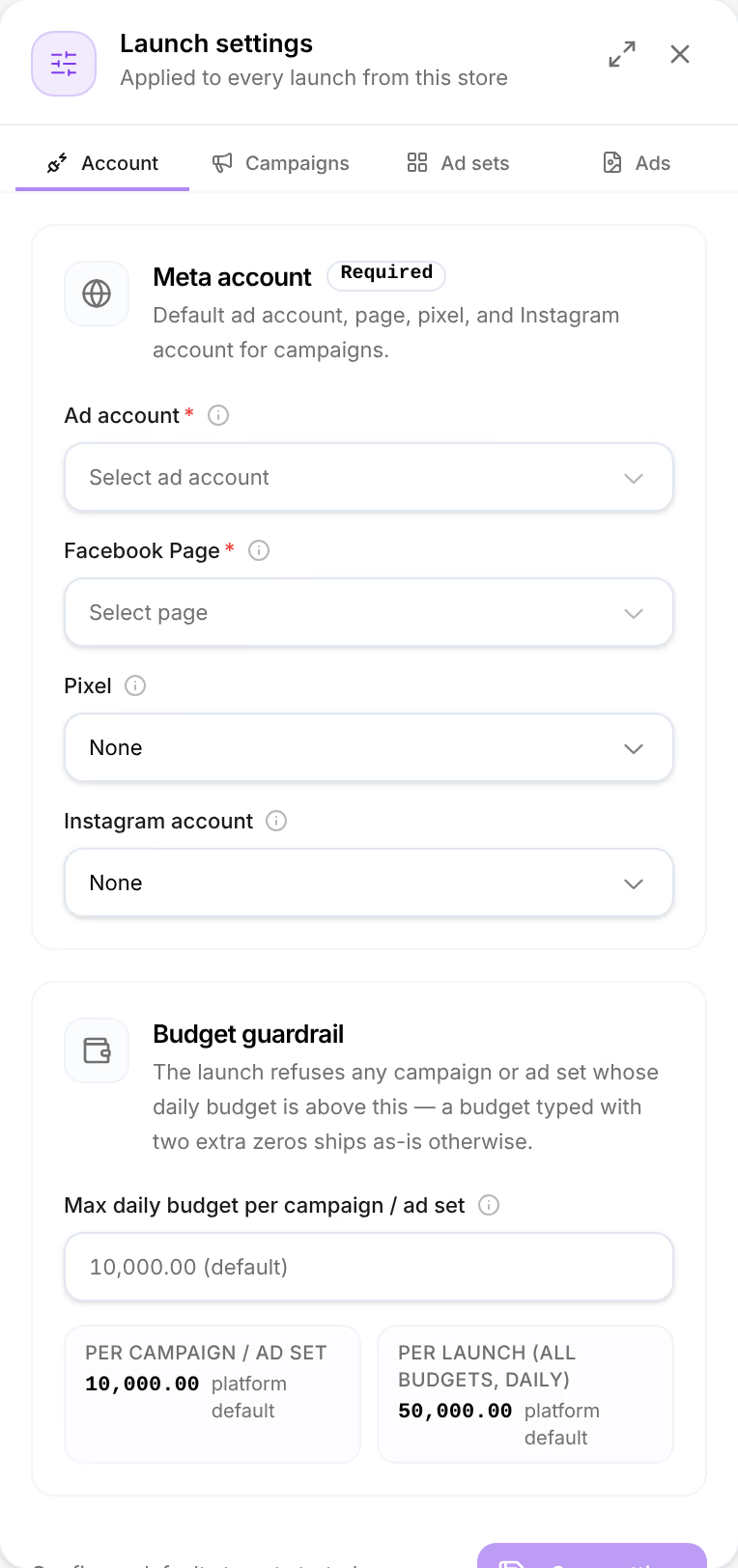
Press Settings in the toolbar. Launch settings opens beside the plan; what you set there applies to every launch from this store.
Choose the Meta account
Under Account, choose your Ad account and the Facebook Page your ads publish under. Both are required.
Set the objective and the budget
Under Campaigns, choose the Objective, set the Daily budget (per campaign), and the Bid strategy.
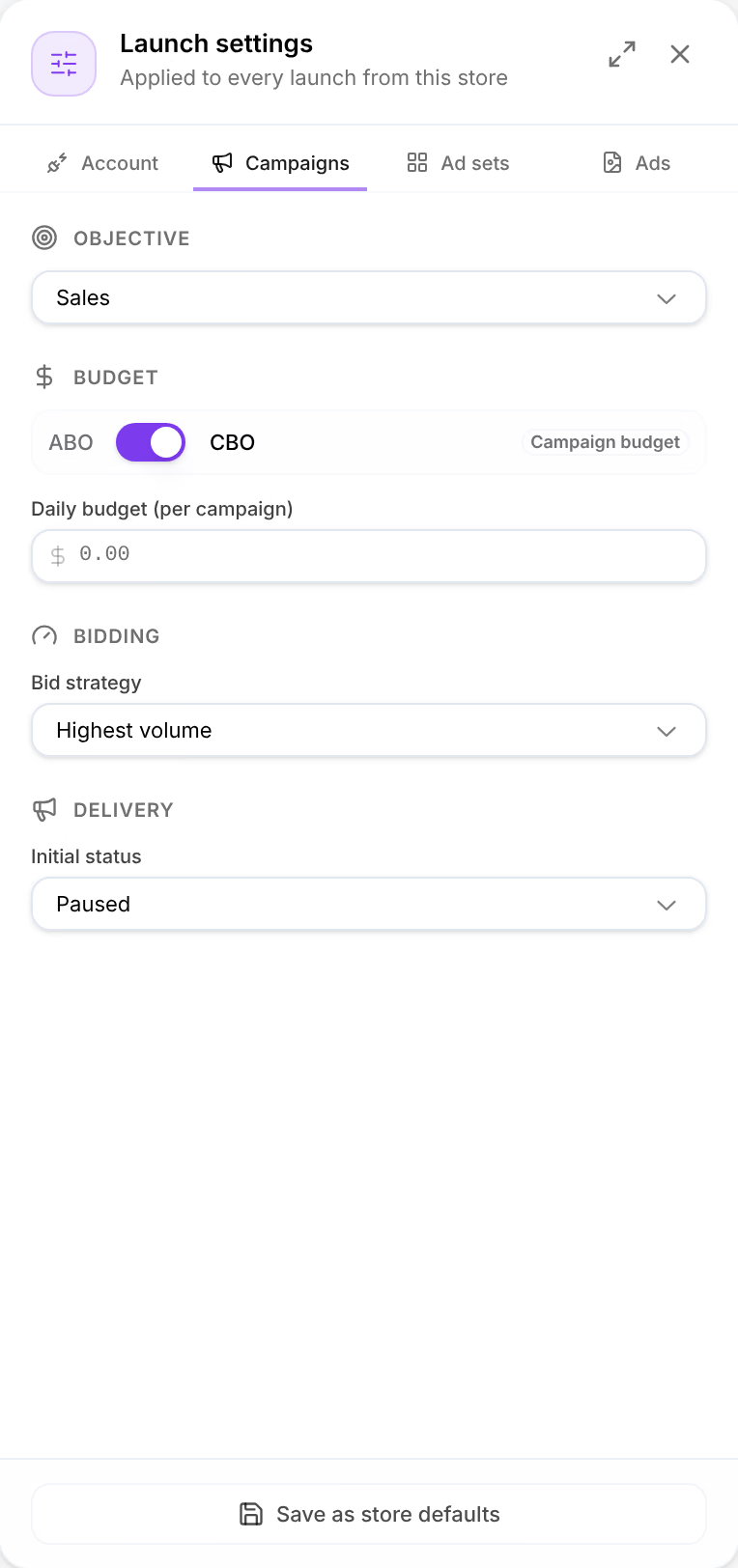
Choose how it starts
Initial status is Paused to start with: the campaign is created in Meta paused, and you start it there. Choose Active to start it at once.
Save as store defaults keeps these settings for the next launch.
Launch it
Press Launch. It stays greyed out while something is missing, and the line beside it says what, as in Needs ad account · page +3: rest the pointer on Launch for the whole list. The last step shows each ad as it is created in Meta, and Open in Ads Manager takes you to the campaign there.
Check that it worked
The last step reads All 2 ads created, with your number of ads. In Analytics, under Campaigns, the campaign is marked Launcher, and its results are credited to its ads and to the pieces they were made from.
If something goes wrong
| What you see | What to do |
|---|---|
| No compatible pairings on the Structure step | No page tells the same story as your creatives. Press Change pages, or Review pairing to see why each pair was left out. |
| An ad marked Needs ad copy | Press Write and give it a headline and a primary text. |
| Reconnect Meta to launch | Meta stopped authorizing Omnymous. Press Open Integrations, reconnect Meta, then launch again. |
| Budgets outside this store’s limits | Nothing was created. A daily budget is above the Budget guardrail under Account: lower the budget, or raise the guardrail if it is right. |
| Ads marked Failed | Meta refused them, and each says why. Press Retry: only the failed ads are sent again, so none is paid for twice. |
Related
- Tag your adsPut each ad's id in the link of the Meta ads you already run, so the orders they bring are credited to their campaign, ad set and ad.
- How Omnymous worksOmnymous builds your ads from reusable pieces, launches them, and credits every order back to the pieces that earned it.