
Generate your first content
Start a Studio board from a ready-made flow, give it an angle and models, run it, and find what it made in the Library.

Studio is a board of cards. Each card makes one kind of thing, from the pieces wired into it, on the models you choose. A ready-made flow puts a working set of cards on the board, so a first run takes a few choices.
Before you start
- Your AI keys added. See Add your AI keys.
- An angle in your Library, under Variables, in Angles. Without one, the board can write one for you.
- A run is charged by your providers, to your own keys.
Start from a ready-made flow
Open Studio
In the sidebar, under Generation, choose Studio. A new board reads Start anywhere and offers three ready-made flows.
Press Static creative test
Two cards land on the board, wired together: Hooks, which writes opening lines for an angle, and Images, which turns each hook into a creative. Each card says what it still needs.
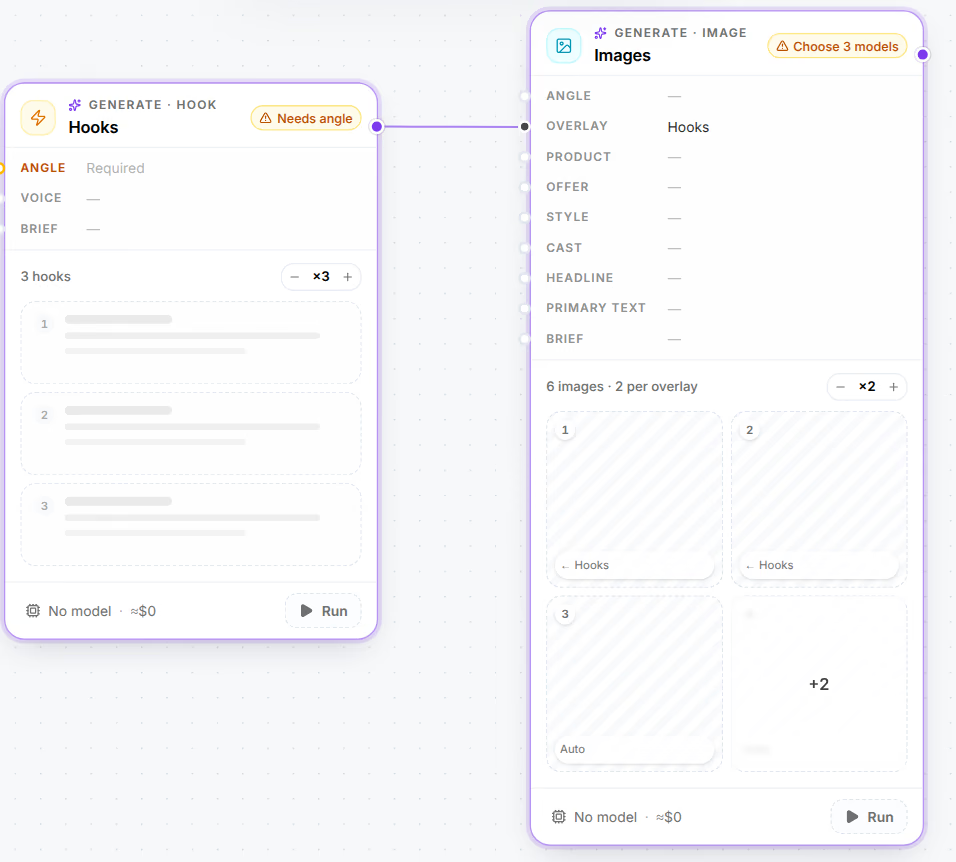
Give it an angle and models
Open the Hooks card
Its settings open beside the board. Nothing runs on a model you did not pick, so each card starts without one.
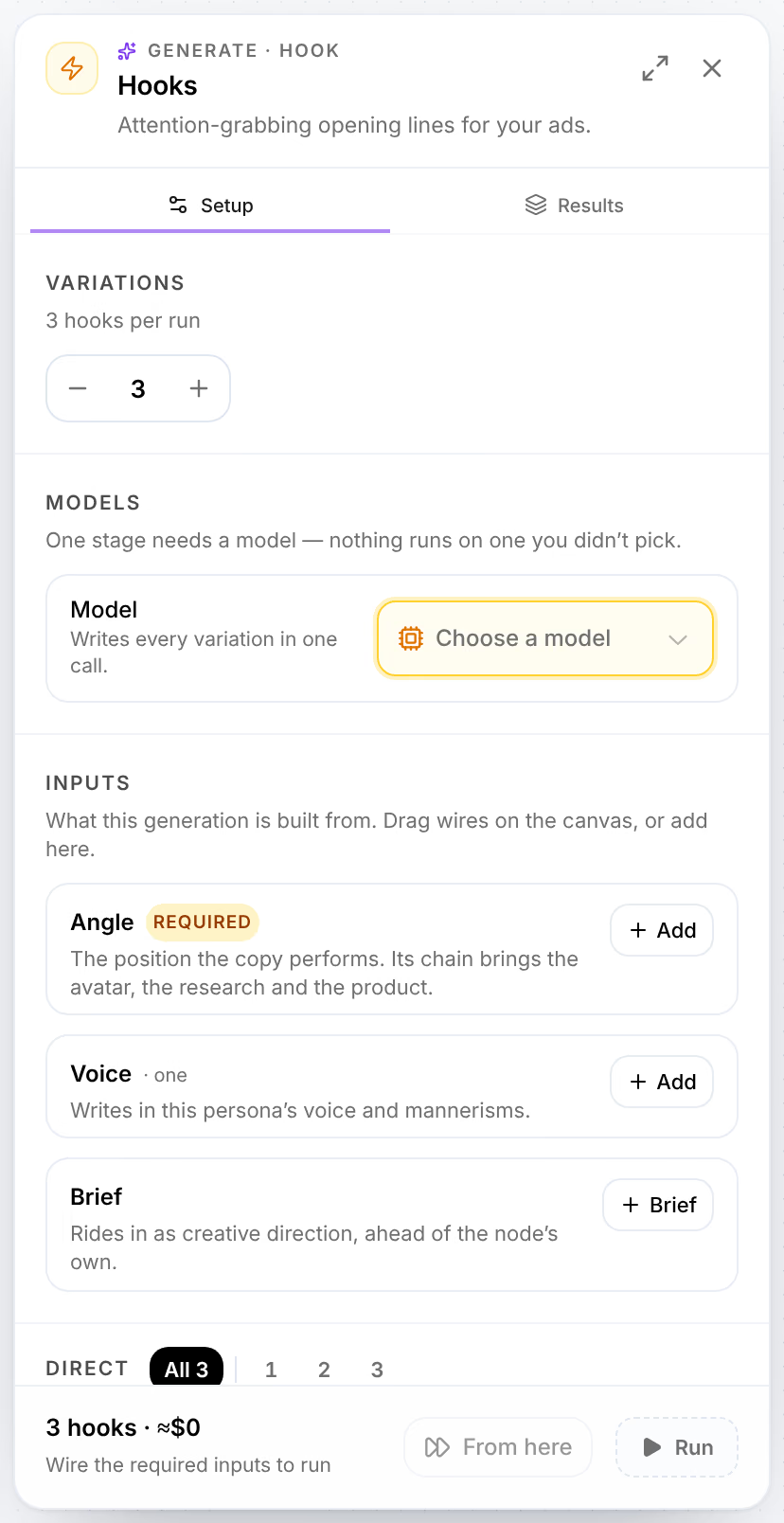
Choose a model
Under Models, press Choose a model and pick one. A model whose provider has no key yet reads Add a key.
Add the angle
Under Inputs, press Add beside Angle. Choose one from your Library under From library; Generate new writes one instead. The angle lands on the board as a card of its own, wired into Hooks.
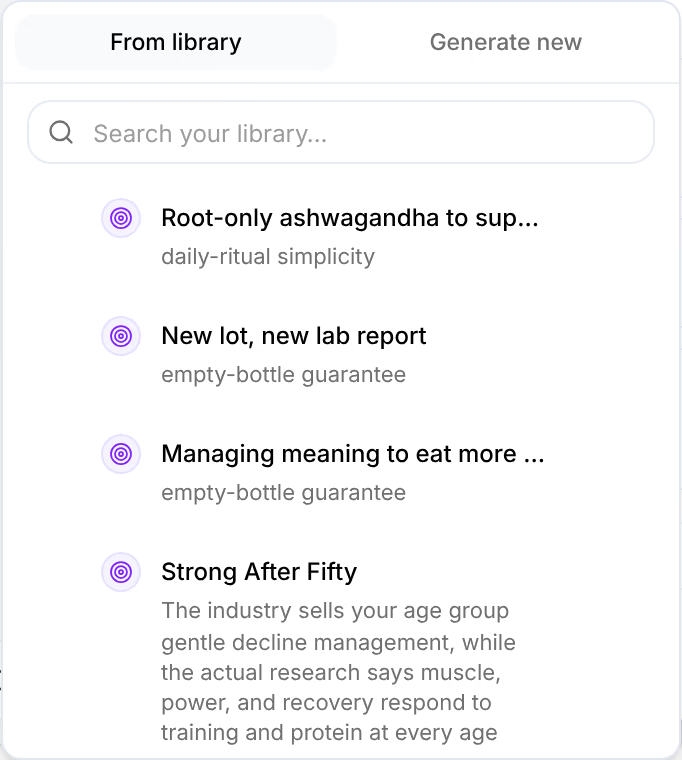
Choose the Images card’s models
Open the Images card and choose a model for each of its stages, as its Choose 3 models says.
Run it
Press Run all at the top of the board. Before a run of several cards, Omnymous shows what will run, on which models, and what it should cost on your own keys; confirm it there. Each card fills as its results arrive.
Check that it worked
The card’s Results tab holds what it made, and the board’s Runs tab lists every run with its results and cost. In the Library, the hooks are under Variables, in Ad Copy, and the images under Assets, in Creatives, each with the pieces it was made from.

If something goes wrong
| What you see | What to do |
|---|---|
| A card reads Needs angle | It has no angle wired in. Add one under Inputs. |
| A card reads Choose 3 models, or No model at its foot | Pick a model for each of its stages. A model marked Add a key needs its provider’s key first; Key rejected means the provider refused the one you added. |
| A run stops on a provider’s error | The provider refused the call, often for credit. See Add your AI keys. |
Related
- How Omnymous worksOmnymous builds your ads from reusable pieces, launches them, and credits every order back to the pieces that earned it.
- Add your AI keysCreate an API key with each AI provider Omnymous uses, add it in setup or in AI & Agents, and see what each one pays for.