Find your way around
The frame around every screen of Omnymous, on a computer and on a phone: the sidebar, the store switcher, the top bar and your account menu.

The sidebar on the left takes you to the screens, and its foot names the store you are looking at. The top bar holds search, help and your account. On a phone, the same things move to five tabs at the bottom of the screen and a sheet behind your initials.
The sidebar
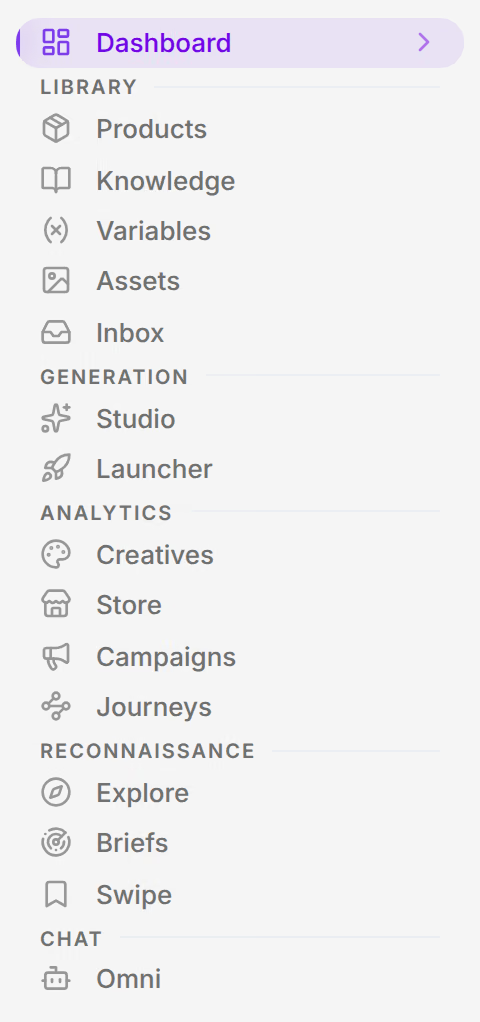
Dashboard is where you land when you sign in: the last 30 days of your store on one screen. Under it, the screens are grouped in five sections.
| Name | What it does |
|---|---|
| Library | Products, Knowledge, Variables, Assets and Inbox. Your catalogue, what you know about your brand and your customers, the pieces your ads are built from, and the finished creatives and pages. |
| Generation | Studio, where you build new creatives and pages from Library pieces, and the Launcher, which puts them live on Meta. |
| Analytics | Creatives, Store, Campaigns and Journeys. What sold, what it cost, and which ads and which pieces of them earned it. |
| Reconnaissance | Explore, Briefs and Swipe. What other brands in your niche are running, read in your Library’s terms. |
| Chat | Omni, which answers questions about your store, your campaigns and your Library. |
A section your role cannot use is not shown. A Viewer, who can read but not change anything, has no Generation and no Chat section.
Usage
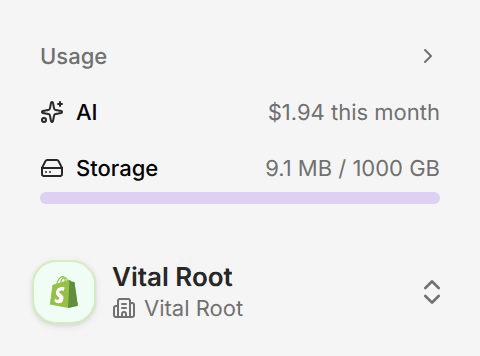
Usage shows what your AI providers have charged this month, as estimated from their prices, and how much of your storage is used. Press it to open AI & Agents in the settings, where the spend is broken down by model and by type.
The store switcher
Omnymous shows one store at a time: the one named at the foot of the sidebar. Press it to see your organization and its stores, and pick another store.
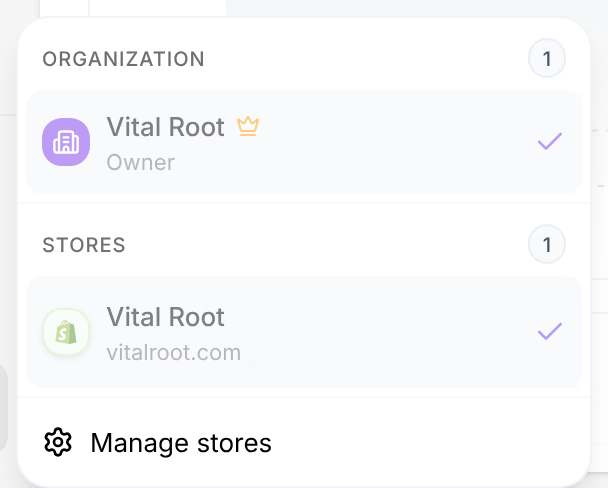
Manage stores opens the Stores settings, where you connect another store.
The top bar
On a computer, the top bar holds Docs, Help, search, three icons and your name. A phone keeps three of them, described under On a phone.

| Name | What it does |
|---|---|
| Docs | Opens this guide in a new tab. |
| Help | Writes to the Omnymous team from inside the app. Choose what it is about, describe it, and attach up to five files. Replies go to your email address. |
| Search | Finds products, campaigns, Library items, runs and stores, and jumps to any screen. It also opens with CtrlK, or CmdK on a Mac. |
| Background jobs | The first icon. What is running in your workspace right now: Studio runs, launches, exports and research, started by anyone on your team. |
| Notifications | The bell. What has happened in your workspace, such as a finished launch or a completed Studio run. |
| Settings | The gear. Your account, your organization, billing, stores, integrations, and AI keys and agents. |
The icons say their names when you rest the pointer on them.
Search

Type a few letters and the matches appear under the field, grouped by kind. Use the arrow keys and Enter to open one. Before you type, it lists screens to jump to.
Your account menu
Press your name, at the right end of the top bar, for your account menu.
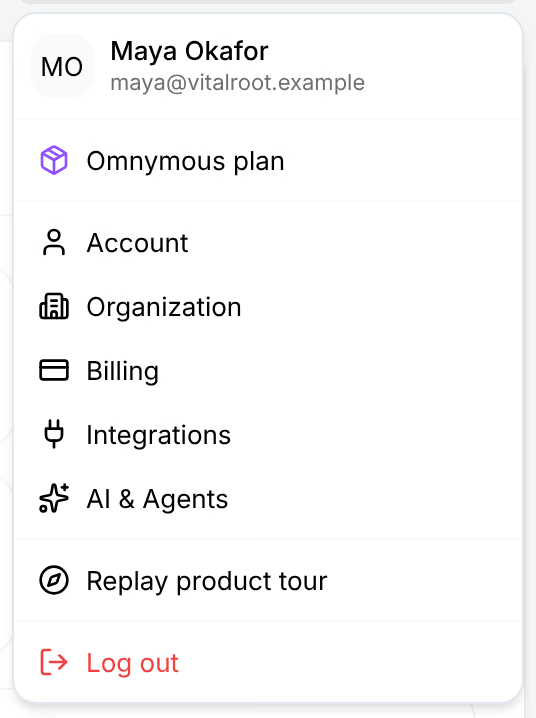
Omnymous plan and the five settings below it open the same settings as the gear, each on its own tab. Replay product tour shows the first-run tour again. Log out signs you out of this browser.
Focus
On a computer, to give a screen all the room, press CtrlB, or CmdB on a Mac. The sidebar and the top bar fold away. Press Esc or the same keys again to bring them back.
On a phone
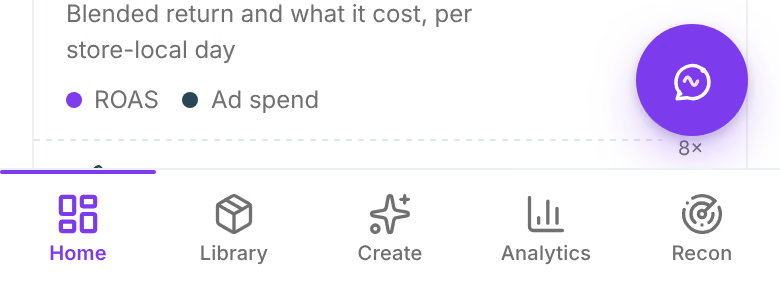
On a phone, the sidebar becomes five tabs at the bottom of the screen: Home, Library, Create, Analytics and Recon. A tab’s screens sit side by side under its title, so Products, Knowledge and Variables are one tap apart. The round button above the tabs, Ask Omni, opens Omni from any screen.
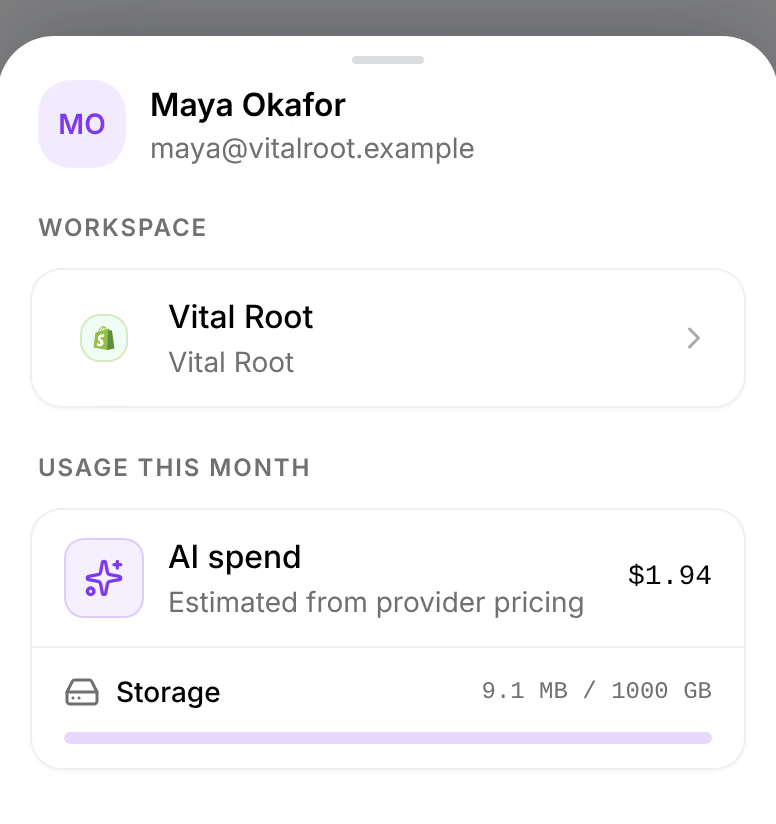
The top of the screen keeps search, your workspace’s activity, and your initials. Your initials open a sheet with the store switcher, this month’s usage, the settings, help and Log out.