
How Omni answers
Omni answers questions about your store with figures from the analytics engine, says where each comes from, and offers the next step as a button.

Omni is the assistant inside Omnymous. You ask in your own words. It looks the answer up in your store's data with the same engine as Analytics, shows the figures it found, says where they came from, and offers the next step as a button.
In short
- Every figure in an answer is computed by the analytics engine. Omni chooses what to look up and explains it; it never writes a number itself.
- Under every result, a Source line names the data, the period and the moment it was read. Names in a result are links to the real item.
- Ask what to do next, and Omni answers with buttons that open Studio, the Launcher or the right screen, already filled in.
Open Omni
In the sidebar, under Chat, choose Omni. The Dashboard's Ask Omni shortcut opens it too, and on a phone so does the round Ask Omni button above the tabs, from any screen. You need to be an owner, an admin or a member of the workspace: a viewer cannot use Omni.
A new conversation opens on Ask Omni about your store, with questions to start from. Those marked From your data are drawn from your store, such as an experiment that has stalled; those marked Starter work for any store. Press one to ask it, or type your own question and press Enter. Shift Enter starts a new line.

Choose the model it answers on
Omni runs on a model you choose, on your organization's own key for that model's provider. Nothing is chosen for you. Until you pick one, the chip under the question field reads Choose a model, and a question sent without one opens the list first: it goes as soon as you pick.
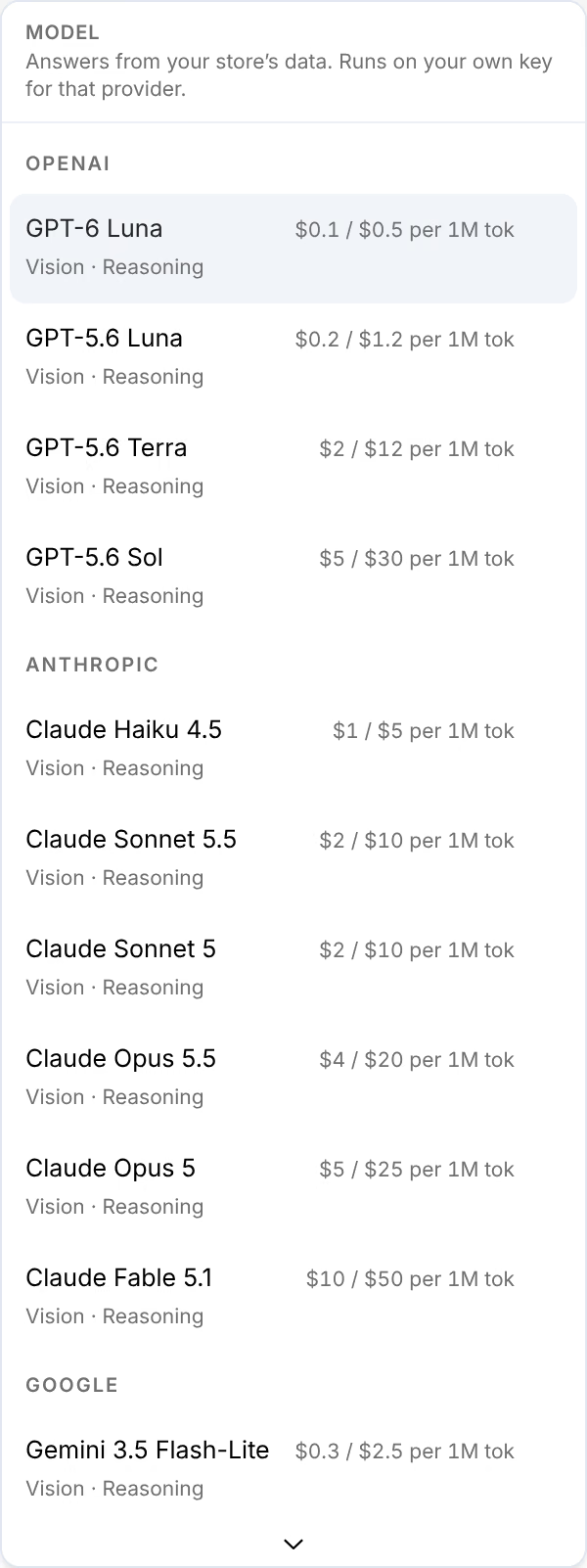
The list is grouped by provider, each model with its price per million tokens read and written. Your pick stays for your next conversations; press the chip to change it. If your organization has no key for that provider, the question is refused with This model needs your key, and the message's AI keys button opens your keys. Your key was refused means the provider turned the key down. See Add your AI keys.
What it can answer
| Ask about | What Omni reads |
|---|---|
| How the store is doing | Revenue, profit, orders, sessions, ad spend, MER, aMER and nCAC for a period, against the one before; a day-by-day trend; the profit and loss from gross sales to net profit |
| What earned the money | Spend and credited orders by channel, campaign, ad set, ad, creative or page, or by any piece of your ads: hook, angle, avatar, offer, actor, product, and their properties; pairs and trios of pieces, such as a hook with an avatar |
| What the Lab has called | Each piece's effect with its call, everything known about one piece, and the experiments found in what you ran |
| Your buyers | The funnel from visit to purchase, the paths buyers took, monthly cohorts, lifetime value by channel or campaign, and one order's journey with its credit under every attribution model |
| Your production | What Studio made, what you launched, and what won |
| Your data | Whether the pixel, your orders and your ad platforms are reporting, what the Insights feed has found, and what a metric means |
Omni also finds items in your Library by name and reads their details, so you can ask about a hook or an avatar as you call it.
How it cites
Each result is a card, and under it a Source line says what was read: the data, the period, your store's time zone and the moment of the reading, such as "Source: Store ledger · Sep 12 – Oct 11 · America/New_York · as of Oct 11, 11:00 AM". A result that splits revenue across your ads also names the attribution model it used, such as Last Click. See How to read the numbers.

Every name in a result is a link to the item itself: a creative opens in your Library's assets, an avatar in Variables. A long table shows its first ten rows; Show all 50, with your count, opens the rest, and the table scrolls sideways for its last columns.
The buttons it hands you
Ask what to do next, and Omni answers with up to three cards under Suggested Next Steps. A Generate card opens Studio filled in from the answer, such as new angles Seeded with the avatar the table found; Open in Studio takes you there. A Launch card takes a finished creative or page to the Launcher, a View card opens one item, and a Go to card opens a screen, such as the Insights feed. Nothing is made or launched until you press it there.

Every answer ends with three questions you could ask next, then Copy, Good answer and Bad answer, and the model it ran on with how long it took and what it cost on your own key. The last answer also has Regenerate, which asks again.

Your conversations
Every conversation is kept, and it is yours: others in your workspace do not see it. Conversation history, the clock at the top right, lists them by day, with a search; a row's menu renames or archives it. New chat, beside it, starts another. On a phone, both sit behind History and New chat at the top.

Where this shows up
- Questions that workQuestions Omni answers well, grouped by what you want to find out, and how to word one so the answer is the one you need.
- Ask Omni what's workingA weekly review done by asking Omni how the store did, which creatives earned the money and what to test next, with a button to act on the answer.
- MetricsEvery number on the Dashboard and the Analytics screens, with what it counts and the formula behind it.
- Add your AI keysCreate an API key with each AI provider Omnymous uses, add it in setup or in AI & Agents, and see what each one pays for.