
Manage your ad platforms
Connect Meta, Google or TikTok to a store after setup, reconnect one that stopped updating, refresh what it reads, and disconnect it.

Ad platforms connect to one store at a time: the store you are looking at. Their spend and results flow into that store’s analytics, and Meta is also where the Launcher puts your ads live. Open your account menu and choose Integrations; the platforms are under Advertising.
Before you start
- You are an owner or an admin of the workspace.
- The store you want the platform on is the one in the store switcher.
- The login you run your ads with on that platform.
Connect a platform
A platform not connected yet has a Connect button on its row. The steps from there are the same as in setup: see Connect your ad accounts.
Each connection lists the ad accounts its login can read, with their currency and standing, such as Active. Ad tagging, under each platform, says whether the visits from its ads name the ad: see Tag your ads.
Reconnect a platform
A platform can stop authorizing Omnymous, for example after the password of the login you connected with changes. Its row then reads Reconnect needed, with how long ago it stopped, and a notice under it says what stopped. The platform’s own words follow on a line of their own.

Your campaigns keep running on the platform: only what Omnymous reads from it stops.
Press Reconnect
Reconnect is on the platform’s row. The window to connect the platform opens, as Connect Meta Ads for Meta.
Sign in on the platform
Press its connect button, as Connect Meta Account, and sign in on the platform with the login that runs your ads. Approve Omnymous there.
Check the row
Back in Integrations, the row lists its ad accounts again, without Reconnect needed, and its spend and results update again.
Read the platforms again
The round arrow at the top right of Advertising, named Refresh integrations, reads every connected platform again now, instead of at the next scheduled read. Advertising data refreshed confirms it.
Disconnect a platform
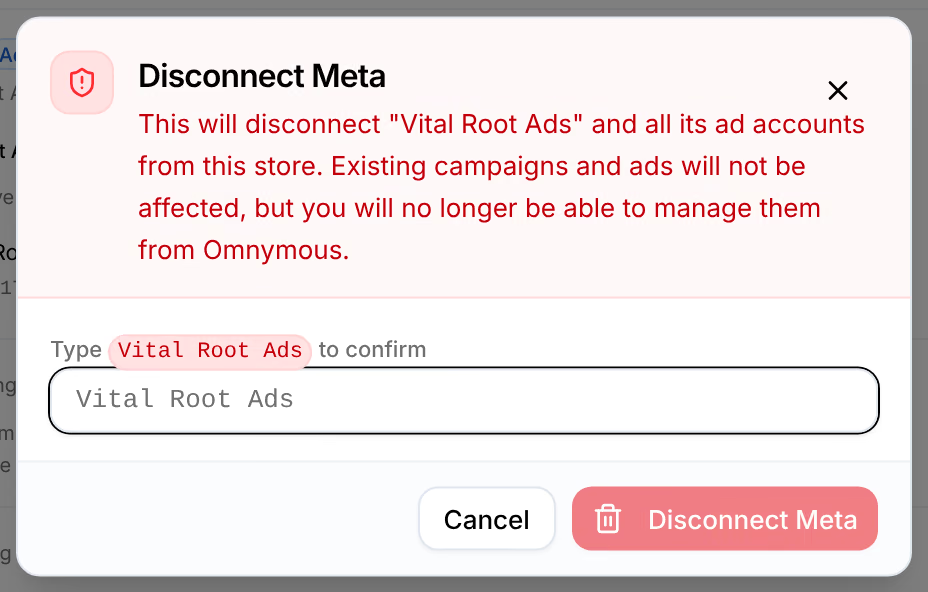
On a connected platform’s row, press its Disconnect Meta button (the platform’s name follows Disconnect), and type the name it asks for. The platform and all its ad accounts leave this store. Campaigns and ads already running stay as they are on the platform, but you can no longer manage them from Omnymous.
If something goes wrong
| What you see | What to do |
|---|---|
| No Connect, Reconnect or Disconnect button | Only the workspace’s owners and admins change its connections. Members and viewers see the platforms without them. |
| No ad accounts found under a connection | The login you connected with has no ad account Omnymous can read. Reconnect with the login that runs your ads. |
| The platform’s figures stopped moving | Look for Reconnect needed on its row, then follow Reconnect a platform. |
Related
- Connect your ad accountsConnect Meta to launch ads and read their results, and Google and TikTok to read theirs, during setup or later in Settings.
- Ad censusEvery ad your connected accounts list, how far Omnymous has read them, and how to have them read again.