
Edit a page in Page Studio
Change a page Studio made, by typing on it, by asking the AI or in its design, and keep every change as a version you can go back to.

Page Studio is where a page made in Studio is changed and published. The preview is the page exactly as your store will serve it, drawn by the same renderer that publishes it. Change it by typing on it, by asking the AI, or in its design; every change is kept as a version, and any version can be restored.
Before you start
- You are an owner, an admin or a member of the workspace.
- A page made in Studio, in the Library under Assets, Pages. See Assets.
- Typing costs nothing. An AI edit runs on a model you pick, on your own AI keys.
Open a page
In the sidebar, under Library, choose Assets, then Pages. Press the page, then Page Studio in its panel.

The page fills the middle of the screen. The header names it, with its template and sections, and holds Reviews, Design and the switch between a desktop and a phone view. The rail on the right publishes the page and lists its history. The arrow at the top left returns to the Library.
Type a change
Click any text on the page and type. Press Enter, or click away, and the change is saved: the header says Saved, and History lists it as a Manual edit. Esc cancels it instead. Typed changes cost nothing and are versions like any other.
Ask the AI for a change
Say what to change
Click the bar at the foot of the page, Tell the AI what to change — or click any text, image or section…, and describe the change, such as Make the opening headline shorter and more direct. To change one part only, click it on the page first: a section, a line of text, or an image. The bar then works on that part alone; the cross at its end, or Esc, returns it to the whole page.

Check the model
The bar names the model it will use, such as Claude Sonnet 5. Press it to choose another. A bar with no model opens the list when you send: nothing runs on a model you did not pick.
Send it
Press Enter, or the sparkles at the end of the bar. While it works, the bar reads Planning the change, then drafting every part…
Look at it on the page
The change appears on the page itself, and the bar reads Previewing page change with what changed, such as Rewrote the Article section. A change of several parts lists each one, and anything it could not do, with why.

Apply or discard it
Apply keeps it as the page's new version, and a message says Page updated. Discard leaves the page as it was.


Check that it worked
History, at the foot of the rail, lists your change at the top, marked Current, with the version before it below, ready to Restore. If the page is published, the rail now reads Stale: the store still serves the version before it. See Publish a page.
Go back to an earlier version
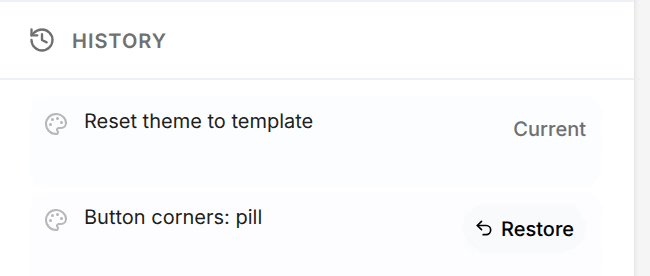
History lists every version of the page, newest first: each AI edit by what you asked, each typed or design change, each new image, with when it was made. Generated, at the bottom, is when Studio made the page; History starts at your first change, so the page as Studio made it is not a version of its own. Point at a version and press Restore: it becomes the page again, marked Current, and a message says Version restored. The versions after it stay in the list, so you can restore them too.
Change the design
Design opens the page's theme beside it. Each change shows at once and is kept as a version.
| Name | What it does |
|---|---|
| Brand colors | The page's Main color, for buttons and headings, and its Accent, for highlights and icons: your store's brand colors, the page's own, or the template's palette. |
| Typography | The fonts of the headings and the body text, and how large each is. |
| Buttons | The buttons' corners, Square, Soft or Pill, and the color of their text. |
| Highlight | Whether highlighted words stand out, and in which color. |
| Search & sharing | The Page title and Description a search engine and a shared link show. |
Reset all, at the top of the panel, puts every design change back as the template had it.
Quote your reviews
Reviews imports your review app's export, a CSV file from Judge.me, Loox, Yotpo, Okendo or Stamped, or Any CSV (auto-detect columns), so your pages can quote real reviews word for word. A review on the page shows where its words come from: Verified review, quoted from your imported reviews; Your words, typed or edited by you; or Written by AI. Only Page Studio marks them; the published page prints the words alone.
What an AI edit costs
Each AI edit is billed by your provider to your own key, and is listed on the page's receipt as its own row, a Page edit, a Rewrite, an Image edit or a Page image, with its model and its cost. See How it was made. Asking for the same change twice repeats the first answer without a new call, and a message says so: Replayed a previous identical edit — no new model call.
If something goes wrong
When an AI edit does not run, the page is left as it was, a message says why, and the bar keeps your request beside a short reason and Retry:
| Reason in the bar | What to do |
|---|---|
| No key or Key rejected | Add or replace the provider's key. See Usage and AI keys. |
| Out of credit | Add credit with the provider, or pick a model from another provider. |
| Rate-limited or Limit reached | Wait a few minutes, then Retry. |
| Didn’t fit, Cut off or Refused | The model's answer could not be used. Retry, ask for less at once, or pick another model. |
| Timed out or Stopped | The edit took too long, or was cut off by a restart. Retry. |
| No image | The image model returned no image. Retry, or describe the image differently. |
| What you see | What to do |
|---|---|
| This layout is fixed in the bar | The section's design cannot do what you asked, such as a new arrangement. Press Got it, and ask for a change of words or images. |
| Not saved in the header | A typed change did not save. Press Retry. |
| Changed elsewhere. above the page | Someone changed the page since you opened it. Reload takes their version; Keep editing keeps yours, and your next save wins. |
Related
- Publish a page to ShopifyPut a page on your Shopify store as a private draft, check it, make it live at its own address, publish later changes, and take it down.
- The item panelEvery Library item opens in the same panel, which says what the item is, how it performs, what you can do with it, how it was made and what it is made of.
- AssetsAssets are your finished work, the ad creatives, images and videos, and the pages your ads send buyers to, each with what it was made from and what it earned.