Products
Products is your Shopify catalogue inside Omnymous, with each product's prices, costs, variants and images, kept in step with your store.

Products is your Shopify catalogue. Omnymous reads it when your store connects and keeps it current as Shopify reports changes, so a price or a new product you set in Shopify shows here without you doing anything. Every other Library item can be tied to one of these products: an angle sells it, an offer prices it, a page sends buyers to it. Open it from the sidebar, under Library.
What you can do here
- The item panelEvery Library item opens in the same panel, which says what the item is, how it performs, what you can do with it, how it was made and what it is made of.
- Search and foldersEvery Library page shares one toolbar, to search and filter its items, sort them, read how they perform, and keep them in folders.
- Enter your costsAdd the costs Shopify does not know, such as shipping, packing and your monthly overheads, so the profit Omnymous shows is your real profit.
The toolbar

| Control | What it does |
|---|---|
| Search | Finds products by their words. CtrlF, or CmdF on a Mac, opens it; see Search and folders. |
| Grid view, List view | Cards with pictures, or rows with every product's price, cost and stock side by side. |
| Refresh from Shopify — reconcile the whole catalogue | Reads the whole catalogue from Shopify again. Use it when a product you changed in Shopify does not show the change here. |
Products has no Add and no folders: your catalogue is managed in Shopify.
A product's card
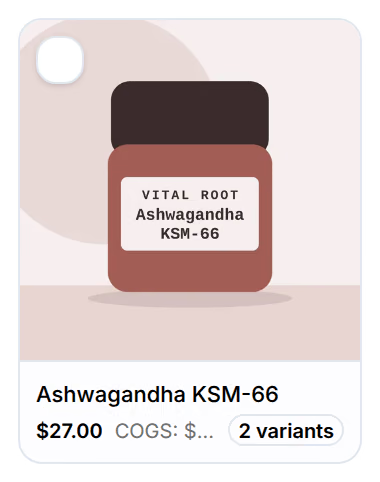
The card shows the product's picture, its price, its cost of goods (COGS) and how many variants it has. When its variants differ in price, its panel gives the whole range.
Omnymous takes the cost of goods from the Cost per item you set in Shopify. Where that is missing or wrong, correct it under Analytics, Store, Costs: see Enter your costs.
A product's panel
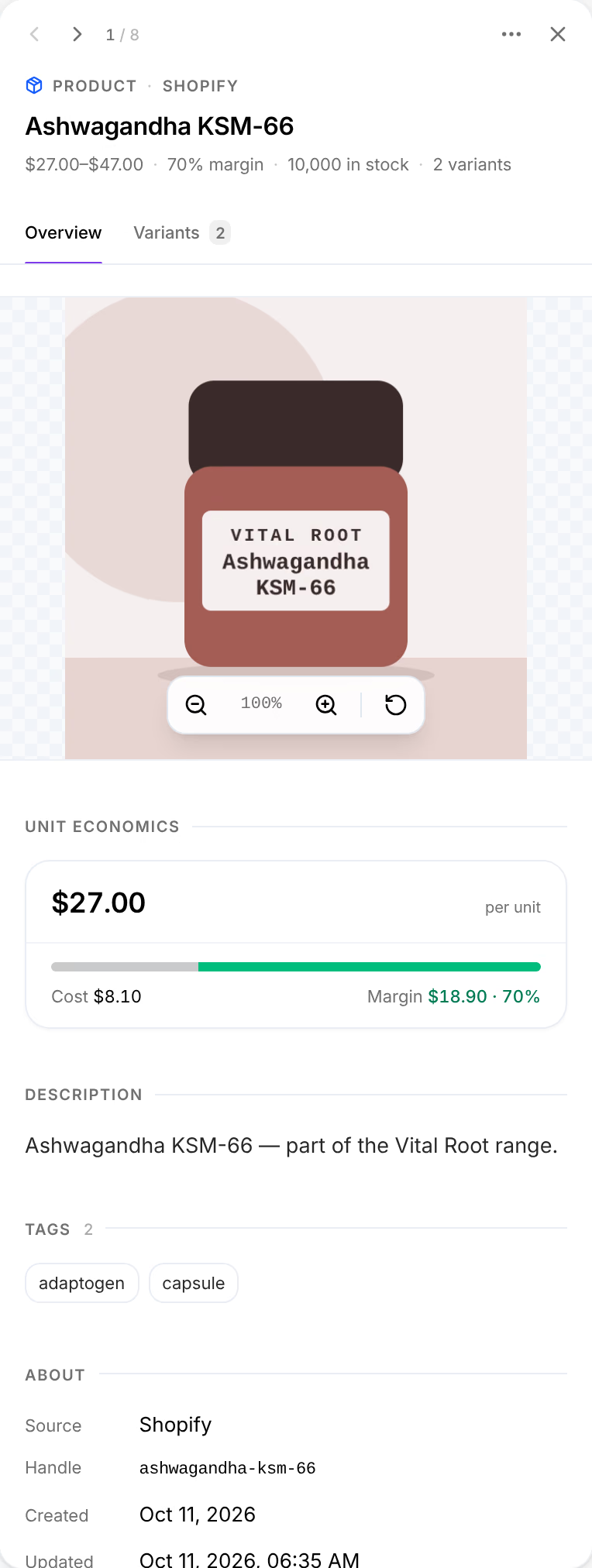
Press a product to open its panel on the right. The facts under its name give its price range, its margin, how many units are in stock and how many variants it has.
| Name | What it does |
|---|---|
| Overview | Its pictures, which zoom; Unit economics, the price split into cost and margin; its Description, Tags and Collections as Shopify holds them; and About: where it comes from, its handle, its dates and its Shopify ID. |
| Variants | Inventory across all variants, then each variant with its price, its cost, its margin and the units left. |
| Composition | The Library items built for this product: research, variables and assets. It shows only when there are some. |
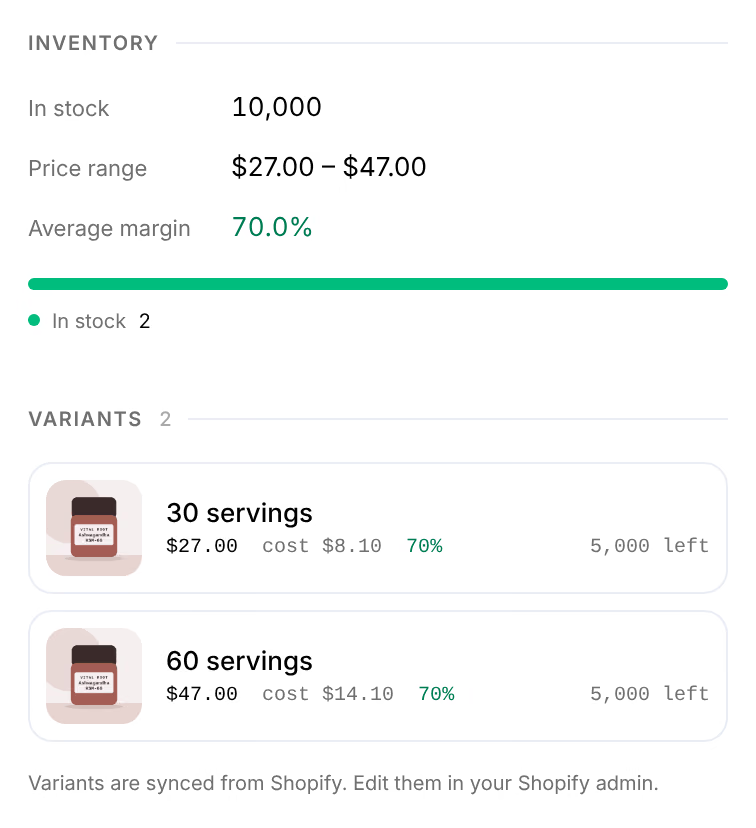
A product's details, its variants and their prices are edited in Shopify, as the panel says: Variants are synced from Shopify. Edit them in your Shopify admin. More actions offers Copy ID and Delete. Delete removes the product from Omnymous only, and unties the Library items built for it; the product stays in your store.
On a phone
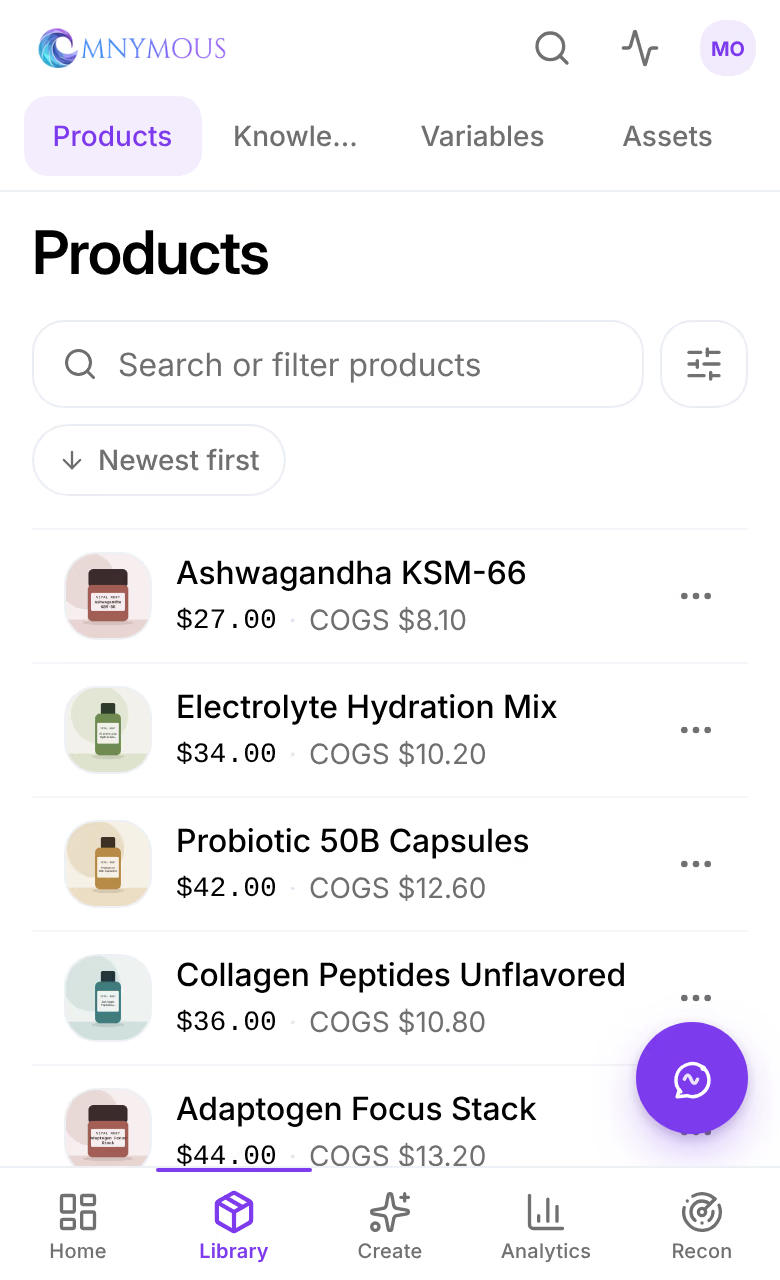
Products is a list: each row is a product with its picture, its price and its cost. The search sits at the top, and the button beside it holds the order and the filters.