
Add your own properties
Give a kind of Library item fields of your own, such as who made a creative, fill them in on your items, find items by them, and credit them in the Lab.
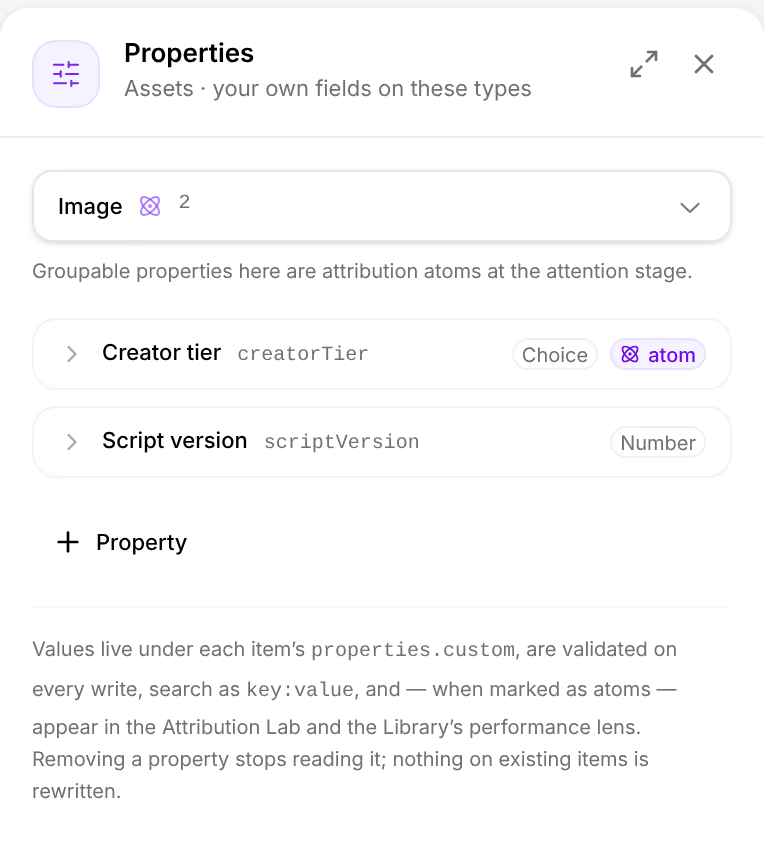
Omnymous reads the pieces of your ads it knows about: avatars, angles, hooks, offers. Your team may track others, such as who produced a creative, which script it was cut from, or an internal test code. A property adds that field to one kind of item. Fill it in on your items, search by it, and, when it describes something an ad carries, let the Attribution Lab credit it like any other piece.
Before you start
- You are an owner, an admin or a member of the workspace. A viewer can read the properties but not change them.
- Know the values the field takes: a short list of choices, a number, yes or no, or free text.
- About five minutes.
Add a property
Open Properties
On Variables, Assets or Knowledge, press Properties, the sliders in the toolbar. The panel opens on the right for that page's kinds of item.
Choose the kind of item
At the top of the panel, choose the type the property belongs to, such as Image. The line under it says what its properties can become: on a creative, Groupable properties here are attribution atoms at the attention stage.
Press Property
Property, under the list, adds a card and opens it.
Name it
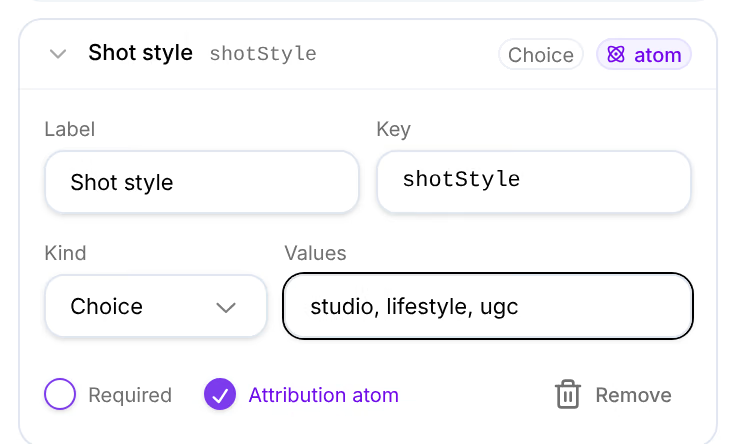
Type its Label, such as Shot style. The Key follows as you type, shotStyle: it is how the property is stored and searched, and it cannot change once saved.
Choose its kind
Under Kind, choose Choice, Number, Yes / No or Text. For a choice, type its Values separated by commas, such as studio, lifestyle, ugc.
Decide what it is for
Tick Required if every item of this kind must have a value. Leave Attribution atom ticked for the Lab to credit each value on its own; untick it for a field you only want to read and search.
Save
Press Save at the foot of the panel. A message confirms it, such as Image: 3 properties saved.
Fill it in on an item
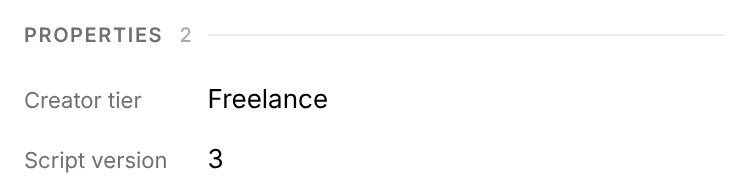
Open an item of that kind, press Edit, then the Properties tab: your property is there, under Your properties, after the type's own fields. Choose or type its value and press Save changes. The item's panel then lists it under Properties.
An item other items were written on is locked for editing. See Edit an item.
Find items by it
Type the key and a value in the page's search, such as creatorTier:freelance: the page shows only the items with that value. The Query filters button beside the search lists your properties under Your properties. See Search and folders.
Check that it worked
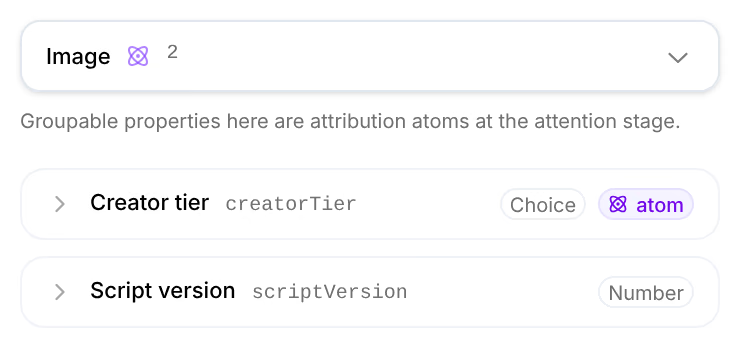
The property is listed under its type in the panel, with its key, its kind and, when it is an attribution atom, the mark atom. Once ads that carry its values have run, the Attribution Lab lists it as a dimension of its own, at its stage, and the Library's Performance lens reads it too.
Which properties can be credited
A property becomes an attribution atom only when its kind is a choice, a number or yes or no, and its type reaches the ads: creatives, pages, and the variables an ad is built from. Text never does. On a type whose items never appear in an ad, such as research, the line under the type reads This type never reaches an ad’s lineage: its properties are form fields and search filters, not atoms.
A type takes up to 20 properties, and a choice up to 50 values.
If something goes wrong
| What you see | What to do |
|---|---|
| “A label is required” | Type a Label. |
| “Keys are camelCase identifiers (letters and digits, 1–40 characters)” | Start the key with a small letter and use only letters and digits, such as shotStyle. |
| “Duplicate key” | Another property of this type has that key. Choose another. |
| “A choice property needs at least one value” | Type the values under Values, separated by commas. |
| The type cannot be changed | You have unsaved changes on this one. Save them or Discard them first. |
| Attribution atom cannot be ticked | The property is Text, or its type never reaches an ad. |
| Save cannot be pressed, and the foot reads “Requires the Member role” | Your role is Viewer. Ask an owner or an admin to change it. |
| A page made in Studio has no Properties tab | A page's fields are the page itself, changed in Page Studio, so your own properties cannot be filled in on it. |
Removing a property stops Omnymous reading it. The values already on your items stay where they are.
Related
- The item panelEvery Library item opens in the same panel, which says what the item is, how it performs, what you can do with it, how it was made and what it is made of.
- Attribution LabThe Lab credits revenue to each hook, angle, avatar, offer and page inside your ads, and says how sure it is of each one.
- Carried, Shared and FittedThe three ways the Lab passes an ad's credit on to the pieces inside it, what each one adds up to, and which question each answers.