
Profile and security
Your own settings under Account: photo and name, the email you sign in with, your password, and the devices signed in to your account.

Account is about you, not your workspace: what you change here follows you into every workspace you belong to. Open your account menu, at the right end of the top bar, and choose Account; on a phone, tap your initials, then Account.
What you can do here
- Change your photo and your name.
- Change the email address you sign in with.
- Change your password, or add one to an account that signs in with Google.
- See every device signed in to your account, and sign one out.
To export your data or delete your account, see Data and privacy.
Photo
Upload takes a PNG, JPEG, GIF or WebP image of up to 5 MB. Without one, Omnymous shows your initials.
Personal info
First name and Last name are the name your team sees. Change them and press Save. Under them: Member since, Account age, your Role in the workspace you are in, and who invited you, if someone did.
Account access
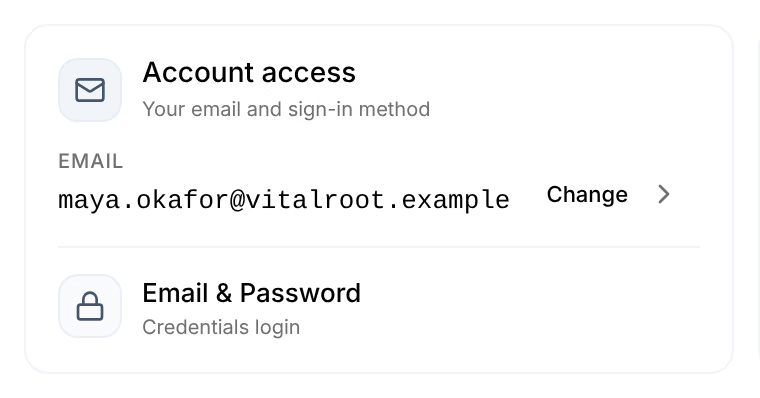
Email is the address you sign in with. The line under it is how you sign in: Email & Password, Google, or Email alone when the account has no password yet.
Change your email
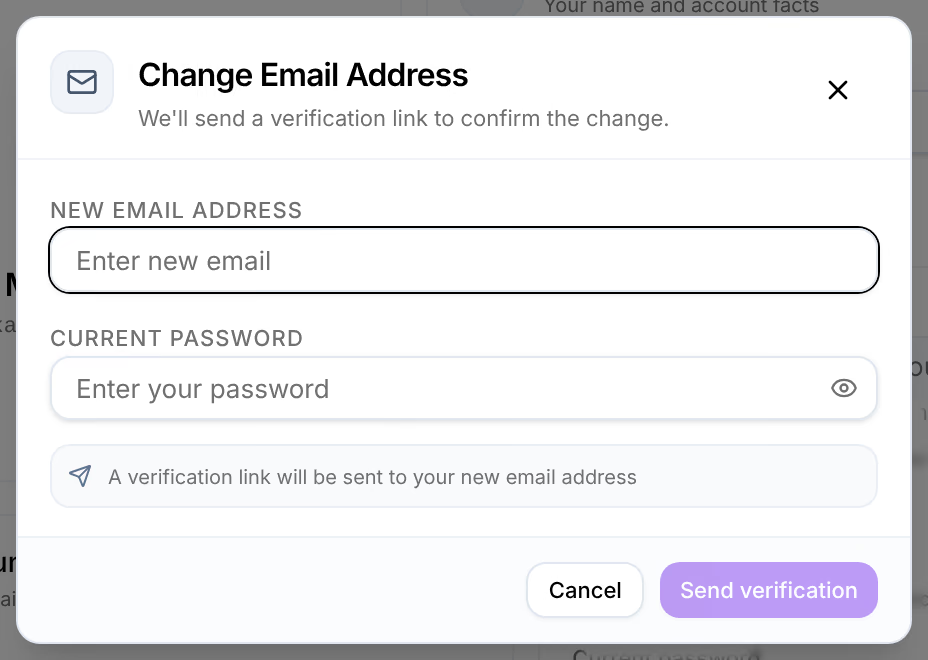
Press Change, type the new address under New email address and your Current password, and press Send verification. Omnymous emails a link to the new address; it works for one hour. Open it to finish: you then sign in with the new address.
An account that signs in with Google has no Change: its address is the Google account’s.
Password

To change your password, type the one you use now under Current password and press Send change link. Omnymous emails you a link that works for one hour. Open it, choose the new password, and press Change password. Every device signed in to your account is then signed out, this one included: sign in again with the new password.
An account with no password, such as one made with Google, shows Email me a link instead. Press it to choose a password from an email; you can then sign in with your email address too.
Active sessions

Every device and browser signed in to your account, with its address and the day it signed in. The one you are using is marked Current. To sign another one out, rest the pointer on it and press its button at the right end, named Revoke session; on a phone it is always shown. Session revoked successfully confirms it. To sign out the device you are on, use Log out in your account menu.
If you see a device you do not know, sign it out and change your password.
Questions
Related
- Data and privacyExport a store’s library as one ZIP, delete your account, close a workspace, and what Omnymous keeps and for how long.
- I can’t sign inWhat to do about a refused password, a locked account, a reset link that has run out, an invitation that will not open, or a locked workspace.