
Knowledge
Knowledge is what the AI reads before it writes for you, your market research, your brand's knowledge, customer reviews and surveys, and marketing fundamentals.

Knowledge holds what Omnymous should know before it writes anything for you: what your market believes, what your brand stands for, what your customers say, and the principles you write by. Studio reads it as context. An avatar written from your research and your reviews sounds like your customer, not like a guess. Open it from the sidebar, under Library.
What you can do here
- The item panelEvery Library item opens in the same panel, which says what the item is, how it performs, what you can do with it, how it was made and what it is made of.
- Search and foldersEvery Library page shares one toolbar, to search and filter its items, sort them, read how they perform, and keep them in folders.
- Turn customer reviews into researchBring your customers' own words into the Library, turn them into market research, then into the avatars and angles your ads are written from.
Research, Brand and Fundamentals
Knowledge has three sections, chosen with the buttons at the top right.

| Name | What it does |
|---|---|
| Research | Reports about your market, each tied to one product: a Market Research Report, a Market Awareness Report, which places your buyers on Eugene Schwartz's five levels of awareness, and a Market Sophistication Report, which places your market on his stages of sophistication. Studio writes them, or you upload your own. |
| Brand | What is yours: a Brand Knowledge Base with your guidelines, voice and messaging, and your Customer Reviews and Customer Surveys, each imported from a spreadsheet and tied to a product. |
| Fundamentals | The marketing principles you write by: copywriting, persuasion, frameworks. These are your own documents; Studio does not write them. |
Add knowledge
Add opens a menu of what the section holds, then a panel on the right for the one you choose. On Brand:
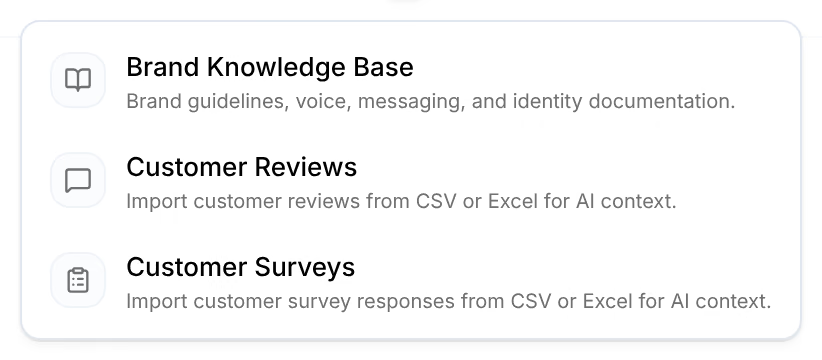
| What you add | How |
|---|---|
| A research report | Upload a PDF or Markdown file, one per report. Under Dependencies, choose the product it is about. |
| Brand Knowledge Base | Type or paste it into the panel, or press Or upload a file (PDF, Markdown). |
| Customer Reviews, Customer Surveys | Upload a spreadsheet, CSV, XLS or XLSX, one per import, and choose its product. |
| Fundamentals | Upload PDF or Markdown files, up to 5 at a time. |
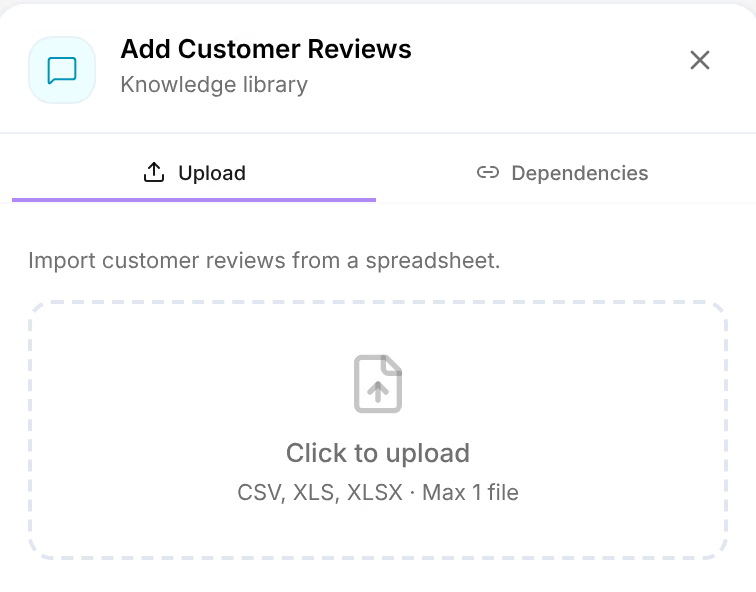
The panel's foot says what is still missing, such as Select a Product, and its button waits until nothing is.
Generate, on Research and Brand, opens Studio, where a research card writes a report from your product and your market on your AI keys. See Generate your first content.
A document's panel
Press a document to read it in the panel on the right. The facts under its name give its format, its length, its reading time and, for a report, how many sources it cites.
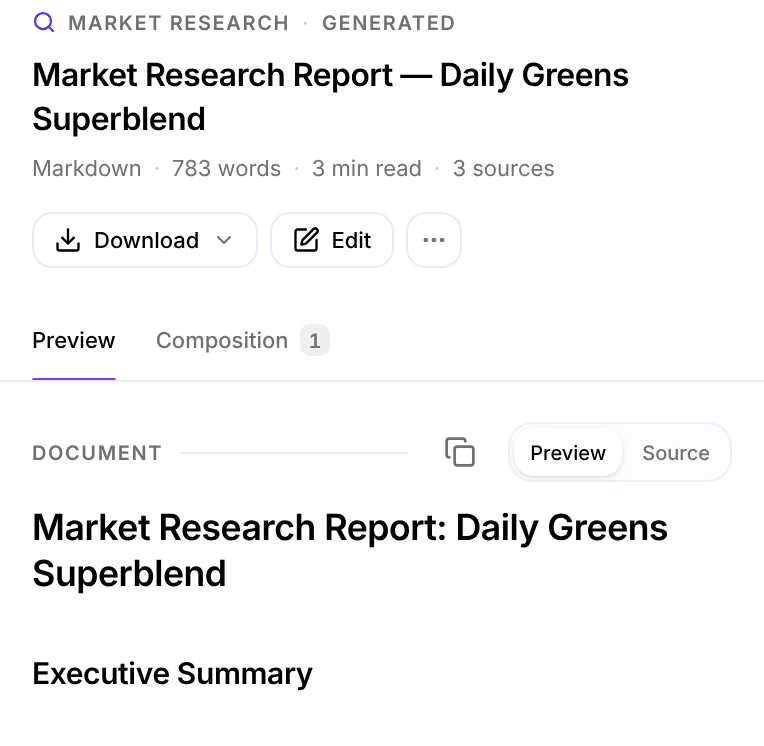
Under Document, Preview shows it as it reads and Source as it is written, and Copy markdown copies it. Download saves it as Markdown (.md) or as a PDF document. Composition lists what it is about: for a report, its product. Edit changes it, unless other items were written from it: see Edit an item.
Knowledge items carry no performance verdict. Their cards read Context: they inform what is written but never appear in an ad, so no credit reaches them.
Folders
Knowledge items can be kept in folders, like every Library item but products. The demo store keeps two fundamentals in a folder named Top Picks.
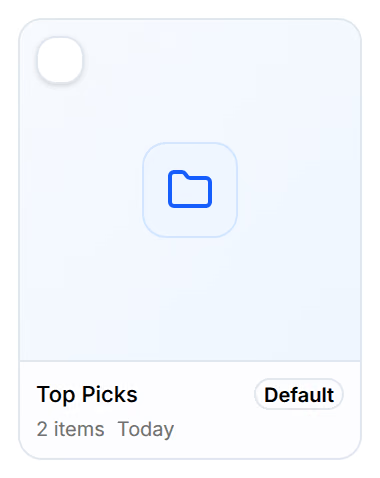
A folder marked Default cannot be renamed, moved or deleted. See Search and folders.