Search and folders
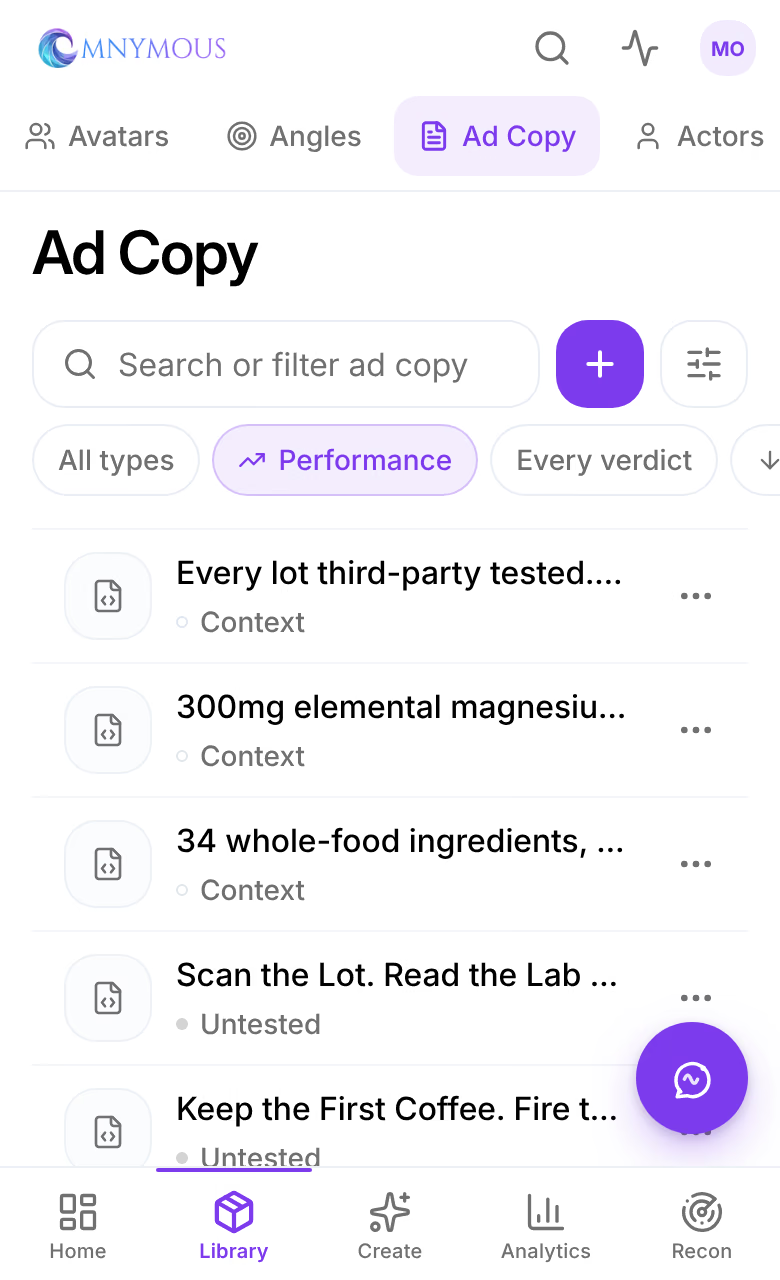
Every Library page shares one toolbar, to search and filter its items, sort them, read how they perform, and keep them in folders.

Products, Knowledge, Variables and Assets share one toolbar. It finds items, narrows them, orders them, shows how they perform, and keeps them in folders. What a page offers depends on its items: Products has no folders, and only pages with several types of item have Item Types.
What you can do here
- The item panelEvery Library item opens in the same panel, which says what the item is, how it performs, what you can do with it, how it was made and what it is made of.
- Add your own propertiesGive a kind of Library item fields of your own, such as who made a creative, fill them in on your items, find items by them, and credit them in the Lab.
The toolbar
| Control | What it does |
|---|---|
| The home button | Back to the top of the page, out of any folder. |
| Search | Finds items. CtrlF, or CmdF on a Mac, opens it. See Search. |
| Item Types | Shows only the types you tick, each with how many items it has. |
| The order | Sorts the items, as Modified does by default. See Sort. |
| Performance | Shows each item's verdict and money, and filters by verdict. See Performance. |
| Grid view, List view | Cards, or rows with the same facts in columns. |
| Properties | Your own fields on these kinds of item. See Add your own properties. |
| New folder | Makes a folder where you are. See Folders. |
| Add, Generate | Add an item by hand, or make some in Studio. See each page. |
| Refresh | Reads the page again. |
When the page is narrow, such as with an item's panel or Properties open, the toolbar folds its labels away and keeps the icons; point at one to read its name.
Search
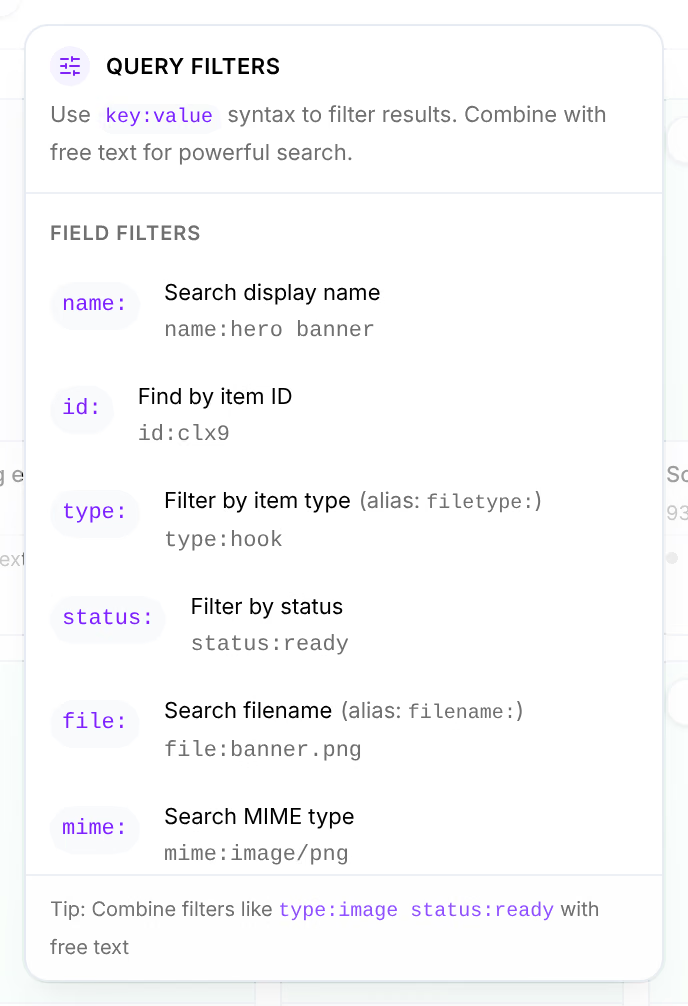
Press the magnifier, or CtrlF, and type. Words find items by their names and text. A word followed by a colon filters by one thing, and several combine:

| Name | What it does |
|---|---|
| type: | The type of item, such as type:hook or type:image. |
| name: | Words in its name, such as name:magnesium. |
| origin: | Where it came from: origin:generated, origin:observed, origin:upload or origin:manual. |
| product: | The product it is tied to, by its ID. |
| status: | Whether it is ready, such as status:ready. |
| id: | One item, by its ID. |
| file:, mime: | A file's name, or its kind, such as mime:image/png. |
| source:, partof:, contains:, usedby: | Items from one Studio run, items in one item's composition, items whose composition holds one item, and items used in one campaign, each by its ID. |
Your own properties filter the same way, by their key, such as creatorTier:freelance. Query filters, the button beside the search, lists every filter with an example, yours under Your properties.
When nothing matches, the page reads No items found. Clear the search with the cross at its end.
Sort
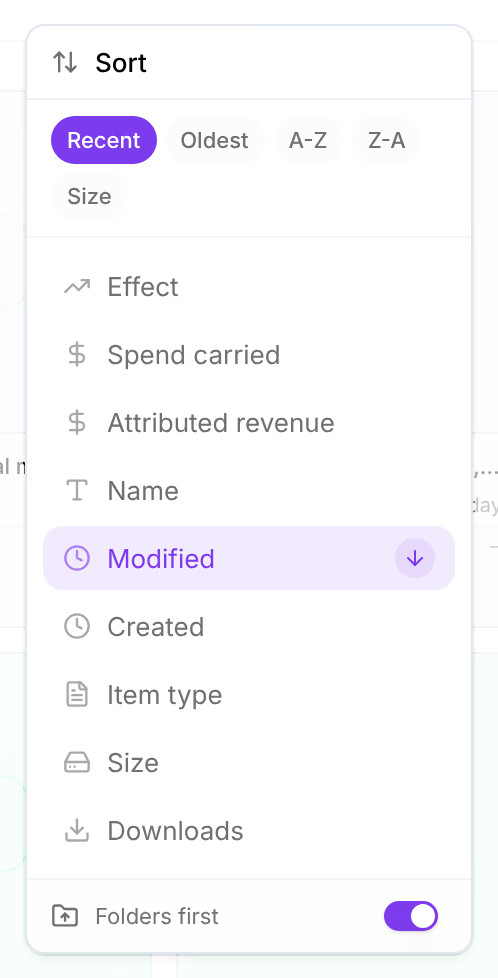
The order control names the order in use. It offers quick orders, Recent, Oldest, A-Z, Z-A and Size, then every field to sort by: Name, Modified, Created, Item type, Size and Downloads, and, with Performance on, Effect, Spend carried and Attributed revenue. Press the arrow beside a field to reverse it. Folders first, at the foot, keeps folders ahead of items.
Performance
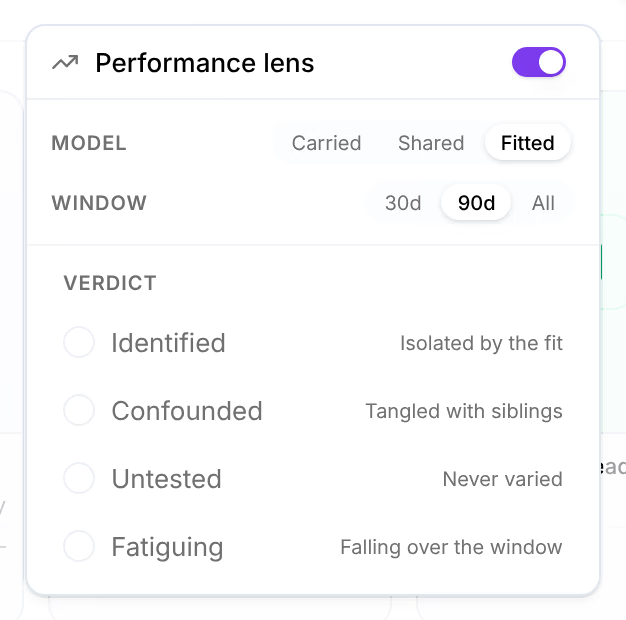
Performance turns the lens on and off, and holds what it reads under.
| Name | What it does | Default or limit |
|---|---|---|
| Model | How an ad's credit is passed to the pieces inside it: Carried, Shared or Fitted. See Carried, Shared, Fitted. | Default Fitted |
| Window | Which nightly fit the effects come from: the last 30 days, the last 90, or everything. | Default 90d |
| Verdict | Shows only the items with one verdict: Identified, Confounded, Untested or Fatiguing, an item whose results are falling over the window. Clear shows them all again. |
The model and the window are the Attribution Lab's own: changing them here changes them there. With the lens off, cards show their files' facts instead of their money.
Folders
A folder holds items of one page, and folders can hold folders. Press New folder, give it a Folder Name and, if you like, a description, and press Create folder. It appears among the items where you are, and a message says Folder created successfully.
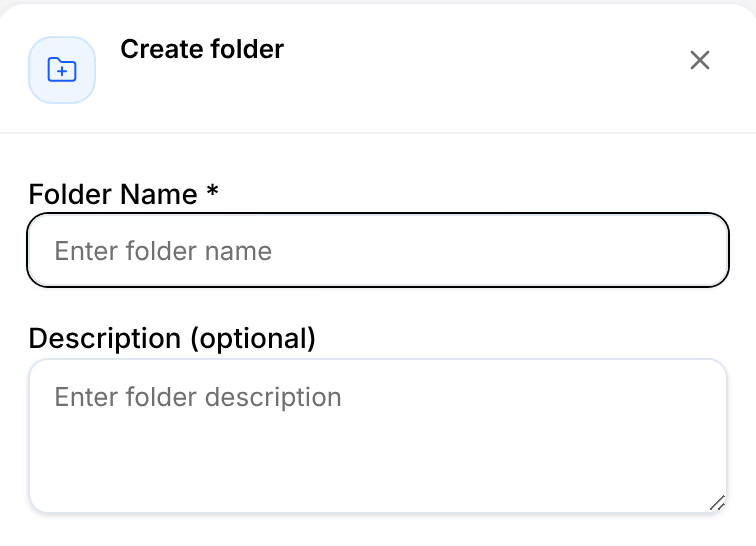
Press a folder to open it: its name joins the home button at the top, and the home button takes you back out. To put an item in a folder, open its menu, the three dots on its card, and choose Move. In Move to folder, choose the folder, or All Files for the top of the page, and press Move here. Several items move together: see Select several items.
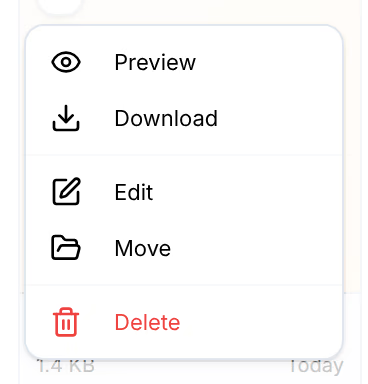
A folder's own menu holds New Subfolder, Rename, Move and Delete. Deleting a folder deletes the items and folders inside it too, so move out what you want to keep first. A folder marked Default cannot be renamed, moved or deleted.
Select several items
Tick the circle at the corner of a card, or of a row, and a bar rises at the foot of the page with how many you chose. Its buttons act on all of them at once: edit, move to a folder, download, and delete; documents can also be downloaded as a PDF. The cross clears the choice.
On a phone
The search fills the top of the list, with + to add an item beside it and a button that opens the order, the types and the lens as a sheet. The chips under it, such as Performance, Every verdict and Newest first, change one of them in a tap.