The item panel
Every Library item opens in the same panel, which says what the item is, how it performs, what you can do with it, how it was made and what it is made of.

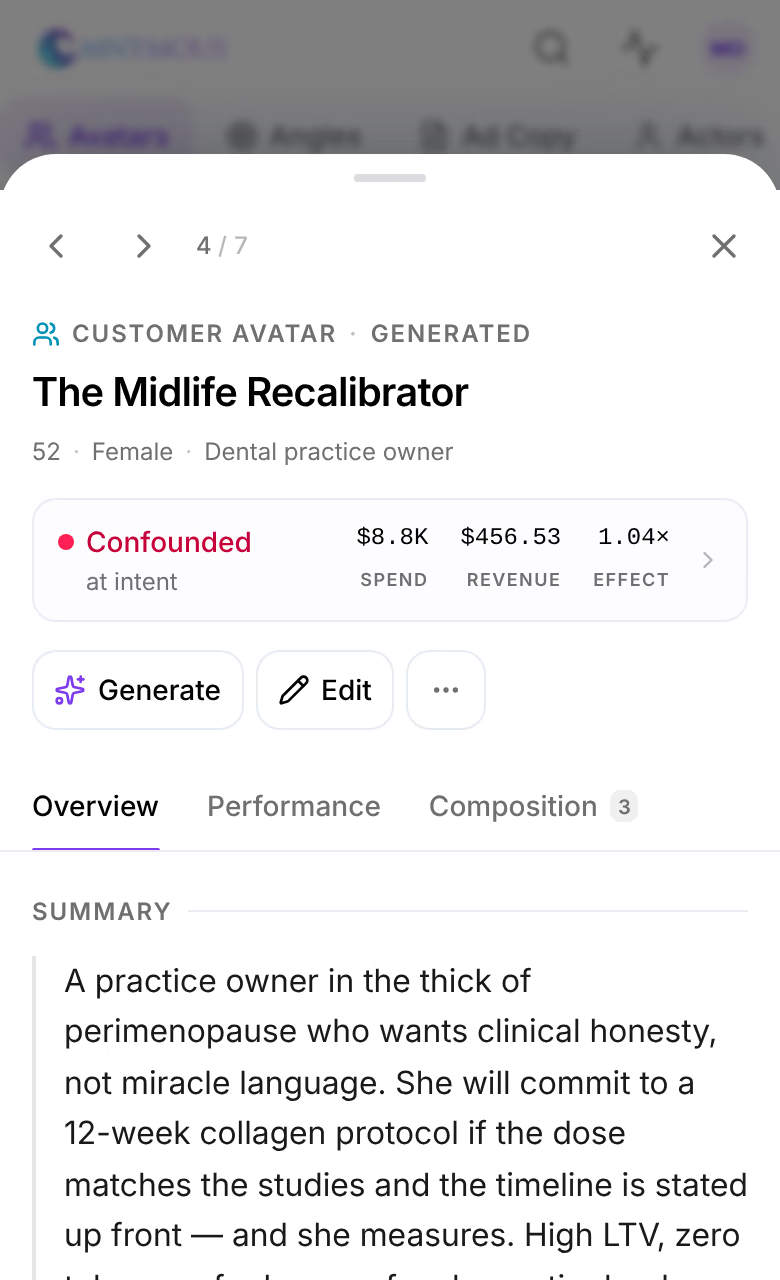
Press any item in the Library, a card or a row, and it opens in a panel on the right. The panel is the same for an avatar, a hook, a report, a creative and a page, so what you learn on one you know on all of them. It reads from the top: what the item is, how it performs, what you can do with it, then the item itself.
What you can do here
- Add your own propertiesGive a kind of Library item fields of your own, such as who made a creative, fill them in on your items, find items by them, and credit them in the Lab.
- Edit a page in Page StudioChange a page Studio made, by typing on it, by asking the AI or in its design, and keep every change as a version you can go back to.
- Attribution LabThe Lab credits revenue to each hook, angle, avatar, offer and page inside your ads, and says how sure it is of each one.
Step through items

| Key | What it does |
|---|---|
| K | Previous item: the one before it on the page, in the page's order and filters. |
| J | Next item. |
| E | Edit the item. |
| Esc | Close the panel. |
The count beside the arrows, such as 4 / 7, is where you are among the items the page shows. The button with two arrows widens the panel over the page, where the Overview sets the item beside its details.
What it is
The small line above the name gives the item's kind and where it came from, such as Customer avatar · Generated. Under the name, a few facts say what matters for that kind: an avatar's age and profession, a report's length, a page's template and sections, a creative's ratio.
How it performs

The strip under the facts is the item's verdict, where in the buyer's path it acts, and its money: the Spend of the ads that carried it, the Revenue credited to it, and its Effect. A creative shows ROAS instead of an effect, and how many ads delivered it. Press the strip to open Performance.
Knowledge items have no strip: they inform what is written, and no credit reaches them.
What you can do with it
The buttons depend on the item:
| Name | What it does |
|---|---|
| Copy | On copy, such as a hook or a headline: puts its words on the clipboard. |
| Page Studio | On a page made in Studio: opens it to edit and publish. See Edit a page. |
| Generate | On an item that can be credited, such as an avatar, a hook or a page: opens Studio on a new board built around it. |
| Download | On a document: saves it as Markdown or as a PDF. |
| Edit | Opens the item's form. See Edit an item. |
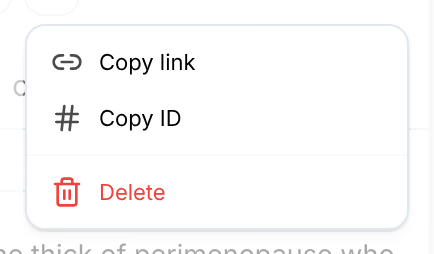
More actions, the three dots, holds the rest: Download for a file, Copy link to this item's place in the Library, Copy ID, and Delete, set apart at the bottom.
Overview
The first tab is the item itself, laid out for its kind: an avatar's profile, a hook's words, a report as a document, a creative at full size, a live preview of a page on a desktop or a phone. Below it:
| Name | What it does |
|---|---|
| Properties | Your own properties and their values on this item. See Add your own properties. |
| Generation | For an item Studio made: how it was made and what it cost. See How it was made. |
| About | Its type, its origin, its product and folder, when it was made and changed, its size, and its ID, with a button to copy it. |
Performance
The second tab is the Attribution Lab's own panel for this item, for every item that can be credited: its call, its effect at each stage of the buyer's path, the pieces it cannot be told apart from, and the evidence behind it. It reads under the atom model and the window chosen under Performance in the toolbar. See An atom up close.
Composition
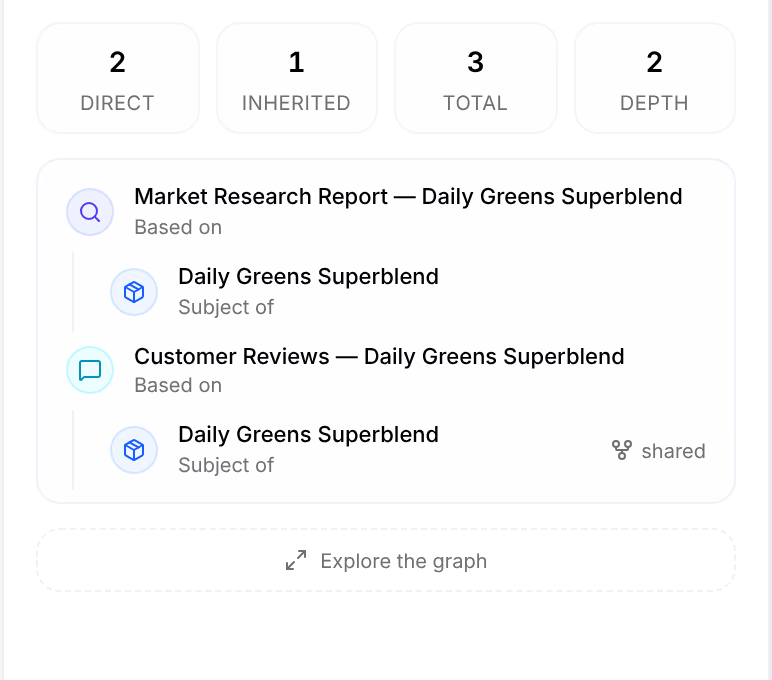
The third tab shows what the item is made of, as a graph: Direct, the items it was written on, and Inherited, the items those were written on in turn, with how deep the chain goes. Press an item in the graph to open it, or Explore the graph to see it larger. The tab is not shown when an item is made of nothing.
How it was made
An item Studio made has a Generation section on its Overview: a receipt for the run that made it and for every AI edit since.
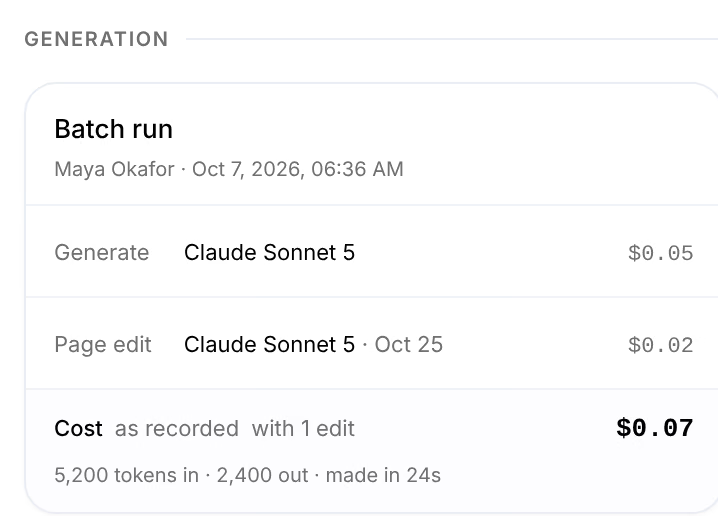
The first line names the Studio card and take that made it, or the run; under it, the run, who started it and when. View run opens the run in Studio. Then:
- Each stage of the run, with the model you picked for it and what that stage cost for this item. A stage you turned off reads Off.
- Each AI edit made to the item since, on a row of its own, with its model, its day and its cost: an Image edit, a Page image, a Page edit or a Rewrite.
- Cost: what the item cost, its edits included, as in with 1 edit. as recorded marks a cost written when the item was made, before every call was metered.
- The usage: tokens in and out, images or seconds of video, and how long it took.
Costs are what your AI providers billed your keys for these calls. Hover a cost for the exact amount. See Usage and AI keys.
A creative from your ads
A creative Omnymous read from your ads carries the ad with it. Below the creative:
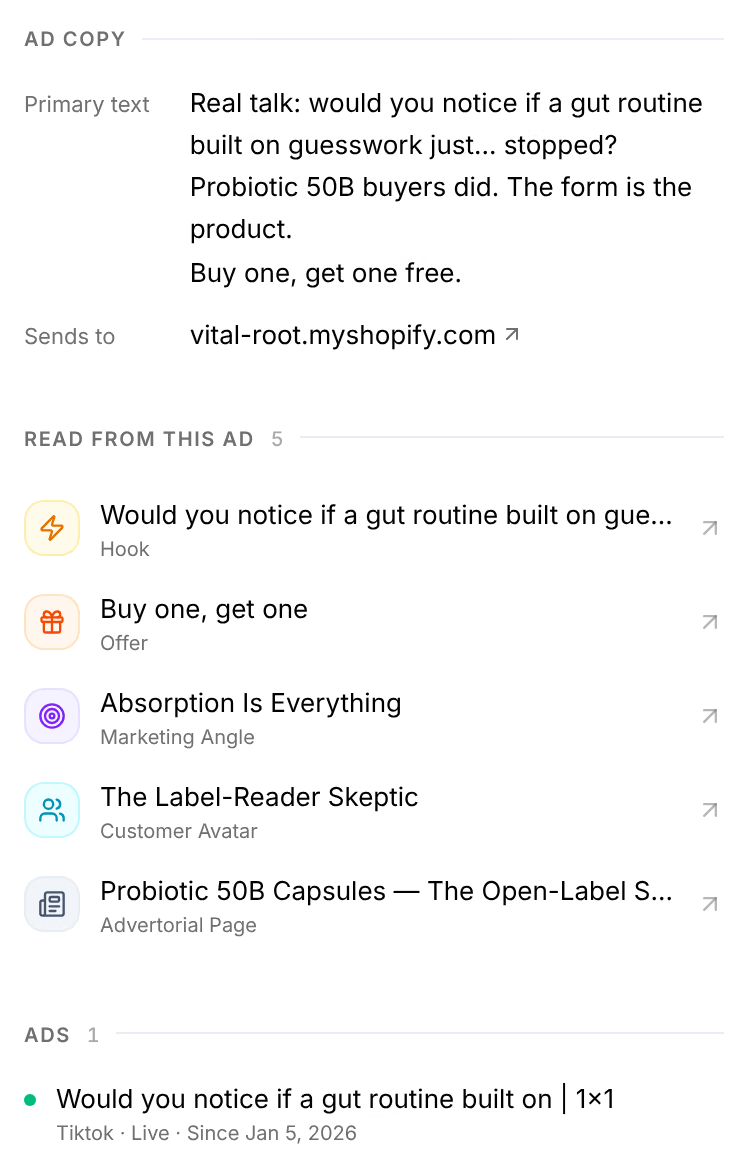
| Name | What it does |
|---|---|
| Ad copy | The ad's own words: its Headline, Primary text, Description, Button and where it Sends to. |
| Variants | For a dynamic ad, its every headline and text, and how the platform combines them for each viewer. |
| Cuts | For a video you re-cut or translated: each version with its opening line, its length and its ads. See Cuts. |
| Read from this ad | The pieces Omnymous read from it, such as its hook, offer, angle, avatar and page. Press one to open it. |
| Ads | Every ad that runs this creative, live ones first, with its platform and since when. |
A carousel shows as its strip of cards, each with its picture, its headline and its button.
Cuts
Re-cuts and translations of one video are one creative to Omnymous: the same poster frame, the same offer and the same opening hook, in another length or language. Cuts lists them, Re-cuts and translations of this video, each with its own file and copy. Their results add up on this creative. Each row gives the version's opening line, its ads and its length; the one shown above reads Shown above, and the others open their video. A version that stops agreeing with the others, a different offer or a different opening, becomes a creative of its own at the next read.
Edit an item
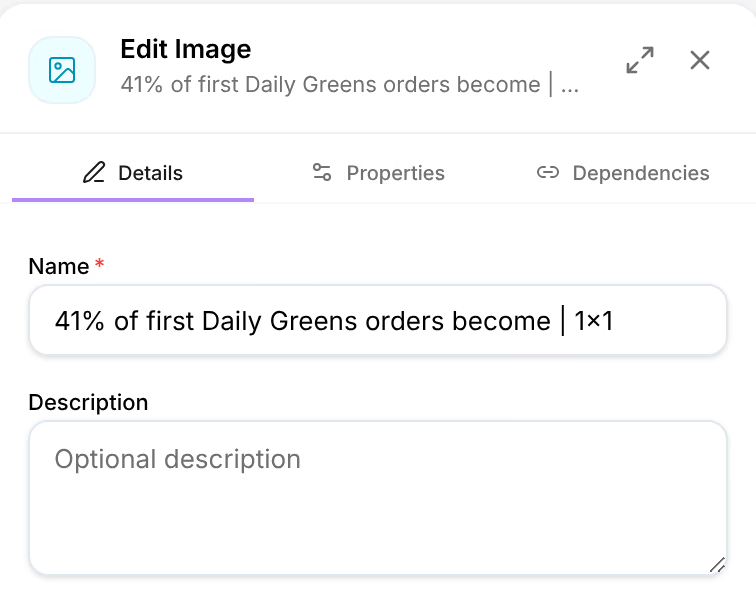
Edit, or E, opens the item's form in the panel: Details, its name and description; Properties, its own fields and yours; and Dependencies, the items it is written on. Save changes, at its foot, keeps them.
An item that other items were written on is locked, because changing it would change what they mean. Its form reads Locked while in use, counts the items that build on it, directly and indirectly, and lists the direct ones.
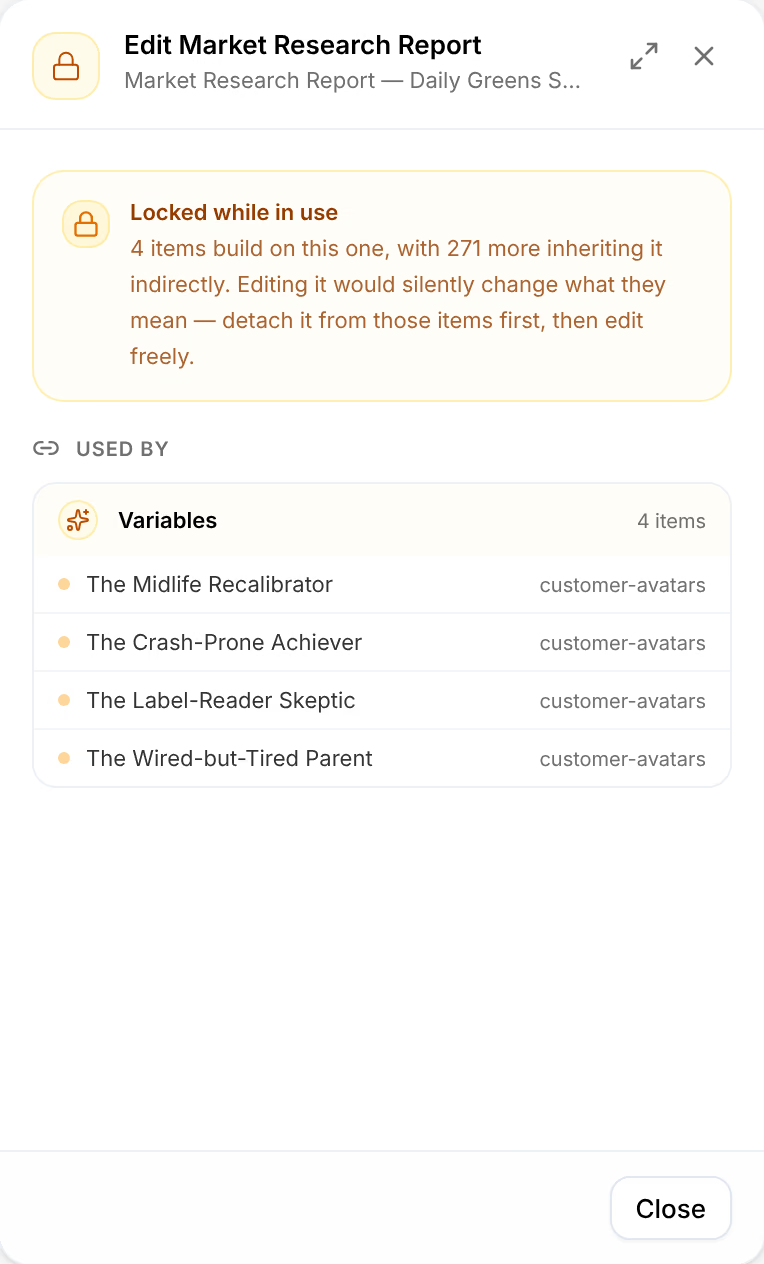
As the form says, detach it from those items first, then edit it freely.
On a phone
The panel opens as a sheet over the list, with the same parts in the same order. The arrows at the top step through the list, and the sheet closes with the cross or by sliding it down.