
Billing
The plan and what it costs, the billing cycle, the card Stripe charges, extra stores, cancelling, and what happens when a payment fails.

Billing is where an owner sees what the workspace pays and changes how. Owners only An admin’s or a member’s account menu has no Billing. Open your account menu, at the right end of the top bar, and choose Billing.
The plan
Omnymous has one plan: $149 a month, or $1,490 a year, before tax. Stripe’s checkout adds VAT or sales tax where it applies, and may show the amount in your own currency at Stripe’s rate, with a switch to pay in US dollars. Every plan includes:
- one Shopify store, and each further store at $19 a month, or $190 a year on a yearly plan;
- 1 TB of storage across your stores;
- unlimited team members and ad accounts;
- unlimited generations on your own AI keys. Each provider bills you for what you run: see Usage and AI keys.
You choose Monthly or Yearly in setup and pay in Stripe’s checkout. Stripe sells the subscription through Link: the receipts are emailed by Link, and your card statement shows LINK.COM.
The statement
| Name | What it does |
|---|---|
| Rate | What each cycle costs in US dollars, before tax: the plan and your extra stores. |
| Billing cycle | Monthly or Yearly. Switch to yearly (or monthly) beside it opens the Billing Portal on the switch: see Switch between monthly and yearly. |
| Renews on | The day Stripe next charges. After you cancel, it reads Access until. |
| Auto-renew | On, or Off once you cancel. |
Under them, how many stores the rate covers, and the card Stripe charges with its last four digits.
Billing Portal
Billing Portal takes you to Stripe’s billing page for your workspace. There you change the card Stripe charges, update the name, email and address on your invoices, download past invoices, switch between monthly and yearly, and cancel. Its link back returns you to Billing.
Switch between monthly and yearly
Switch to yearly, beside Billing cycle, opens the Billing Portal on the switch. Choose Yearly, then Continue: the portal shows what you pay before you confirm.
- To yearly, the switch is immediate: you pay the year today, less the unused part of the month.
- To monthly, the switch waits for the end of the year you paid for. Nothing is charged or refunded until then.
The portal then brings you back to Billing, which shows the new cycle and its renewal date. Stripe’s portal can switch a subscription that has one line only, so a workspace that pays for extra stores is not offered the switch: write to support@omnymous.com and we switch it for you.
Extra stores
Your first store is included. When you connect another from Stores, Omnymous first shows what it adds to your bill, as New store under Additional store billing. Nothing is charged then: the store is added to your next invoice, prorated for the days left in the cycle. Press Connect store there to go on. See Stores.
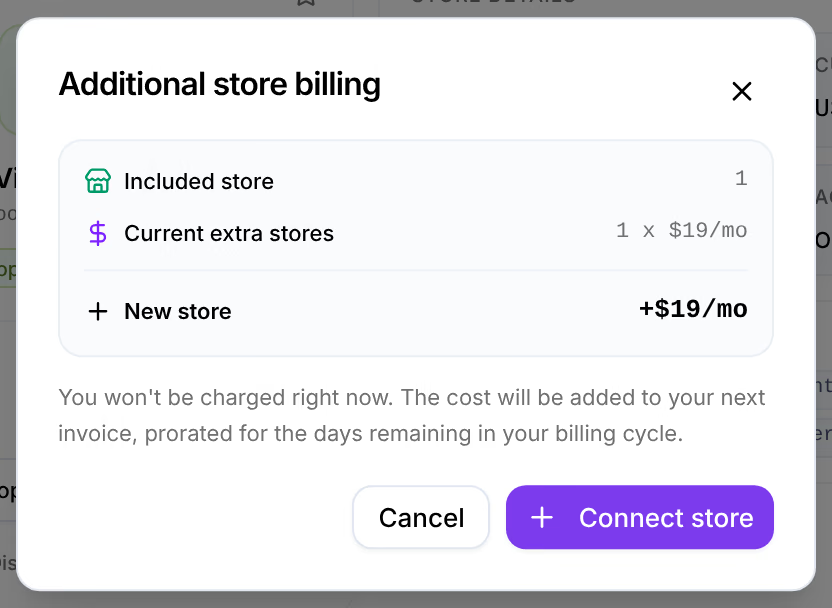
Disconnecting a store takes it off your bill: the unused part of the cycle is credited on your next invoice.
Resource usage

Storage counts the files of all your stores against 1 TB; the bar turns amber at 80% and red when it is full. Team Members and Stores are counts: neither has a limit.
Cancel your subscription
Cancel subscription, at the foot of the statement, asks you to confirm. You keep full access until the end of the period you paid for, and nothing more is charged. After that, the workspace is frozen, and its data is permanently deleted 30 days later.
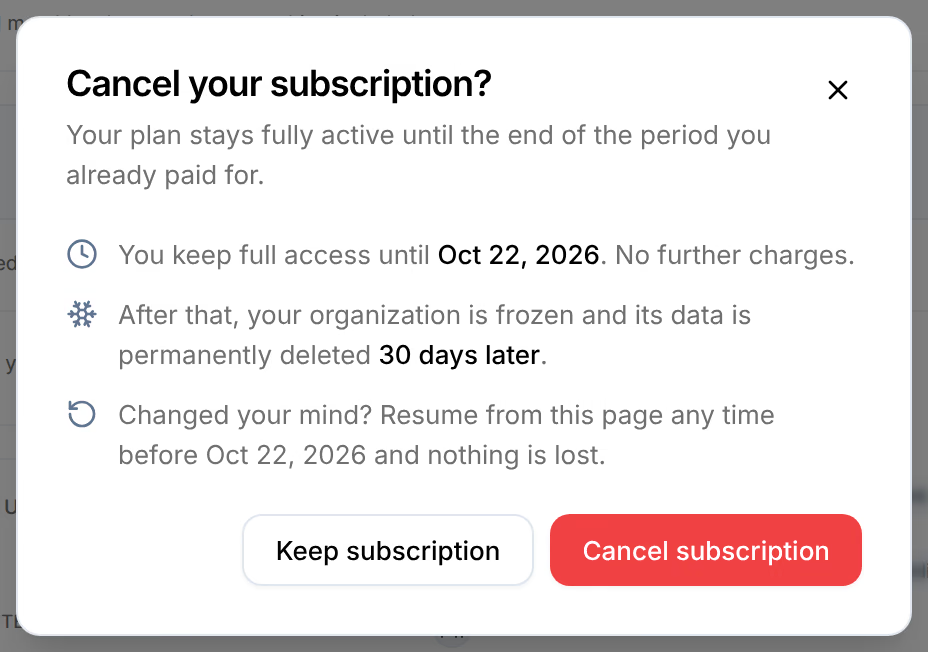
Until that day, the statement reads Access until with the date, and Resume plan turns renewal back on. A banner across the app says when the plan ends, with Resume plan.

When a payment fails
Stripe charges the card on the renewal day. If the card is declined, the workspace keeps working while it is put right, in three stages.
The payment failed
Stripe tries the card again over the next few days, and the owner gets an email. A banner at the top of every screen reads Payment failed. Pay the open invoice to keep access., with Pay now; on a phone it is a row under the screen’s top bar. Billing reads Past Due, says the same beside its own Pay now, and its Renewal reads Retrying.

Every retry failed
After the third failed attempt, the banner turns red and counts down: the workspace is frozen 48 hours later. Billing’s Freezes on gives the day and time. The owner gets an email that says so.

The workspace is frozen
The subscription is cancelled, and every screen shows Workspace locked — payment failed instead. Nothing is lost: the data is kept for 30 days, and the screen counts them down. See The workspace is locked.
Pay the past-due invoice
At either of the first two stages, an owner presses Pay now, on the banner or on Billing. Resolve payment shows the invoice and the amount due. Its button, Pay with the amount on Stripe, opens Stripe’s page for that invoice in a new tab, where you pay with a saved or a new card. Back in Omnymous, the window reads Subscription reactivated as soon as the payment goes through, and the banner goes.
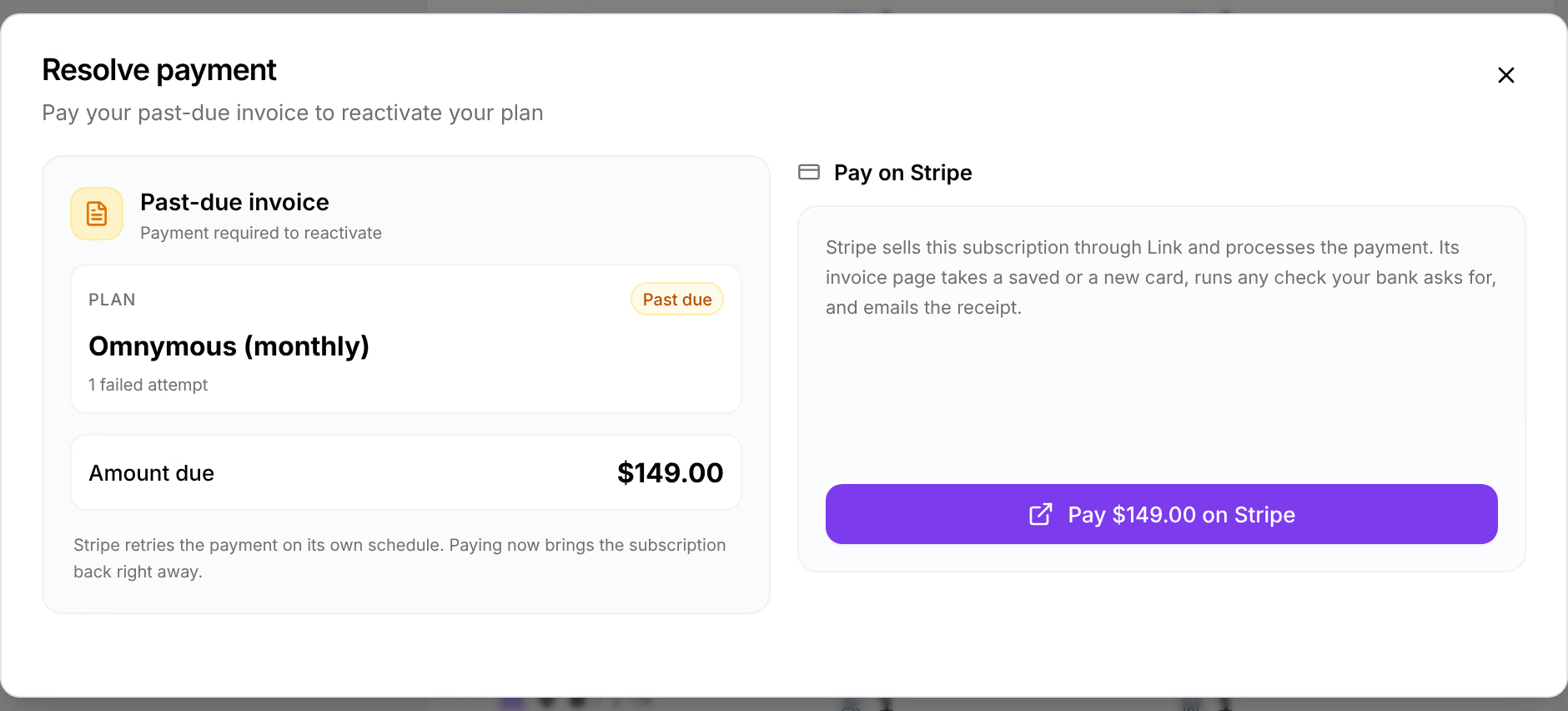
You can also replace the card in the Billing Portal: Stripe charges the new one at its next retry.
Only owners can pay. Everyone else sees the same banner, asking them to tell a workspace owner.
Questions
Related
- Add and manage storesConnect another Shopify store to your workspace, switch between your stores, read how each one is connected, and disconnect one you no longer need.
- I can’t sign inWhat to do about a refused password, a locked account, a reset link that has run out, an invitation that will not open, or a locked workspace.