
What the Library holds
The Library keeps what your marketing is made of, from your products and research to the pieces of your ads and the finished creatives and pages.

Everything Omnymous makes, launches and measures is built from items in the Library. A product, a research report, an avatar, a hook, an offer, a creative and a page are each one item, and every creative remembers the items it was made from. That memory is what lets Omnymous credit a sale to the hook inside an ad, and not only to the ad.
In short
- Four pages hold four kinds of item: your products, what you know, the reusable pieces of your ads, and the finished creatives and pages.
- Items arrive five ways: synced from Shopify, uploaded, typed, made in Studio, or read from the ads you already run.
- Each item knows the items it was built from, and shows what it earned once it has run in your ads.
Four pages
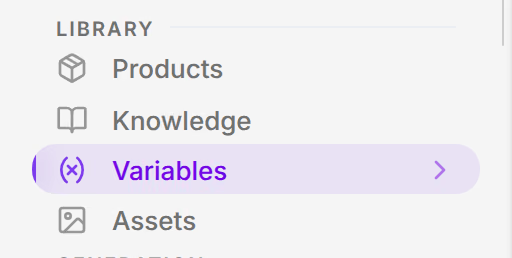
In the sidebar, under Library, the four pages sit in the order your work moves through them. On a phone, they are the screens of the Library tab.
| Name | What it does |
|---|---|
| Products | Your Shopify catalogue, with prices, costs, variants and images. Every other item can be tied to one of your products. See Products. |
| Knowledge | What the AI reads before it writes: market research, your brand's own knowledge, customer reviews and surveys, and marketing fundamentals. See Knowledge. |
| Variables | The reusable pieces of your ads: avatars, angles, ad copy, actors, page copy and offers. Each one can be credited on its own. See Variables. |
| Assets | The finished work: ad creatives, images and videos, and the pages your ads send buyers to. See Assets. |
Where items come from
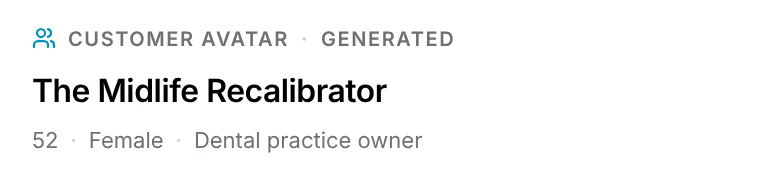
An item's panel names where it came from, beside its kind. The demo store's avatar The Midlife Recalibrator reads Customer avatar · Generated.
| Origin | How the item arrived |
|---|---|
| Typed | You wrote it, with Add on its page. |
| Uploaded | You uploaded a file: a report, a spreadsheet of reviews, an image or a video. |
| Generated | Studio made it on your AI keys. Its panel shows the run that made it and what it cost. |
| Observed | Omnymous read it from an ad you ran, and links it to every ad that carries it. |
Products are the exception: they come from Shopify, and their panel says Shopify.
How items connect
Items are written for one another. An angle sells one of your products to an avatar. A hook opens on an angle, an offer prices a product, and an actor speaks to an avatar. When you add an item by hand, its Dependencies tab asks for the items it builds on; Studio records them by itself for everything it makes.
A creative's Composition shows the whole chain. This creative from the demo store carries a hook and an offer of its own, and inherits the angle, the avatar, the research and the product behind them.
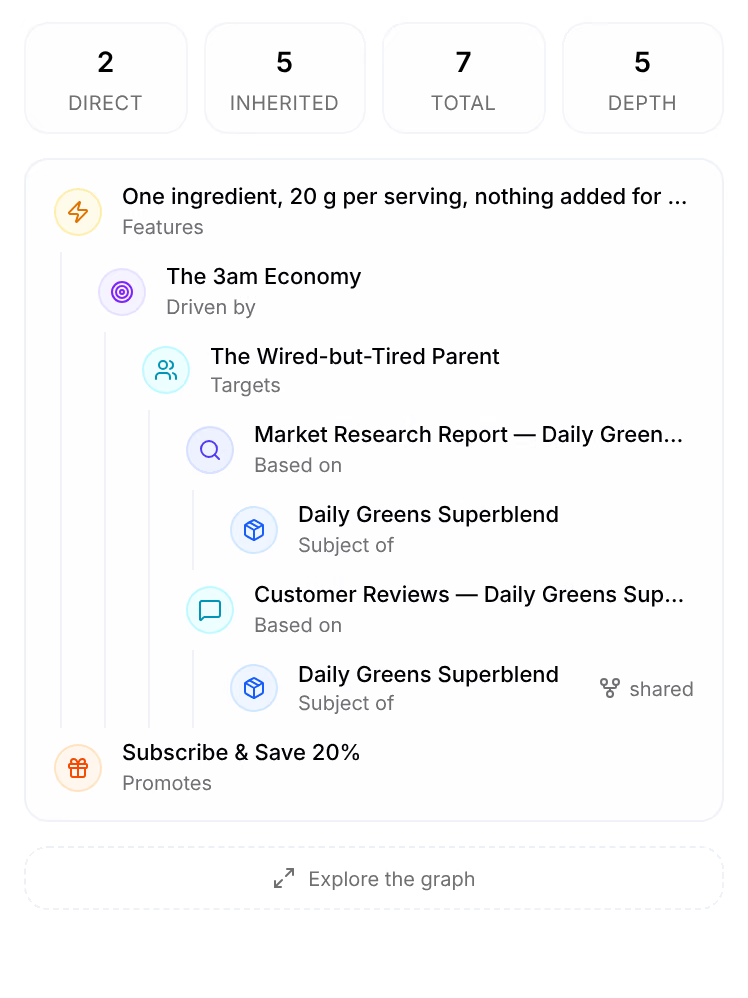
Because every creative knows its pieces, credit for a sale can flow from the ad to each piece inside it. The pieces credit can reach are called atoms. See How Omnymous works.
What an item earned
Once an item has run in your ads, its card shows a verdict, the spend it carried and its effect: how its ads' rate compares with the average piece of its kind, with everything else they carried held equal. Four of the demo store's avatars read Confounded: they always ran beside the same other pieces, so their effect cannot be told apart yet.
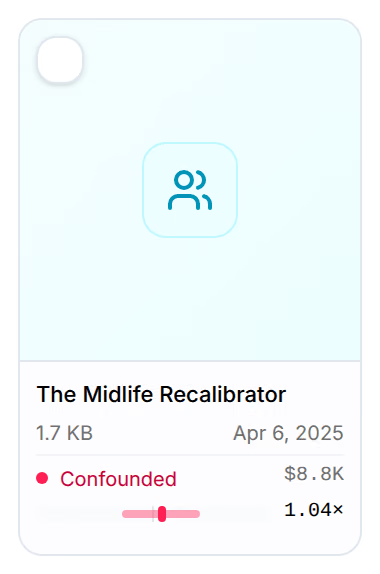
A creative reads Ad, with its spend, its ads and its return; a piece no ad carried in the last 90 days reads Untested. The verdicts are the Attribution Lab's own: see Attribution Lab. The Performance control on each Library page turns them on and off, and filters by them: see Search and folders.
Pieces read from your ads
Ads you ran before Omnymous count too. Once your ad accounts are connected, Omnymous reads every ad, takes it apart into its avatar, angle, hook, offer, actor and page, and looks for each piece in your Library:
- a piece it finds is linked to the item you already have, so the item's results include that ad;
- a piece that is new becomes a new item, marked Observed;
- a piece it cannot tell apart from an item you have waits under To review on the Variables page, for you to merge or keep. See Review pieces from your ads.
A video you re-cut, or translated, stays one creative: its versions are listed under Cuts in its panel, and their results add up on it.
Where this shows up
- VariablesVariables are the reusable pieces of your ads, avatars, angles, ad copy, actors, page copy and offers, each one written once and credited on its own.
- AssetsAssets are your finished work, the ad creatives, images and videos, and the pages your ads send buyers to, each with what it was made from and what it earned.
- The item panelEvery Library item opens in the same panel, which says what the item is, how it performs, what you can do with it, how it was made and what it is made of.
- How Omnymous worksOmnymous builds your ads from reusable pieces, launches them, and credits every order back to the pieces that earned it.