
Invite your team
Invite colleagues by email, choose what each of the four roles may do, and manage invitations and members under Workspace.

Everyone in a workspace works on the same stores, Library and analytics. A person’s role decides what they may change. Team members are unlimited: inviting someone adds nothing to your bill.
Before you start
- You are an owner or an admin of the workspace. Owners invite admins, members and viewers; admins invite members and viewers.
- Your colleague’s email address. Only that address can accept the invitation.
Invite someone
Open Workspace
Open your account menu, at the right end of the top bar, and choose Workspace. On a phone, tap your initials, then Workspace. The Team management card lists your workspace’s members.
Press Invite
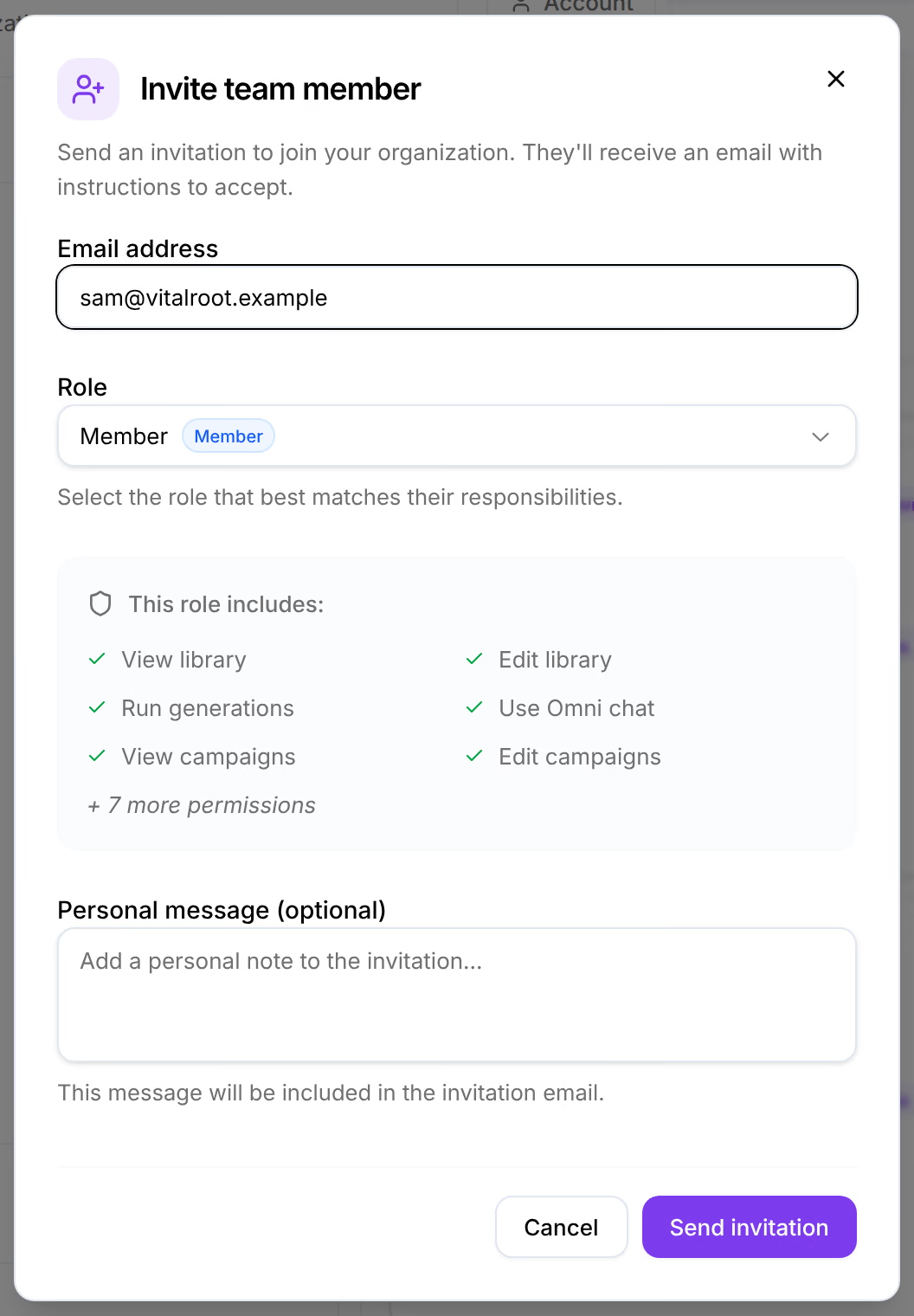
Invite is at the top right of Team management. The Invite team member window opens.
Type the address and choose a role
Type the address under Email address. Under Role, choose Viewer, Member or Admin; the box under it lists what that role may do.
Send it
Personal message (optional) adds a note to the email. Press Send invitation.
Check that it worked
Invitation sent successfully appears in the corner. Under Invitations, the address waits as Pending, with its role and when it expires.
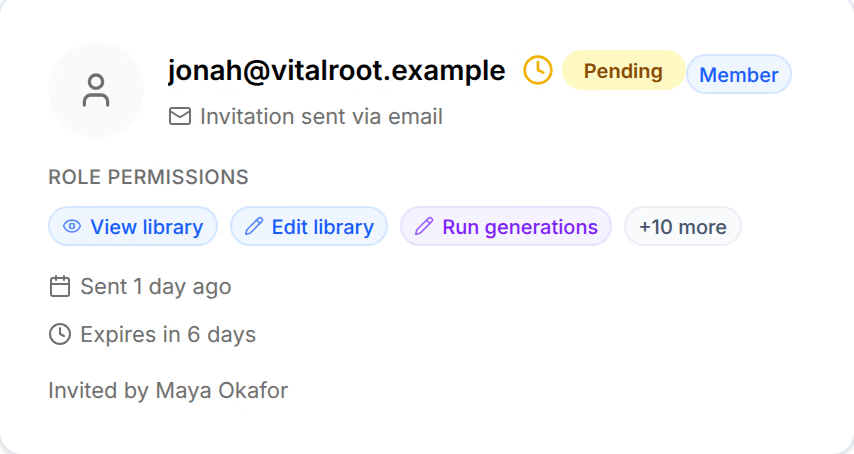
Your colleague gets an email with a link that works for seven days. From it they create their account, or sign in, and land in your workspace: see Accept an invitation. They are then listed under Members, and their invitation reads Accepted.
What each role can do
Each role can do everything the role before it can, and more.
| Name | What it does |
|---|---|
| Viewer | Read-only access to content, campaigns, and analytics: the Library, campaigns, Analytics and Reconnaissance, without changing anything. A viewer’s sidebar has no Generation and no Chat. |
| Member | Creates and launches content: Library, Studio, campaigns and Omni. A member also configures analytics, manages Reconnaissance, and sees the team and the store’s connections. |
| Admin | Manages the team, integrations, and access keys: everything except billing. An admin manages members and viewers, and no one above them. |
| Owner | Full control of the workspace, including billing and every member. A workspace can have several owners. |
The window that invites, and the one that changes a role, list the permissions each role holds in the product’s own words.
Resend or cancel an invitation
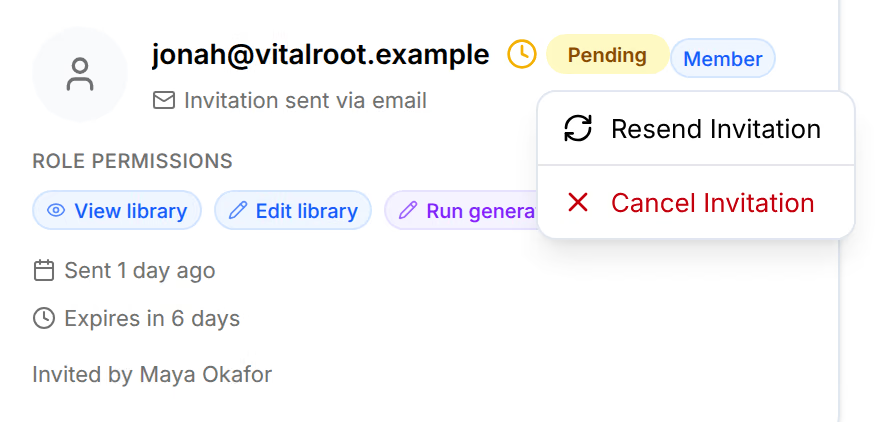
On Invitations, rest the pointer on an invitation and press its More options button; on a phone it is always shown.
- Resend invitation emails the same invitation again, with a link that works for another seven days. The link in the earlier email stops working. An expired invitation can be sent again the same way.
- Cancel invitation withdraws it. Its link stops working.
Invitations you sent stay listed after they are accepted or cancelled, marked as such.
Change a role or remove someone
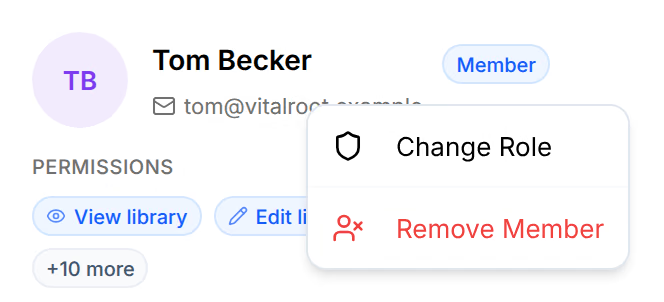
On a member’s card, press More options, then:
- Change role opens Change member role. Choose the new role and press Update role. They get an email about the change.
- Remove member asks you to confirm, then ends their access to the workspace and emails them that it did.
You cannot change your own role. To hand the workspace over, make the other person an owner first.
Rename the workspace
An owner renames it on its card: the pencil beside its name turns the name into a field. Save, or Enter, keeps the new name; Cancel, or Escape, puts the old one back. Everyone in the workspace sees the new name.
Leave a workspace
Leave workspace, at the foot of the workspace’s card, takes you out of it. Its last owner cannot leave: the window reads You’re the only owner. Make another member an owner first, then leave. To close the workspace instead, see Data and privacy.
If something goes wrong
| What you see | What to do |
|---|---|
| No Invite button, or no Team management card | Only owners and admins invite. A viewer sees only that team visibility is limited. |
| “This person is already a member of this workspace” | They are in already. Find them under Members. |
| “An active invitation already exists for this email address” | One is still pending. Use Resend invitation on it. |
| The invitation reads Expired | Its seven days ran out. Use Resend invitation on it, or invite the address again. |
| Your colleague cannot find the email | Ask them to look in their spam folder. Check the address under Invitations, and resend it. |
| “Too many invitation attempts. Please try again later.” | Wait a few minutes before sending more. |
Related
- Create your accountRegister with your email address or with Google, enter the six-digit code from your email, and sign in.
- BillingThe plan and what it costs, the billing cycle, the card Stripe charges, extra stores, cancelling, and what happens when a payment fails.