
AI keys and usage
Replace, check or remove the provider keys your workspace generates with, and read what they spent this month, by model and by type.

Omnymous generates with your own provider keys, so each provider bills you directly for what you run; Omnymous charges nothing per generation. AI & Agents, in your account menu, holds the keys, what they spent this month, and your agent keys.
Everyone in the workspace can see which keys are saved and what they spent. Only owners and admins add, replace or remove a key.
What your keys run
What your keys run, at the top of AI Keys (BYOK), ticks each feature your saved keys can run and names the providers it runs on. A feature they cannot run yet names the key that would add it, as in Add Higgsfield under Video. To add a first key, see Add your AI keys.
A saved key
Each provider’s card shows its saved key by its last four characters, and its standing: Active, or Rejected once the provider has refused it. Every saved key has Replace key and Remove.
Replace a key
Replace a key when you rotate it on the provider’s site, or when it was refused.
Open AI & Agents
Open your account menu, at the right end of the top bar, and choose AI & Agents.
Press Replace key
On the provider’s card, press Replace key. A field opens, reading Replace and the old key’s last four characters.
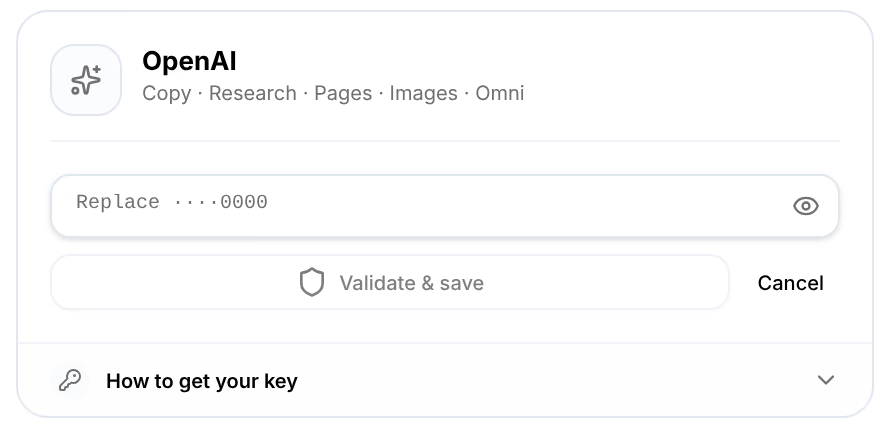
Paste the new key and press Validate & save
Omnymous checks the new key with the provider before it saves it. The old key stays until the new one is accepted; Cancel keeps it. If the provider does not answer, the card says Couldn’t reach OpenAI. Try again in a moment.: that says nothing about the key, which stays in the field for Try again.

A message in the corner confirms it, as OpenAI API key validated and saved for an OpenAI key, and the card shows the new key’s last four characters, Active.
To create the new key on the provider’s site, see Create a key and add it. Remove deletes a saved key: the features only it ran stop until you add one again.
A key the provider refused
When a provider refuses a saved key, for example because it was deleted or revoked on the provider’s site, Omnymous switches it off and says so on its card: Rejected, since when, and that runs that need it are paused. Details shows the provider’s own words.

- Check again asks the provider now. A provider having a bad minute refuses good keys too: if it accepts the key, OpenAI accepts this key again confirms it, and paused runs can start. If it does not answer at all, Couldn’t reach OpenAI to check the key leaves the key as it was: try again in a moment.
- If it still refuses, replace the key with a new one, as above.
A refusal is announced once, in the corner, as OpenAI rejected your key. A key that runs out of credit is not refused: the provider’s error shows on the run instead. See Generation failed.
AI usage

AI usage estimates what your keys spent this month, from each provider’s published prices: the total, then By model and By type, each with its tokens, images and calls. The arrows beside the month step back through earlier months. The providers bill you for it; Omnymous never does.
Omnymous also runs some AI for your creatives on its own keys: the card ends with what that cost this month, included and not charged.
The sidebar’s Usage, under the sections, shows the same month’s spend at a glance.
Related
- Add your AI keysAdd a key from OpenAI, Anthropic or Google to finish setup, see what each key runs, and add or change keys later in AI & Agents.
- Connect your AI agentsMint an agent key, connect Claude Code, Claude Desktop, Cursor or any MCP client to your workspace through the Omnymous MCP, and revoke a key.