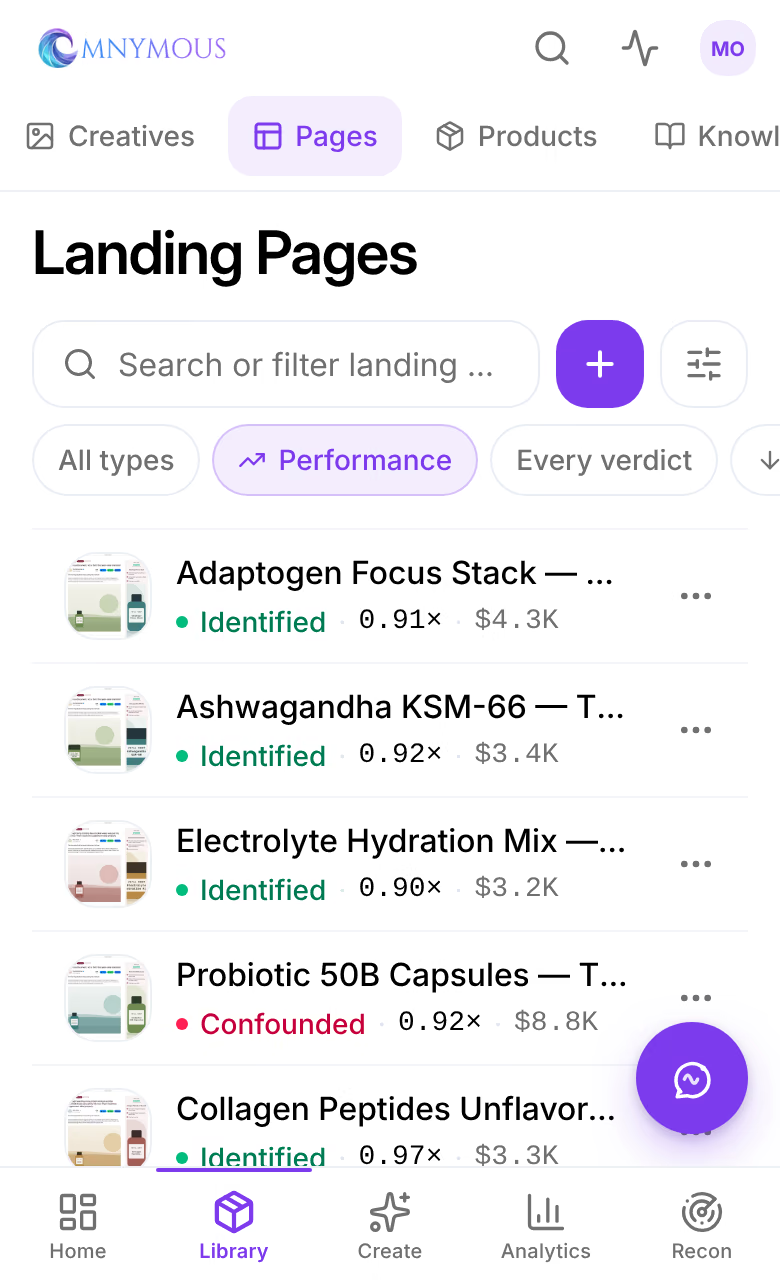
Assets
Assets are your finished work, the ad creatives, images and videos, and the pages your ads send buyers to, each with what it was made from and what it earned.

Assets holds what your buyers see: the creatives your ads run, and the pages those ads send buyers to. Each one keeps the pieces it was built from, so once it runs, its results reach them too. Open it from the sidebar, under Library; Creatives and Pages, at the top right, switch between the two.
What you can do here
- The item panelEvery Library item opens in the same panel, which says what the item is, how it performs, what you can do with it, how it was made and what it is made of.
- Edit a page in Page StudioChange a page Studio made, by typing on it, by asking the AI or in its design, and keep every change as a version you can go back to.
- Publish a page to ShopifyPut a page on your Shopify store as a private draft, check it, make it live at its own address, publish later changes, and take it down.
- Search and foldersEvery Library page shares one toolbar, to search and filter its items, sort them, read how they perform, and keep them in folders.
Creatives
A creative is an image or a video. Item Types narrows the cards to one of them.
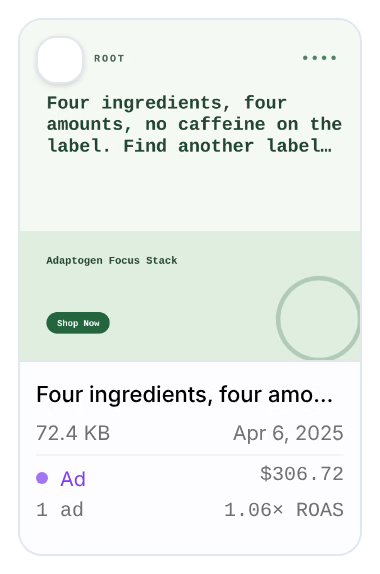
The card shows the creative, its name, its size and its date. With Performance on, it reads Ad, with the spend it carried, how many of your ads ran it and their return on that spend, or Untested if none has.
Creatives arrive three ways:
- Generated in Studio, from your products, angles, hooks and offers. Generate opens Studio. See Generate your first content.
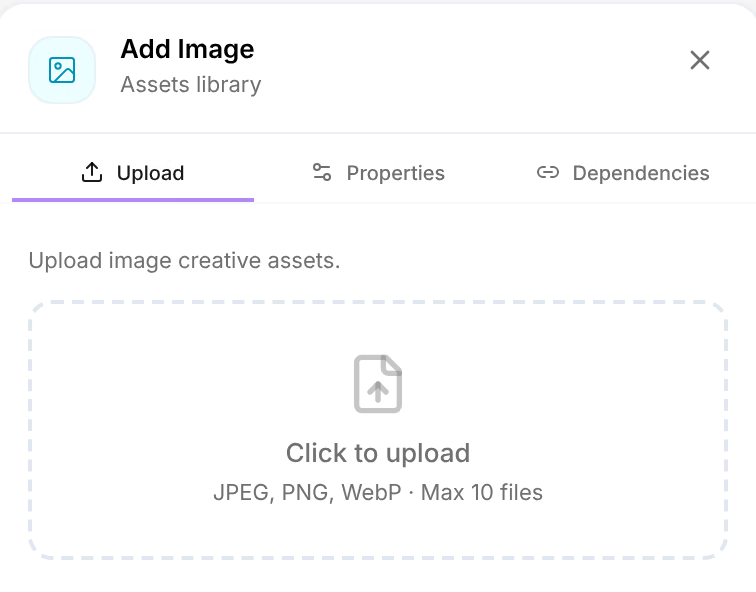
- Uploaded with Add: images in JPEG, PNG or WebP, up to 10 at a time; videos in MP4, MOV, AVI or WebM, up to 5. Under Dependencies, link the copy, the offer and the actor you made it with, so its results reach them.
- Observed: the creatives of the ads you already run, read from your ad accounts. A video you re-cut or translated stays one creative, and its panel lists the versions under Cuts: see Cuts.
Pages
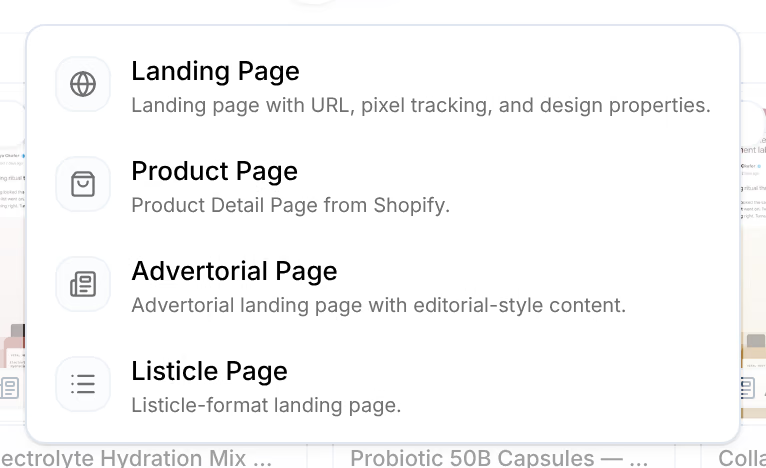
Pages are where your ads send buyers: Landing Page, Product Page, Advertorial Page and Listicle Page. Each card is a picture of the page as it renders, with its type.

Studio makes a page on one of its templates, from page copy and an offer, and it lands here. Import, with the Shopify mark, adds a page made elsewhere: choose its type, then the page from those published on your Shopify store, and link it to its copy and its offer. A Product Page is added from screenshots or media of it instead, linked to the product it sells.
Open a page and press Page Studio to change it, or publish it to your store. See Edit a page and Publish a page.
On a phone
Assets is a list, with Creatives and Pages among the tabs under the screen's name. Each row shows the creative or the page, its verdict, its effect and its spend.