
Install Omnymous on your phone
Add Omnymous to your phone’s home screen from the browser, so it opens full screen with its own icon, and what its phone layout gives you.

Omnymous runs in your phone’s browser, and installs from it: there is nothing to download from an app store. Installed, it opens full screen from its own icon, straight into your Dashboard.
Before you start
- On an iPhone or an iPad, Safari. Only Safari can add an app to the Home Screen there.
- On Android, Chrome, Edge, Samsung Internet or Firefox.
- Sign in to Omnymous in that browser first.
Install it
- In Safari, tap the Share button at the bottom of the screen: the square with an arrow coming out of it.
- Scroll the list and tap Add to Home Screen.
- Tap Add.
In Chrome, Firefox or Edge on an iPhone, first tap the share or menu button and choose Open in Safari.
Omnymous offers the same steps itself. Keep Omnymous one tap away appears in the corner of most screens, with Install, or Show me how where the browser cannot install on its own; never while you work in Studio, the Launcher, the page editor or Omni. On a phone, your initials, at the top right, open a sheet whose Install the app row shows the steps for your browser.
Check that it worked
The Omnymous icon is on your home screen. Tapping it opens Omnymous full screen, without the browser’s address bar. The Install the app row then reads App installed.
What the phone layout gives you
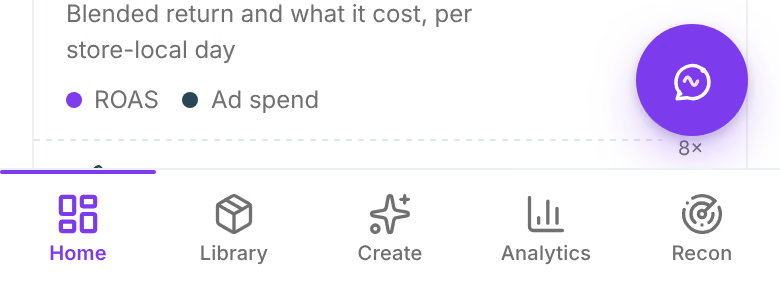
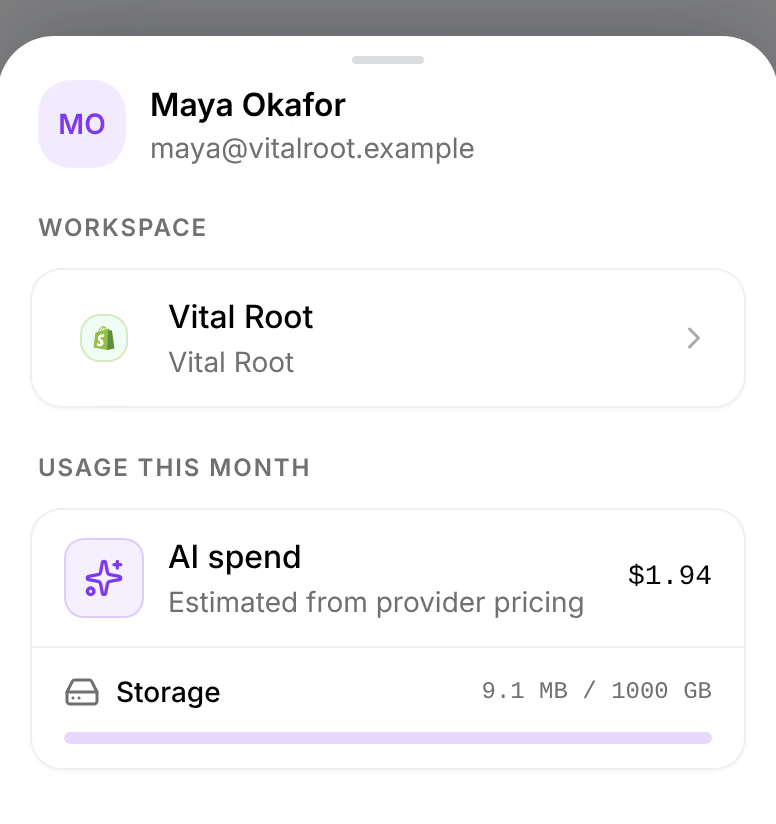
The sidebar becomes five tabs at the bottom of the screen: Home, Library, Create, Analytics and Recon, with Ask Omni above them on every screen. Your initials open the account sheet: the store switcher, this month’s usage, the settings, help and Log out. See On a phone.
Buttons and fields are sized for a thumb. The first-run tour runs on a computer only.
If something goes wrong
| What you see | What to do |
|---|---|
| No Add to Home Screen on an iPhone | You are not in Safari. Open the page in Safari, then try again. |
| The installed app asks you to sign in | Sign in once inside it. It keeps its own session from then on. |
| Keep Omnymous one tap away keeps coming back | Close it with its cross: it then stays away for two weeks. Left open and ignored, it comes back after three days. |
Related
- Find your way aroundThe frame around every screen of Omnymous, on a computer and on a phone: the sidebar, the store switcher, the top bar and your account menu.
- Profile and securityYour own settings under Account: photo and name, the email you sign in with, your password, and the devices signed in to your account.