
Publish a page to Shopify
Put a page on your Shopify store as a private draft, check it, make it live at its own address, publish later changes, and take it down.
A page you made in Studio goes on your store from Page Studio. Publishing puts it there as a private draft first, at the address it will keep; nothing is public until you make it live. Omnymous serves the page on your store's own domain, with its pixel in it, so every visit and order it brings is credited to it and to its pieces.
Before you start
- You are an owner, an admin or a member of the workspace.
- Your Shopify store is connected. See Connect your store.
- The page is open in Page Studio. See Edit a page.
Publish a draft
Choose the frame around the page
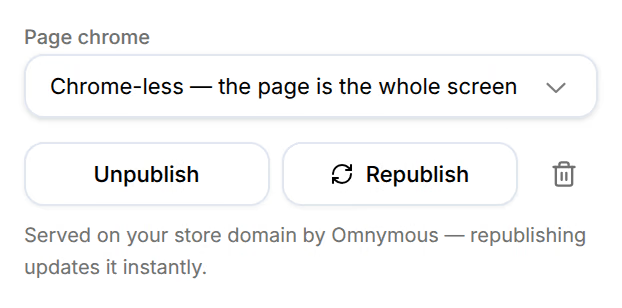
In the rail, under Page chrome, keep Chrome-less — the page is the whole screen, or choose Store header & footer around the page to show your theme's header and footer around it.
Read the pre-flight review
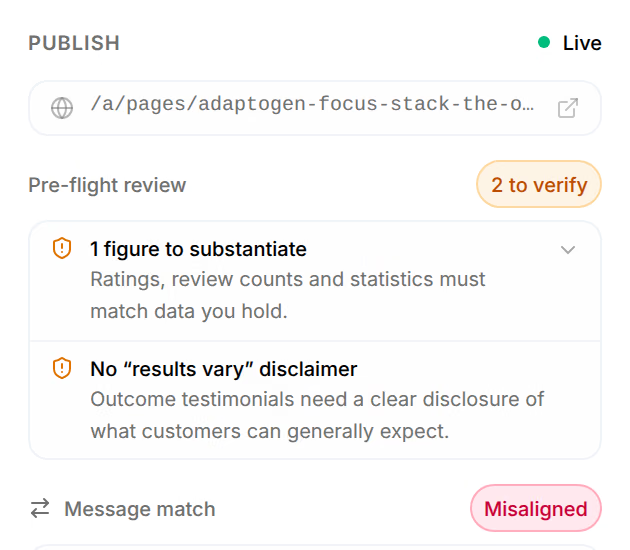
Pre-flight review lists what a buyer, or an ad platform, could hold against the page, such as a figure you must be able to back up. Press a finding to see the part of the page it is about.
Press Publish draft to Shopify
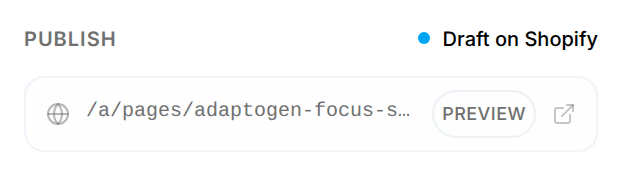
The status at the top of the rail turns to Draft on Shopify, and a message says what comes next: Draft published — open the preview link, then go live.
Open the preview
The page's address on your store sits under the status, marked Preview. It opens the draft through a private link, so you see it as buyers will, on your own domain.
Press Go live
The page is public at its address, and the status reads Live.
Check that it worked
The rail reads Live, and a message says Page is live. At its foot, Unpublish and Republish replace the publish button, over the line Served on your store domain by Omnymous — republishing updates it instantly. The address under the status opens the page as your buyers see it.
When the pre-flight review asks you to confirm
Most findings are for you to check, and none stops a draft: what the page claims is your call. A finding of high severity, such as a result stated as fact, asks you to stand behind it before the page goes live. When you press Go live, a window reads One claim needs your confirmation, or how many claims do, and quotes them. Tick I have reviewed these claims and they are true. and press Go live, or press Keep as draft. Republishing a live page asks the same, with Republish and Cancel.
Publish a change
After a page is published, every change you apply moves it past the published version. The rail marks it Stale and offers Republish latest content: the store keeps serving the version you published until you press it. Republishing updates the page in place, at the same address.
Take a page down
| Name | What it does |
|---|---|
| Unpublish | Takes a live page off the store. The status reads Unpublished, the page keeps its address, and Go live puts it back. |
| The bin | Takes the page down for good. Press it, then Confirm. The page stays in your Library, and can be published again as a new draft. |
Test a variant
Split test, in the rail of a published page, tests another version of it on the same address: New variant copies the page into a page of its own, which opens in its own Page Studio. Once it goes live there, visitors are split evenly between the live versions, each visitor always shown the same one, and the rail compares how each sells.
Message match
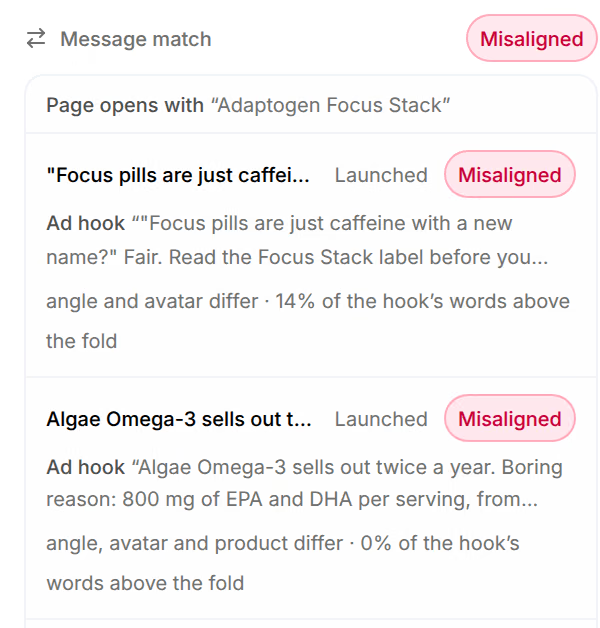
Message match lists the ads that send buyers to this page and whether the page argues what they promised: the same angle, avatar and product, and how many of the hook's words appear above the fold. A page that opens on a different promise than its ads loses the buyers those ads won.
If something goes wrong
| What you see | What to do |
|---|---|
| This store has no Shopify connection. | Connect it with Connect Shopify in the same line. |
| The Shopify connection is missing publish permissions | Press Reconnect to grant them, and approve the app again in Shopify. |
| Publish anyway instead of Publish draft to Shopify | The pre-flight found something the page still carries by accident, such as a template's sample words. Fix it, or publish the page as it is. |
| This page’s publish status didn’t load, so publishing is held until it does. | Press Try again. |
| Edited in Shopify beside the status | The page was changed in Shopify's theme editor. Republishing overwrites that change. |
Related
- Edit a page in Page StudioChange a page Studio made, by typing on it, by asking the AI or in its design, and keep every change as a version you can go back to.
- PagesPages follows your store's visits from arrival to purchase: in total, by channel, by page template and by the page they entered on.
- Pixel consentThe store setting that decides what the Omnymous pixel does before a visitor's own consent answer is known, and where it applies.