
Enter your costs
Add the costs Shopify does not know, such as shipping, packing and your monthly overheads, so the profit Omnymous shows is your real profit.

Omnymous reads your sales, refunds, payment fees and ad spend by itself, and your cost of goods from Shopify. What it cannot know is what shipping, packing and running the business cost you. Each of those is a cost rule. Until you add them, Net Profit reads higher than it is.
Before you start
- You are an owner, an admin or a member of the workspace. A viewer can read the costs but not change them.
- Have to hand what a shipment costs you, what packing and handling cost, and your fixed monthly costs: staff, rent, software.
- About ten minutes.
Open your costs
In the sidebar, under Analytics, choose Store, then Profit, then Costs beside the period. The Dashboard's Cost model shortcut opens the same screen.
On a phone, tap Analytics in the tabs at the bottom, then Profit at the top, then Costs beside the period. There the screen is called Cost model.
The summary at the top counts your rules, adds up your fixed costs per month, and adds up the costs you set as a share of revenue.

Under it, one card per kind of cost: COGS overrides, Variable costs, Shipping and Fixed costs. Each lists its rules and has a plus button to add one.
Add your shipping cost
Open a new shipping rule
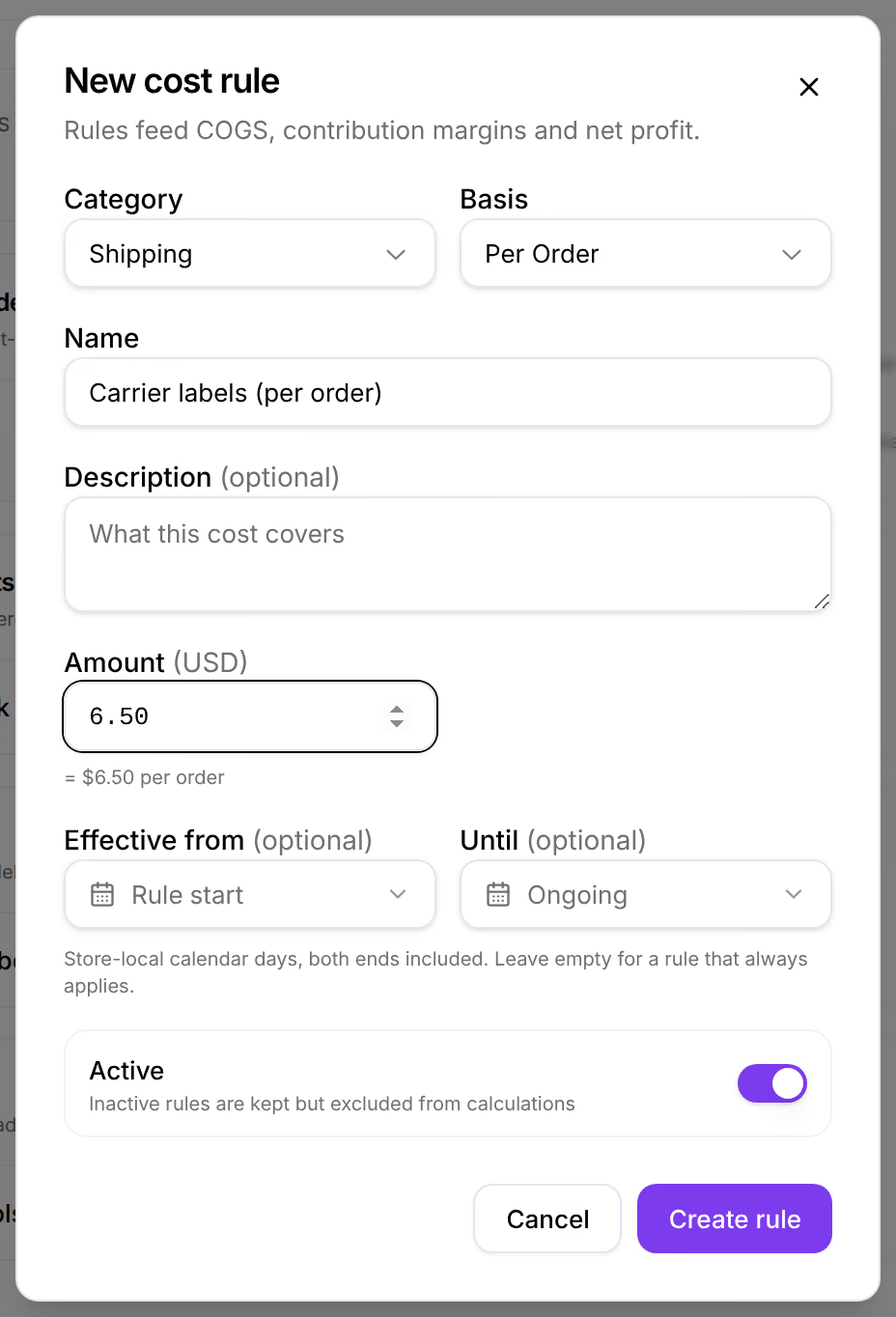
In the Shipping card, press the plus button. New cost rule opens with Shipping as its category.
Choose how the cost is counted
Under Basis, keep Per Order for a cost each order carries once, or choose Per Line Item for a cost per product in the box. Leave By Weight and By Quantity aside: they need weight or quantity brackets, which this screen cannot enter yet.
Name it and give its amount
Type a Name, then the Amount in your store's currency. The line under the amount repeats it in words, such as "= $6.50 per order".
Save it
Leave Effective from and Until empty for a cost that always applies, and Active on. Press Create rule.
Add packing and handling
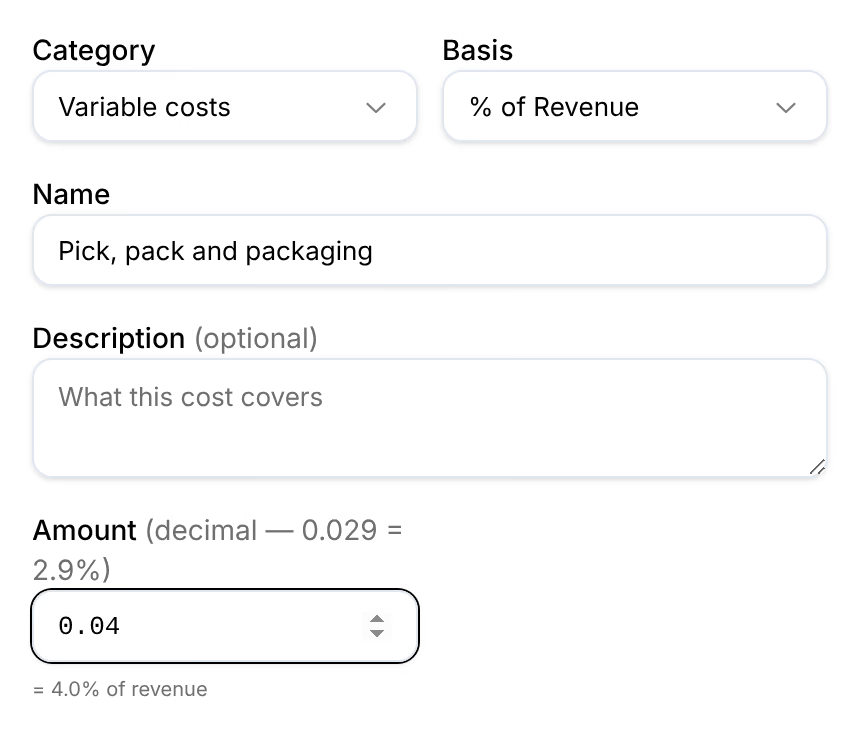
In the Variable costs card, press the plus button. Under Basis, choose Per Order for a fixed amount per order, or % of Revenue for a share of each order's revenue. Type a Name and the amount, then press Create rule.
A share is typed as a decimal: 0.04 for 4%. The line under the amount confirms it, "= 4.0% of revenue". Type 4 and the screen warns you that it would be 400%.
Do not add payment fees here: Omnymous already reads them from Shopify, and they would count twice.
Add your fixed costs
In the Fixed costs card, press the plus button. A fixed cost is always a monthly amount, Flat Monthly: type a Name and what you spend in a month on staff, rent and software, then press Create rule. Omnymous spreads it over the days, so a 30-day period carries about one month of it.
Cover products with no cost in Shopify
Omnymous takes each product's cost of goods from the Cost per item you set on it in Shopify. For a product without one, it counts nothing, and its orders look more profitable than they are.
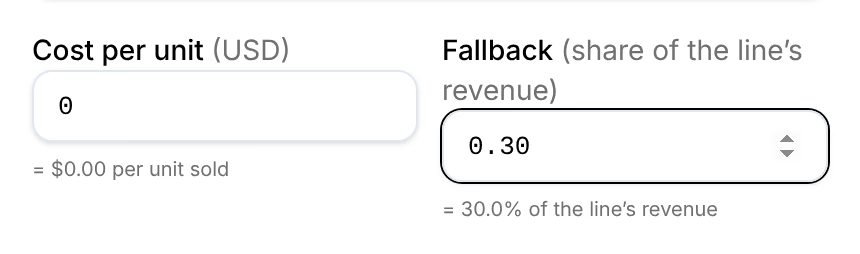
In the COGS overrides card, press the plus button. Type a Name, set Cost per unit to 0, and type the Fallback: the share of a line's revenue to count as its cost, as a decimal, such as 0.30 for 30%. Then press Create rule.
Check that it worked
"Cost rule created — margins recompute in a few minutes" appears at the bottom right of the screen, or at the top on a phone, and the rule is listed in its card with its basis and amount. A few minutes later, Profit shows it: its line in Profit & Loss, such as Shipping, and a lower Net Profit.

Each save starts a recalculation, but a rule saved while one is still running can be left out of it. If you save several rules in a row and a figure still leaves one out a few minutes after your last save, press Recalculate.
If something goes wrong
| What you see | What to do |
|---|---|
| No plus buttons on the cards | Your role is Viewer. Ask an owner or an admin of the workspace to change it, or to enter the costs. |
| "Percent bases take a decimal" under the amount | Type the share as a decimal: 0.04 for 4%. |
| "The rule ends before it starts." | Set Until to a day after Effective from, or clear one of them. |
| Create rule cannot be pressed | Fill in Name and the amount. |
| An error appears when you save a rule By Weight or By Quantity | These two need weight or quantity brackets, which this screen cannot enter yet. Use Per Order or Per Line Item. |
| Net Profit did not change | The recalculation takes a few minutes. Check that the rule is Active and that its dates cover the period you are looking at, then press Recalculate. |