Invite your media buyer
You’ve hired a freelance media buyer — call him Alex — to build and launch your campaigns. He should have the full creative toolkit, but never touch your subscription or your team. This playbook gets him working in about five minutes, with exactly the right access.
Before you start
- You’re the owner or an admin of your workspace — only they can invite people. (Team and roles)
1. Pick the role by the job
Everyone you invite gets one role. Match it to what the person actually does:
| The hire | Give them | Because |
|---|---|---|
| A media buyer who builds and launches campaigns | Member | The whole creative surface — library, generations, campaigns, launches — and nothing administrative. |
| An agency lead running your entire marketing | Admin | Manages the team, integrations, and access keys — everything except billing. |
| An accountant or investor who only reads the numbers | Viewer | Read-only across content, campaigns, and analytics. |
| You, and anyone you trust with the account itself | Owner | Full control, including billing and every member. |
Alex needs to create and launch — but should never see your billing or reshuffle the team — so Member is exactly right. For the complete breakdown of what each role can do, see Team and roles.
2. Send the invitation
- Open Organization in your account settings.
- In Team Management, click Invite.
- Enter Alex’s Email Address, leave the Role on Member, and add a Personal Message (Optional) — it rides along in the invitation email.
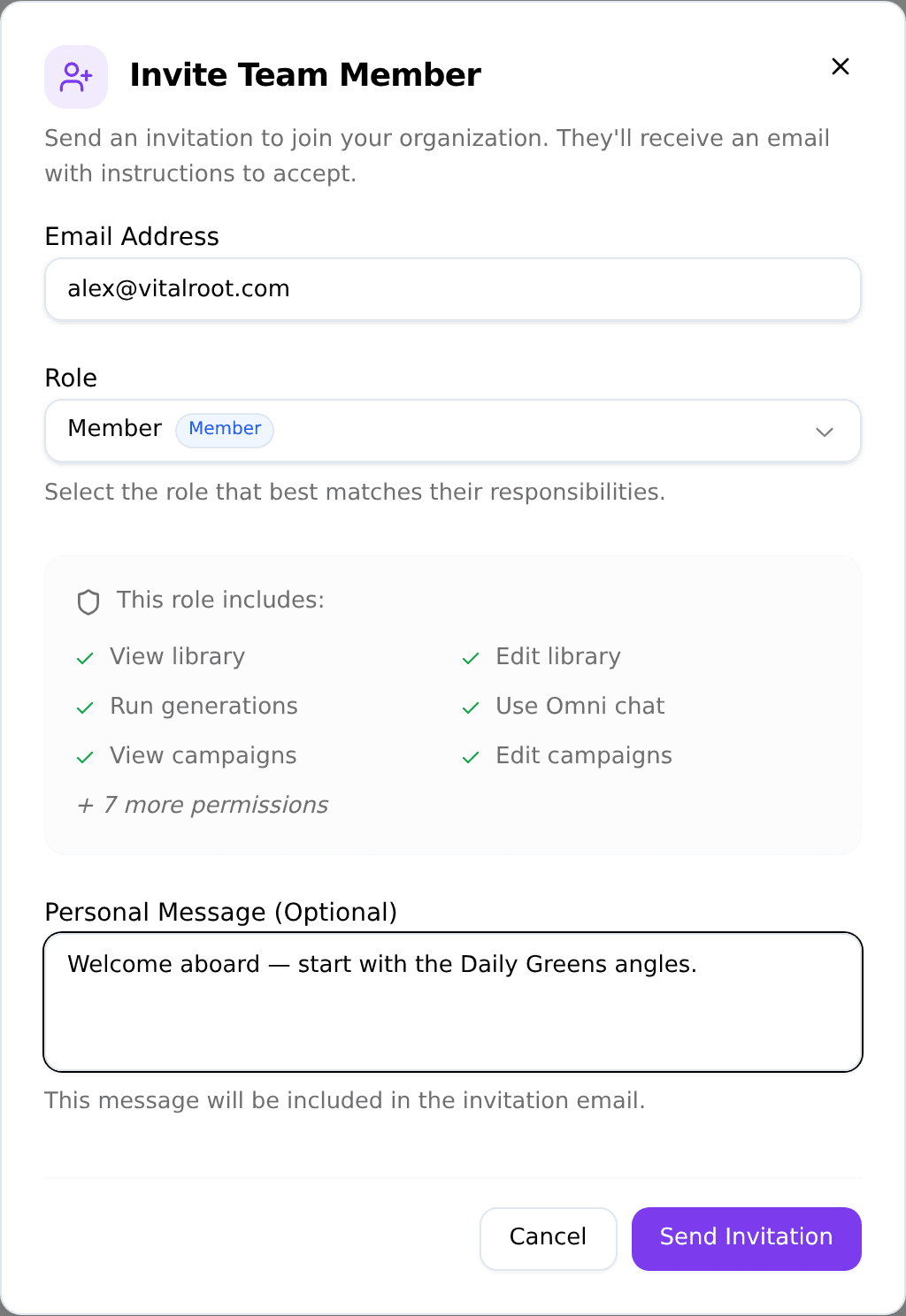
As you land on Member, This role includes: previews exactly what Alex will be able to do — View library, Edit library, Run generations, Use Omni chat, View campaigns, Edit campaigns, and more. Confident it’s right? Click Send Invitation.
3. What Alex sees
Alex gets an email inviting him to your workspace. Opening it takes him to the invitation page, which names the workspace (Vital Root), his role (Member), and what that role can do:
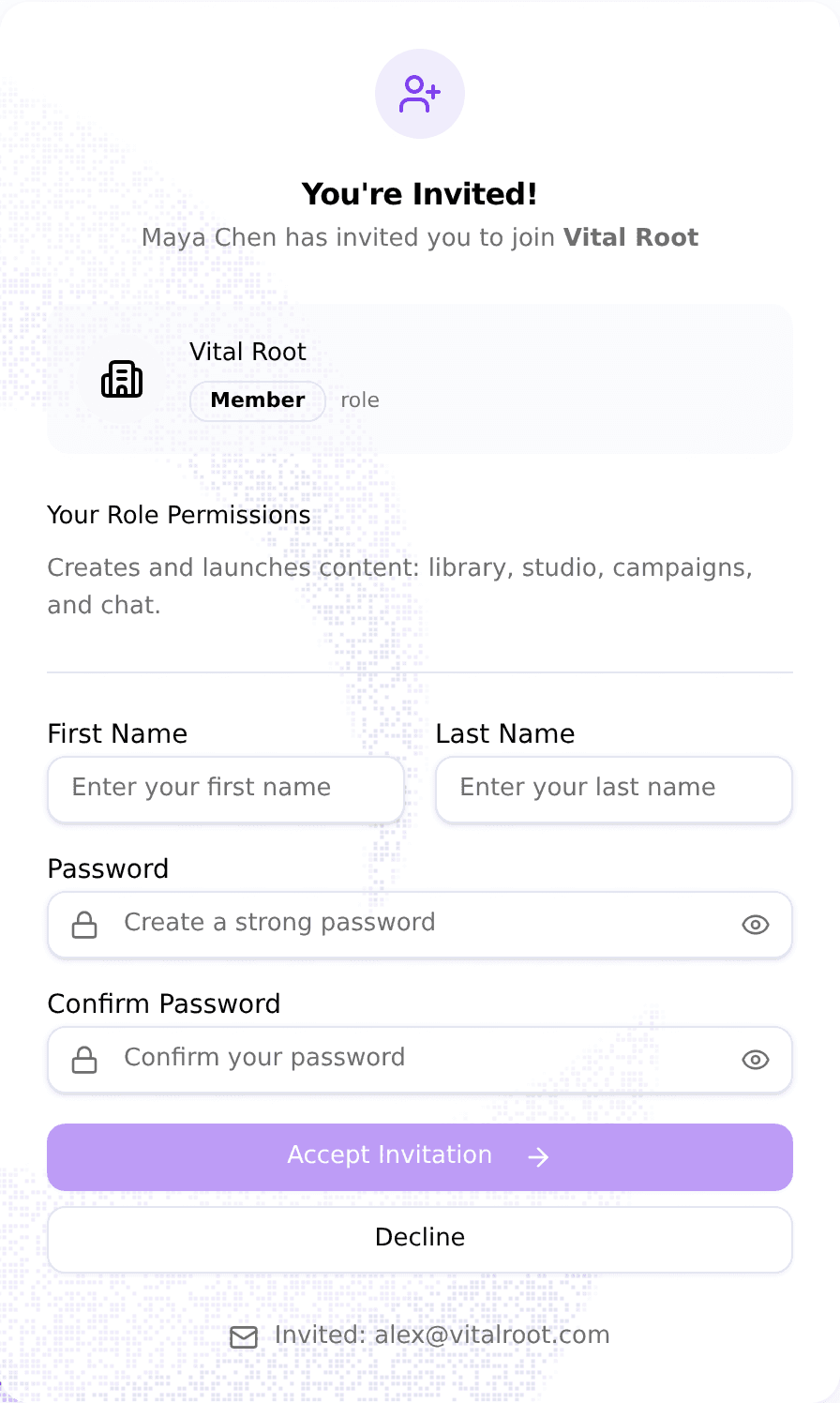
Because Alex is new to Omnymous, he sets a First Name, Last Name, and password right there and clicks Accept Invitation — no separate signup. He lands straight in your workspace.
Already have an Omnymous account, Alex? The page shows Log In to Accept instead — he signs in and he’s in, no new password needed.
4. Check what he can — and can’t — do
Signed in as Alex, the boundary is clear. His sidebar is complete — Products, Studio, Launcher, Campaigns, everything — so he can build library items, run generations, and launch campaigns. But his account settings stop at the creative work:
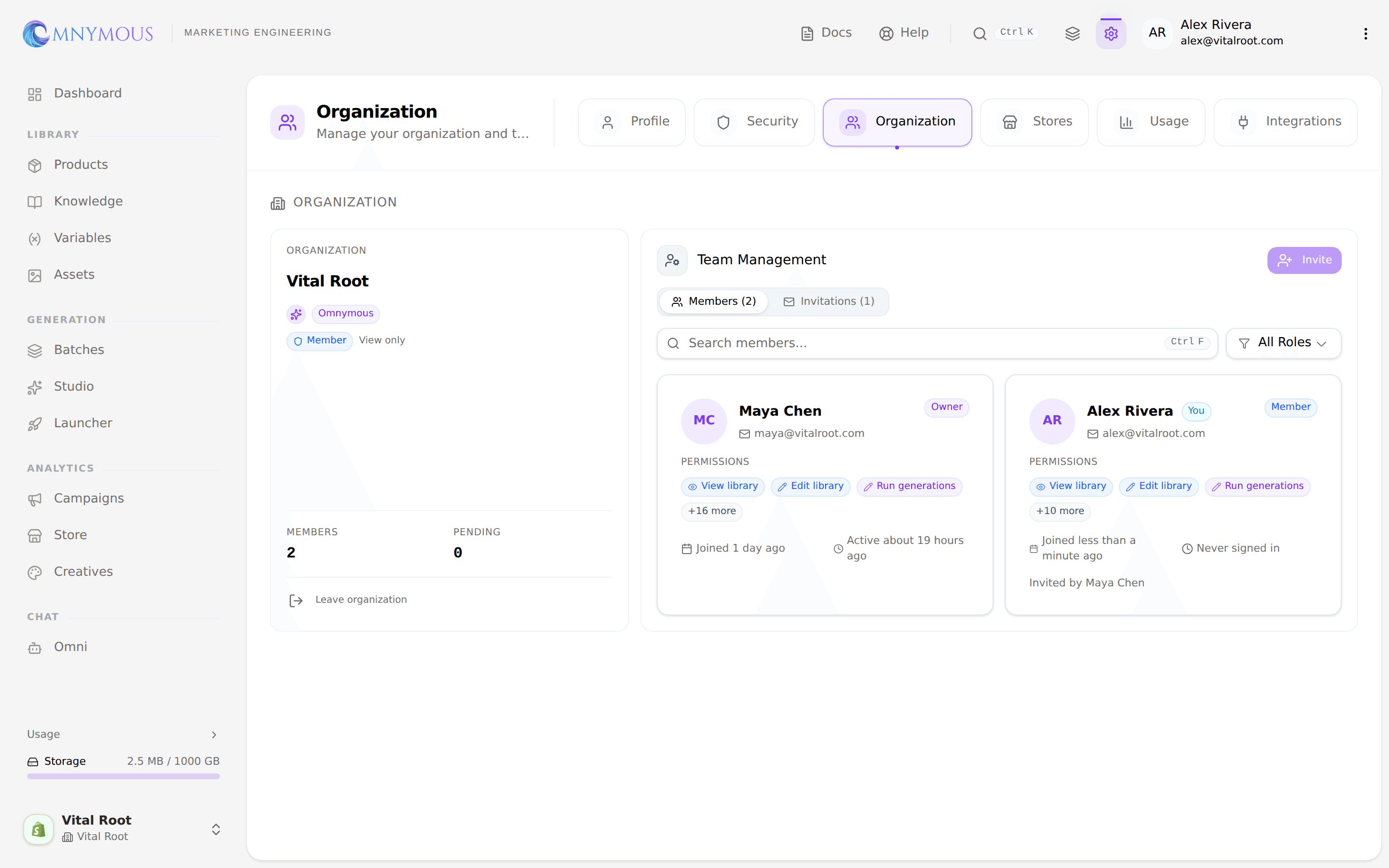
- His settings tabs skip Billing and Agents entirely — those stay owner- and admin-only.
- On the workspace card his access reads View only, and the Invite button is greyed out — he can see the team, but can’t invite anyone or change roles.
That’s the whole point of Member: full creative power, zero administrative reach.
What happens next
Alex shows up in Members immediately, tagged with his role:
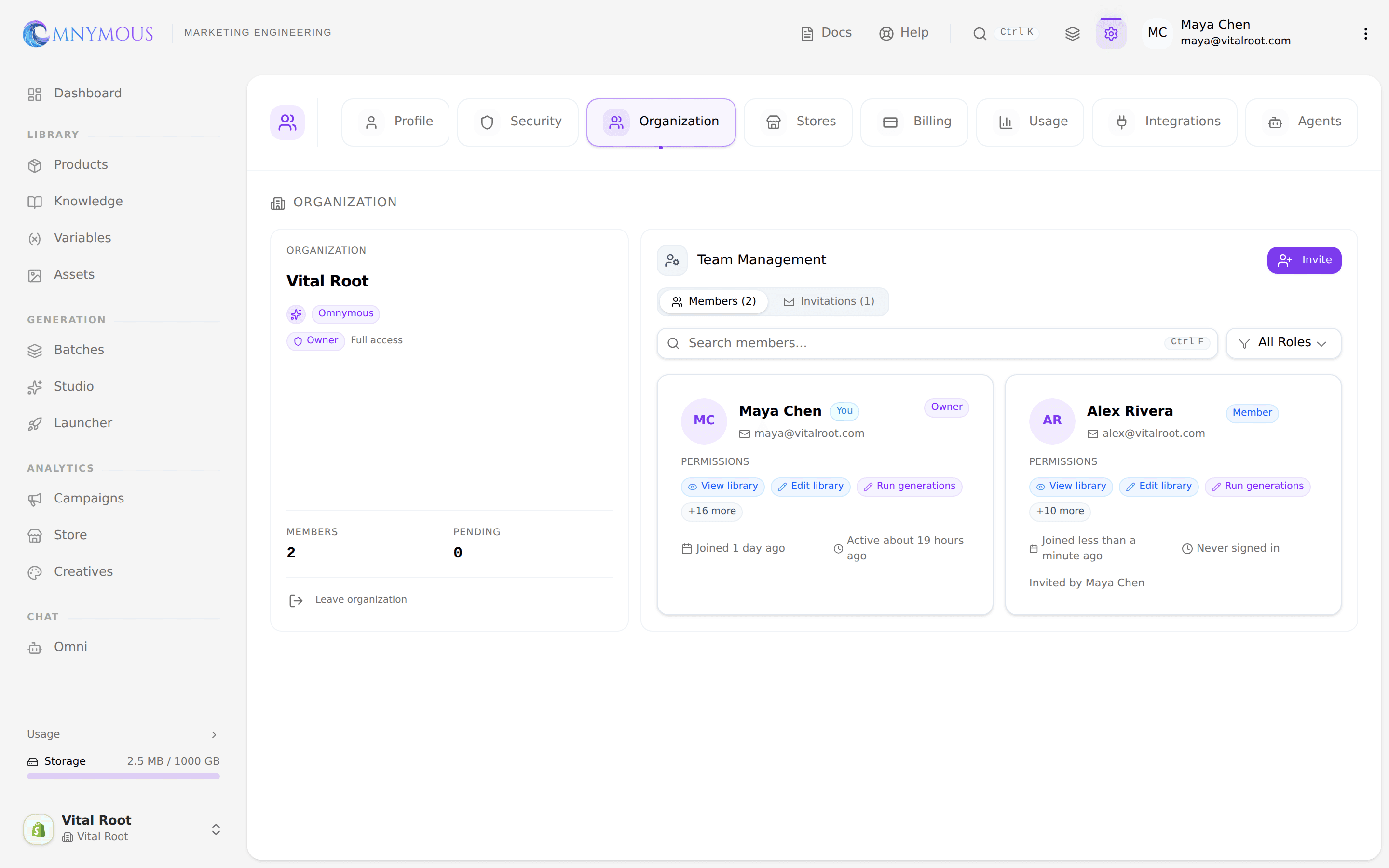
From here on, everything Alex creates — library items, generations, launched campaigns — lands in the shared workspace under his name, so you always know who made what.
Later: growing his role, or ending the engagement
When Alex’s remit grows, hover his card, open the menu, and choose Change Role to promote him. When the engagement ends, open that same menu and choose Remove Member — it revokes his access to the workspace and everything in it.
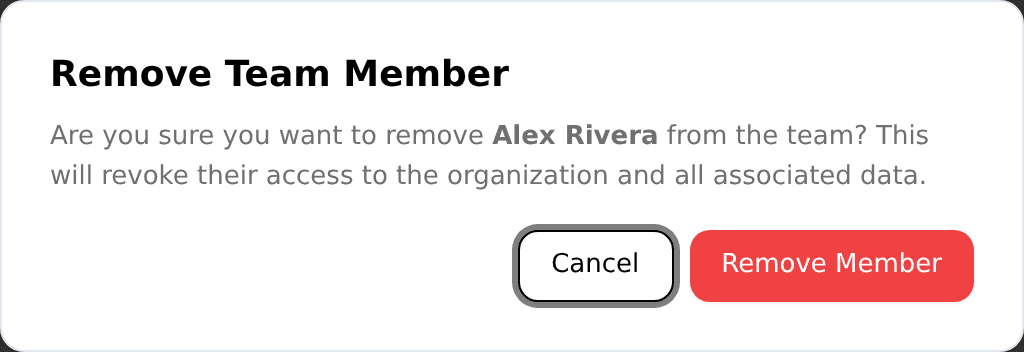
If you ever promoted Alex to admin and he set up any agent keys — the keys that let AI tools work in your workspace — revoke those from Agent Access as well. The full mechanics of changing roles and removing people live in Team and roles.
Troubleshooting
Alex never got the email. Ask him to check his spam folder, then resend it from the Invitations tab. If the address is misspelled, cancel that invitation and send a fresh one — see Team and roles.
I don’t see an Invite button, or it’s greyed out. Only owners and admins can invite. If you’re a member, ask an owner to send the invitation.
I picked the wrong role. No need to start over — open the member’s menu and choose Change Role to fix it.
Onboarding a whole team at once? You can invite people during initial setup, too — see the team step in Set up your workspace.