Track every generation in Batches
Batches lists every generation run — the ones in flight and the ones already finished — and is where you open a run to watch it, read it, curate it, or act on it. For a first run followed end to end, see Generate your first content.
The list
Open Batches. Each row is one run.
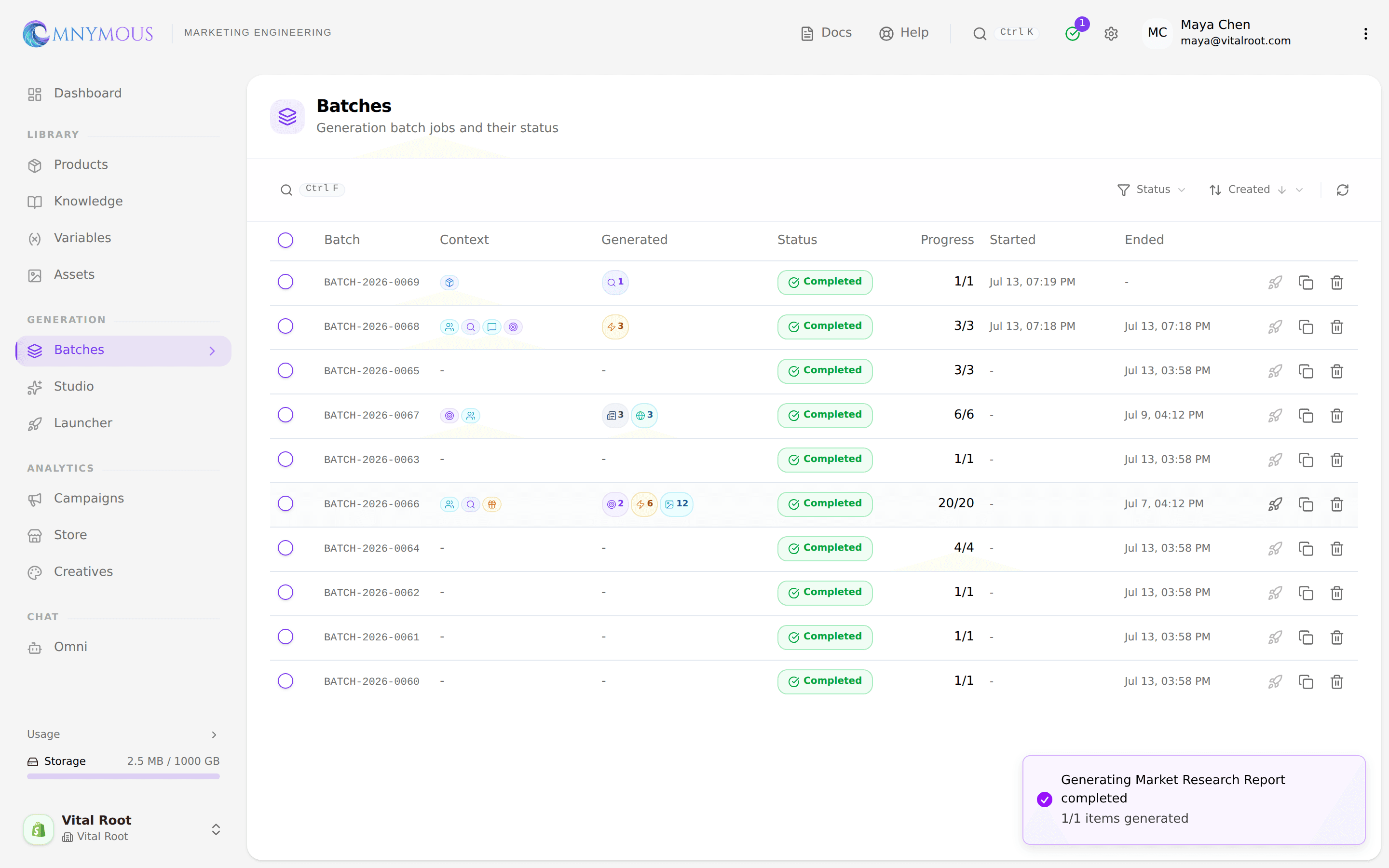
The columns:
- Batch — the run’s code (for example BATCH-2026-0068).
- Context — the kinds of ingredient the run drew on.
- Generated — what it produced, and how many of each.
- Status — one of Pending, Processing, Completed, Failed, Cancelled or Partial.
- Progress — items finished out of the total (and how many failed or were skipped).
- Started and Ended — when the run began and finished.
Running batches update live — a Processing row fills in as its items complete, with no need to refresh.
Find a batch
Search the list by filter. Type a key:value filter into the search box (the placeholder lists the common ones): status:, type:, produced:, uses:, campaign:. Combine filters with a space and they all have to match.
Every batch has two sides — a context (what it drew on) and a generation (what it made) — and you can filter either:
status:— the run’s status. Typestatus:processingto see only the runs still working.type:— a kind of item in the output (what was generated).context:— a kind of item in the input (what it drew on).produced:— the item ID of something a run created. Handy for tracing a piece of content back to its run.uses:— the item ID of something a run built from. Typeuses:followed by an avatar’s ID to find every run built on that avatar.campaign:— runs whose creatives ended up in a given campaign.
Watch a run
A run appears here the moment you start it in Studio and comes alive as it works:
Click any row to open it. Every run shows its items moving through their lifecycle — Queued, then Reading context, Generating, and Saving — and each kind of run has a workspace built for it.
Research runs — the theater, then the reading room
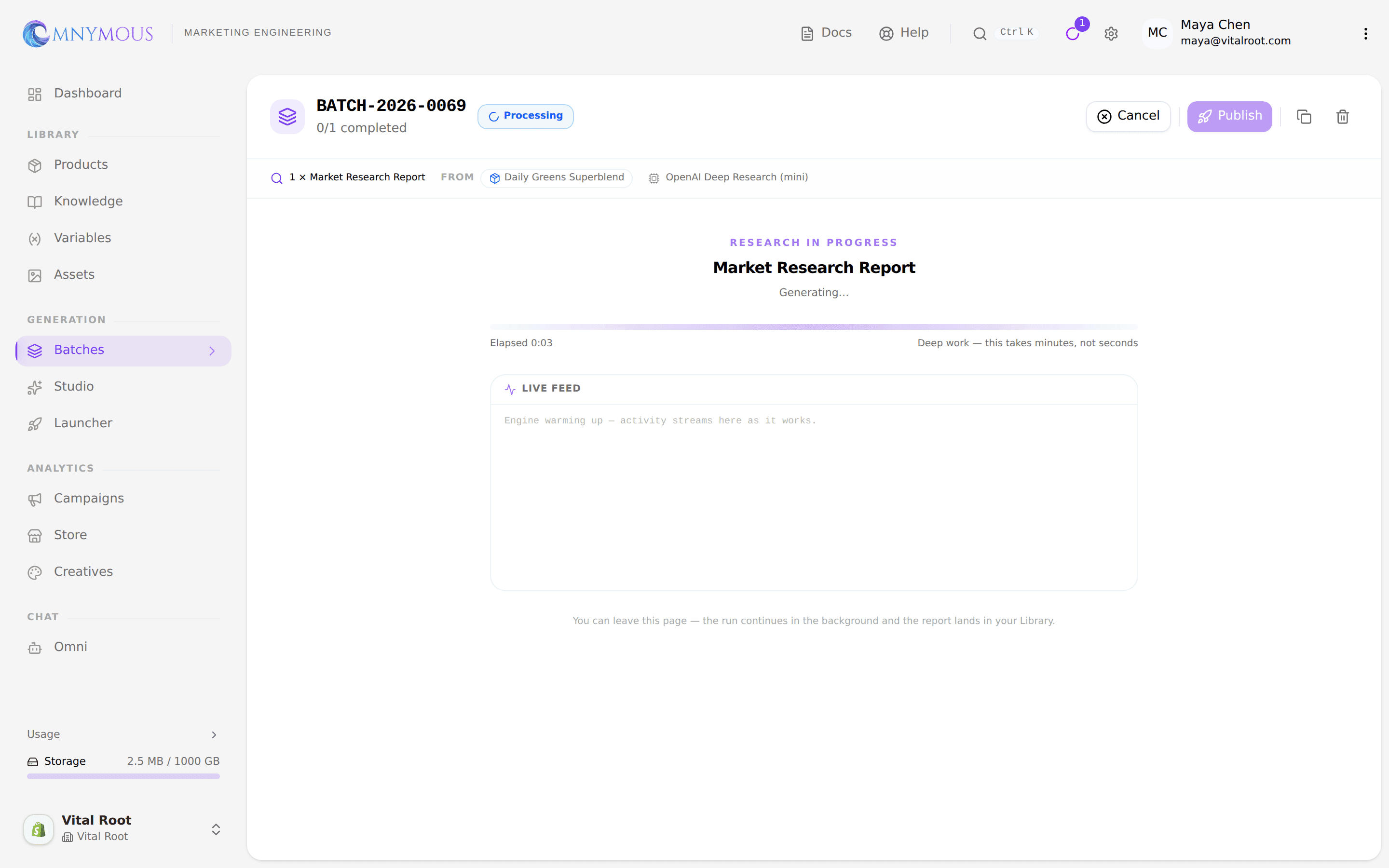
While a report runs, the page is a research theater: named stages, a Live feed of the actual work as it happens, elapsed time and an honest estimate. Research is deep work — “this takes minutes, not seconds” — and “You can leave this page — the run continues in the background and the report lands in your Library.”
When it lands, the same page becomes a reading room: the report as a clean document, with a section index (On this page), an Edit and a Refine with AI on every section, a restorable version History, and Open in Library.
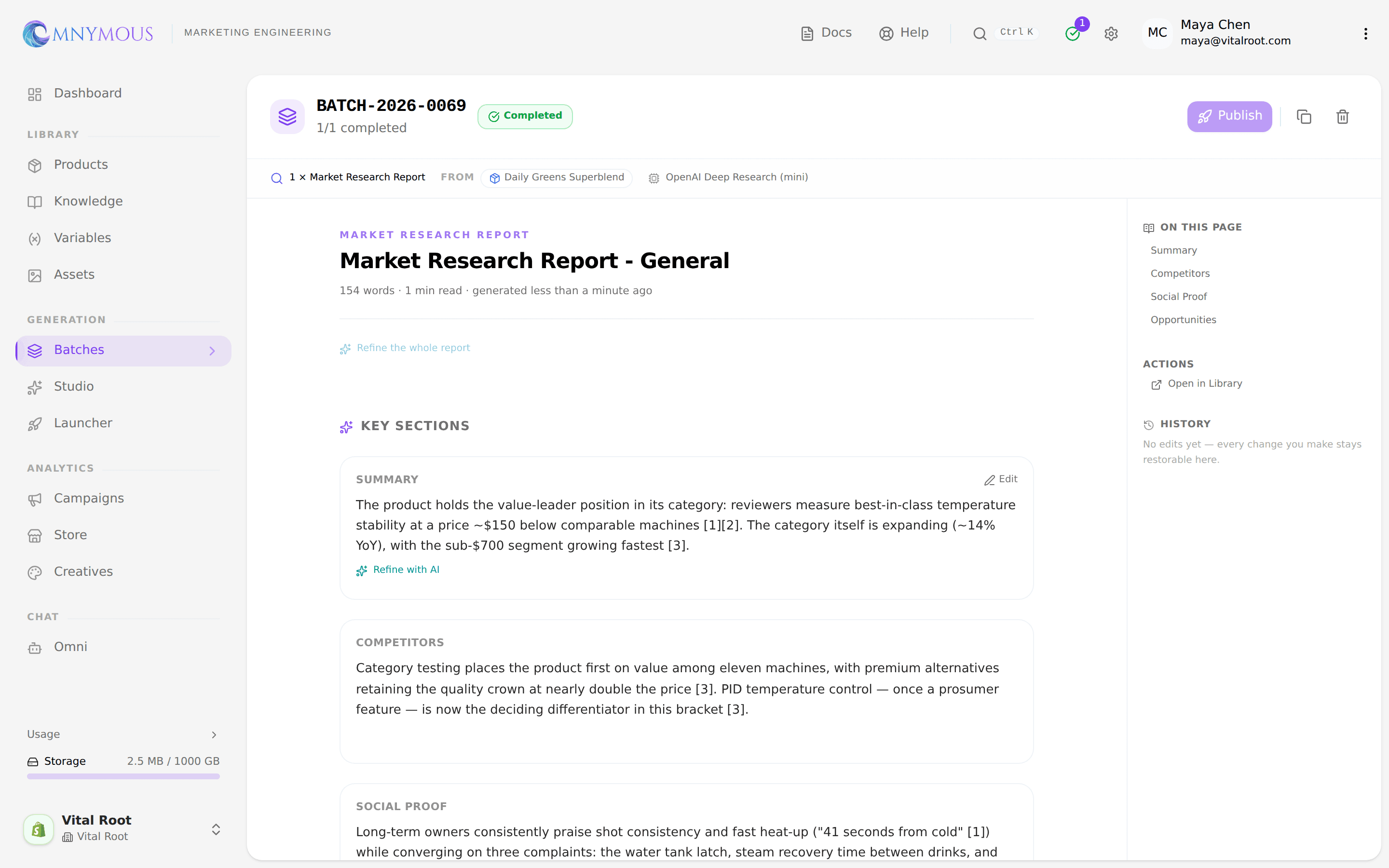
Image runs — the curation gallery
An image run is a curation gallery: the selected variation owns the stage, the rest sit in a filmstrip below, and each renders live as it’s created. Once a variation is ready, the right rail is a full editor.
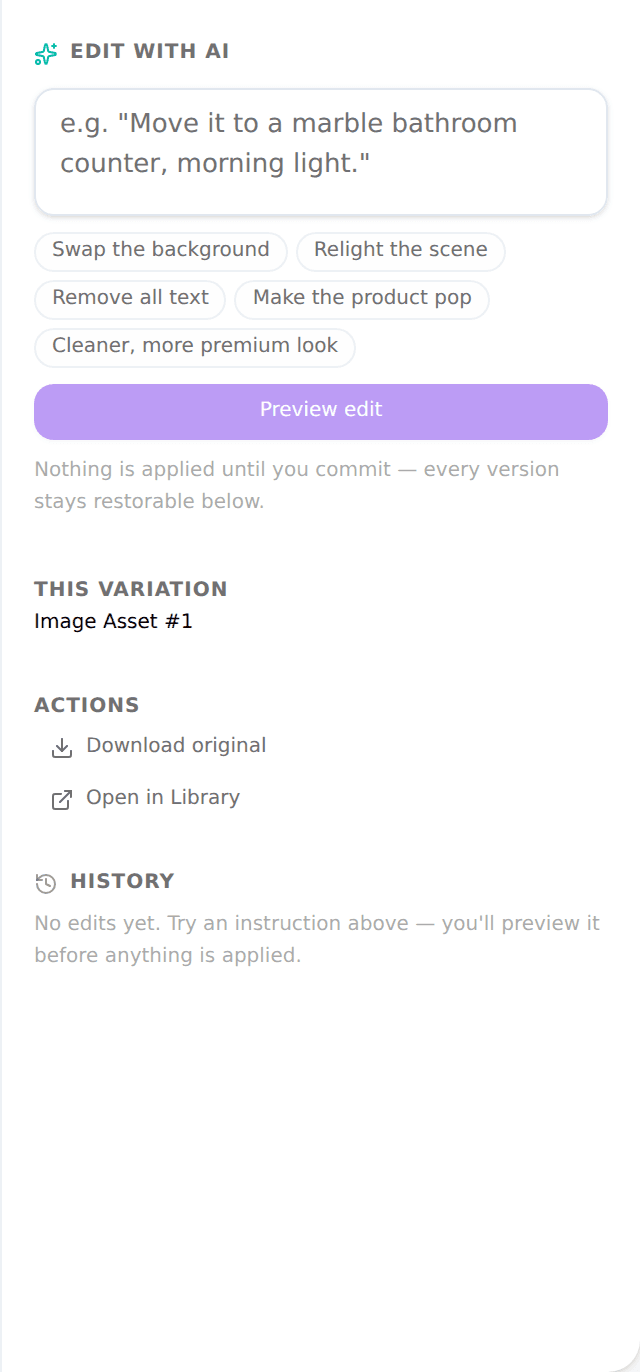
- Edit with AI — describe a change, or tap a quick action like Make the product pop or Swap the background.
- Preview edit renders a candidate you can flip before/after to compare, then Apply or Discard — “Nothing is applied until you commit — every version stays restorable below.”
- Download original saves the image, and every edit is kept in the restorable History.
Page runs — the build, then the editor
A page run shows the chosen template’s sections filling in as the page is built, then the finished page opens right there in the editor — preview, section edits and one-click publishing included. See Page Editor.
Copy runs — results on the canvas
Avatars, angles, hooks and other copy finish on the same canvas you configured, each new item shown as a card traced back to the ingredients it came from. Every one is saved to your Library.

Act on a batch
-
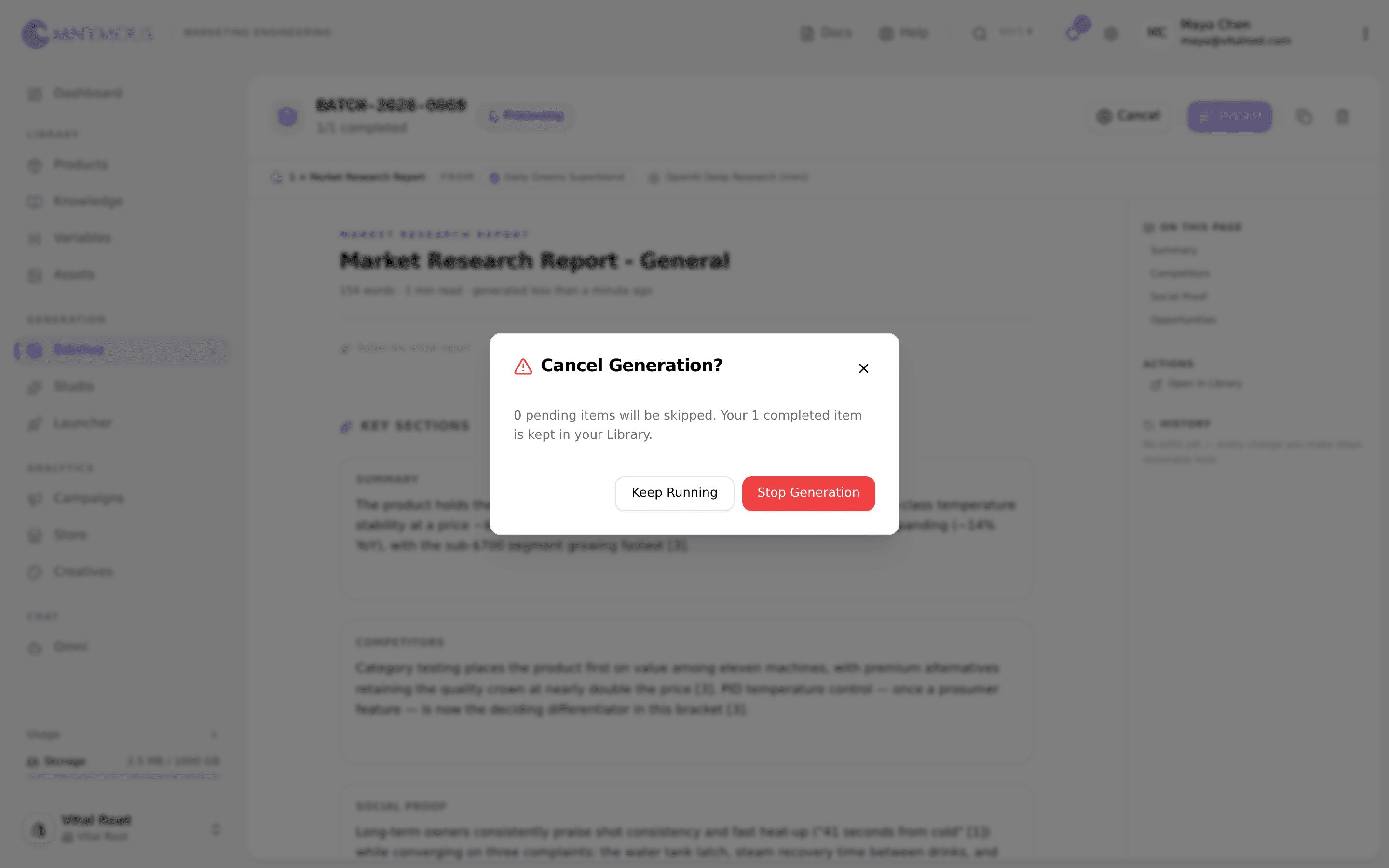
Cancel a run in progress. The dialog is honest about what happens: items already generating finish and are saved, pending items are skipped, and anything already completed is kept in your Library. Choose Stop Generation to confirm, or Keep Running to leave it be.
-
Retry a failed item from inside the run — it reruns just that one.
-
Publish (the rocket) sends an image run’s creatives to the Launcher to build ads from them.
-
Delete a batch you no longer need.
Deleting a batch can also remove the items it created if you confirm it. Anything you’ve already used elsewhere stays put.
Where the results live
Everything a run makes is saved to your Library, filed under its type — reports and reviews under Knowledge, avatars and angles and copy under Variables, images and pages under Assets. The batch is the record of how it was made; the Library is where it lives.
Troubleshooting
A batch is stuck on Pending. Runs are worked one after another, so a new one waits its turn behind anything already going. Give it a minute — it starts on its own.
Some items Failed. Open the run and press Retry this item on each failed card. If the cause is a missing AI key, you’ll see the key message — add one under Usage & AI keys and retry.
Publish is greyed out. Only completed image runs can be published — those are the ones with ad creatives to send. Hover the button to see the reason (for example, “Batch has no ad creative assets to publish”).